Vehicle detail
Every part of a vehicle's page — the status menu, header actions, and the General, Inspections, Mileage & costs, Time clock history and Usage tabs with their cards and dialogs.
On this page
A vehicle's page shows what it is doing now, who drives it, its service and documents, its defects and what it costs to run. Open it by clicking a vehicle on Fleet. You need permission to view the fleet; changes need permission to edit the fleet, and deleting needs permission to delete vehicles.
At a glance
| Area | What it shows / does |
|---|---|
| Header | Vehicle ID, the status badge (a menu for editors), an In use by badge while a driver holds the vehicle, nickname, make and model, registration, and the actions. From tablet width up the header and the tab bar stay stuck under the top bar while you scroll. |
| Status note | Why the vehicle is off the road and when it is expected back |
| General tab | Current route, vehicle details, photos, maintenance, documents, drivers, availability, load, notes, activity |
| Inspections tab | Open defects from the pre-shift check and the inspection history |
| Mileage & costs tab | Running costs, the odometer log and expenses |
| Time clock history tab | Who drove it, when and how far |
| Usage tab | Who holds the vehicle now and every hold from pick to release |
The open tab is kept in the link (?tab=running).
Header
The status menu
For users who can edit the fleet, the status badge opens a menu with In service, In maintenance and Out of service.
- In service puts the vehicle back on the road at once (with Undo).
- In maintenance or Out of service opens a dialog: enter a Reason (or click a common one: Scheduled service, Brake repair, Tyres, Inspection, Body repair; or Accident, Awaiting parts, Sold or retired, Insurance or registration lapsed), an optional Expected back date, then Put in maintenance / Take out of service. The vehicle is flagged unavailable in the fleet list and the route planner.
While it is off the road a note under the header says since when and why, and turns red when the Expected back date has passed.
Actions
| Action | What it does | Who sees it |
|---|---|---|
| Assign route | Starts a new route in the Route Planner with this vehicle | Can create routes; active vehicles |
| Edit vehicle / Complete draft | Opens the vehicle form | Can edit the fleet |
| ⋯ → Assign driver / Change driver | Picks a driver (below) | Can edit the fleet |
| ⋯ → Unassign driver | Removes the driver; ready routes of this vehicle go back to planned until a driver is assigned | Can edit the fleet |
| ⋯ → Delete vehicle | Removes the vehicle, its maintenance history and documents | Can delete vehicles |
Assign driver: pick a driver (search by name) and click Assign driver. A vehicle can have several drivers; the first is the primary. With Only assigned vehicles this decides who may use the vehicle; with All company vehicles (see Fleet settings) it decides which vehicles the driver sees first. If another driver holds the vehicle right now, it is still assigned and becomes the driver's current vehicle once it is released. If the driver already drives another vehicle, Driver already assigned asks you to confirm with Reassign anyway; that clears their previous vehicle. A driver-owned vehicle can only be assigned to its owner: picking another driver shows "VAN-102 is Emma Collins's own vehicle. Only its owner can drive it."
The General tab
| Card | What it shows / does |
|---|---|
| Current assignment | Route, Origin, Destination, Next stop, ETA, a map of the stops and View full route. Off route: No active assignment with Assign route. |
| Vehicle information | Nickname, Type, Registration No., Make / Model, Year, Fuel type, Capacity, Owner, Home depot, Total distance, VIN, Engine No., Transmission, Emission, Dimensions, Body type, Cargo volume (with pallets), Refrigerated (with the temperature range) |
| Photos | Front, side, rear, interior and other shots; click one to enlarge. Empty: No photos yet. |
| Maintenance history | Service records and the service plan (below) |
| Compliance documents | Insurance, registration, inspection, permit and emissions documents (below) |
| Assigned drivers | The primary driver (Primary) with Phone, Email, Licence No. and Licence expiry, then Also assigned. Editors get Assign driver / Assign another driver. |
| Availability & status | Operational status, Availability (On assignment, Scheduled, Available, Unavailable), Vehicle health, Maintenance, Last updated |
| Capacity usage | On a route: Load against maximum weight, Volume usage and Stops remaining. Otherwise "No cargo on board". |
| Vehicle notes | Free notes (assignment, handling quirks, parking). Editors: Add / Edit; leave empty to clear. |
| Recent activity | Changes to the vehicle; View all / Show less |
Maintenance history
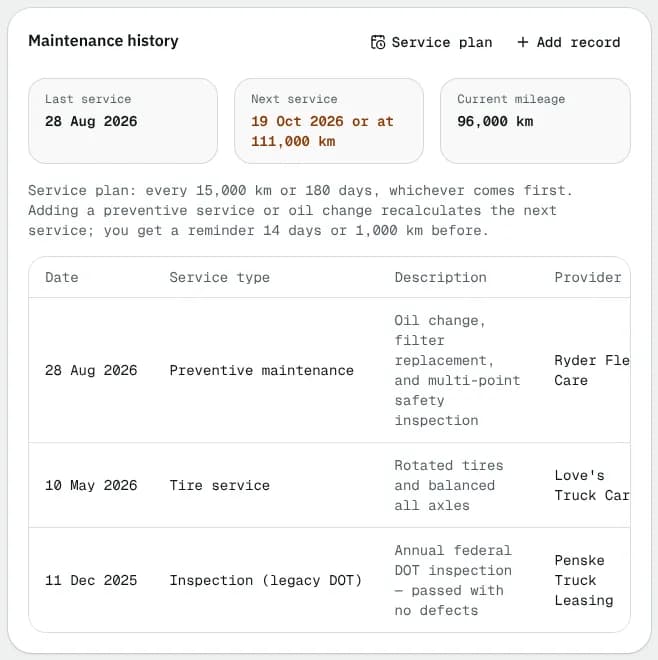
Tiles show Last service, Next service (date, or "or at" a mileage) and Current mileage. Under them, the service plan in words, or "No service plan".
- Service plan (editors): Every (km) and/or Every (days), whichever comes first; Save plan or Remove plan. The next service counts from the last preventive service or oil change, and you get a reminder 14 days or 1,000 km before.
- Add record (editors): Date (not in the future), Service type (your maintenance types from Fleet settings), Description, Provider, Mileage, optional Cost. Saving moves the odometer up to the record's mileage; a preventive service or oil change restarts the plan's countdown.
- The table lists Date, Service (the service type with its description underneath), Provider (under the description on narrow screens) and Mileage (on a phone the date and mileage sit above the service), with edit and delete buttons for editors.
Compliance documents
The current document of each kind, with Document, Document No., Issued on, Expiry date, Status and actions (on a phone the number and expiry show under the document). Show history adds older versions.
- Add document (editors): Document (Insurance, Registration, Inspection, Permit, Emissions), Document No. (generated when empty), Issued on (defaults to one year before expiry), Expiry date, and a File (PDF, PNG or JPG up to 10 MB).
- Each row's ⋯ menu holds its actions. On a current document, editors can Renew (new version) (adds a new version; the old one stays in the history), Edit (fix a typo, a date or the file) and, when it isn't valid and the vehicle has a driver, ask the driver for the renewal in the app (Ask the driver for the renewal, or Request from the owner driver on driver-owned vehicles).
- Download gets a document's file. Delete (delete rights) makes the previous document of that kind current again.
The Inspections tab
- Open defects: items a driver marked not OK in the pre-shift check, newest first. Failed items are also e-mailed to your company address. Editors click Sign off on a defect: describe What was done; keep Create a maintenance record ticked to log it with a Service type, Provider and Cost ($); then Book repair and sign off (or Sign off). Empty: No open defects.
- Inspection history: every pre-shift check on this vehicle (last 100): driver, time, the items not OK and who signed them off.
The checklist questions are set in Driver defaults.
The Mileage & costs tab
| Area | What it shows |
|---|---|
| Tiles (last 90 days) | Cost per km (your distance unit), Distance from shifts, Expenses (fuel, tolls, parking, repairs), Maintenance (from the maintenance history) |
| Odometer log | One row per shift: Date, Driver, Start, End, Distance from the readings drivers enter at clock-in and clock-out |
| Expenses | Date, Category, Note, Odometer, Amount |
Add expense (editors): Date, Category (Fuel, Toll, Parking, Repair, Other), Amount, optional Odometer, Litres (fuel only) and Note. Deleting an expense needs delete rights. Planned service work goes in the maintenance history instead.
The Time clock history tab
Pick 7 days, 30 days or 90 days.
- Tiles: Odometer now, Shifts (and how many are on shift now), Hours worked (breaks excluded), Distance (and per shift), Drivers (and who drove it most).
- Who drove it: Shifts, Hours and Distance per driver.
- Shifts: Driver, Clock in, Clock out, Odometer (start → end, with Start photo and End photo links when the driver took them), Worked, Breaks (the total; click it to open each break's type, start, end and length), Distance and Status (On shift, On break, Completed, Force ended with who ended it and why). A yellow +N unlogged badge means the odometer at clock-in is higher than at the previous clock-out: the vehicle moved with nobody on a shift. The period is 7 days, 30 days, 90 days or Custom (two dates); CSV exports every shift of the period. Who picked and released the vehicle is on the Usage tab.
Empty: No shifts in this period.
- Time history (below the shifts table): the same timeline as on the driver's page, for everyone who drove this vehicle, newest first: Clocked in, each break with its type, start and end place and length, Took vehicle (switch) / Left vehicle (switch), Clocked out (or Force-ended by … / Ended automatically), with Worked, Breaks, Paid and Odometer per shift. Places are the street and city (for example 123 King St W, Toronto) as a map link, or the coordinates when no street could be found; Location not recorded means the phone sent none. History from / History to set the dates (last 30 days by default, kept in the page link); CSV downloads one row per event. See See the full time history.
The Usage tab
Who holds the vehicle, and the history of every hold. A driver holds a vehicle from the moment they pick it in the driver app (or staff set it) until it is released; only one driver holds a vehicle at a time. How this works is explained in Share company vehicles between drivers. The open tab is kept in the link (?tab=usage).
Who holds it now
- In use by name with since and the time the driver picked it, or Free — no driver holds this vehicle.
- Release (editors, while a driver holds it) opens Release vehicle?; confirm with Release. The driver loses the vehicle and the hold is recorded as Released by staff. While the driver is clocked in on it you get an error instead: use Force end on the shift first (from the driver's Shifts & payouts tab).
Filters and stat cards
Pick 7 days, 30 days or 90 days, and filter by driver with All drivers. A period counts the sessions picked in it.
| Card | What it shows |
|---|---|
| Sessions | Holds picked in the period |
| Hours held | Pick to release, summed (an open hold counts up to now) |
| Hours on shift | Clocked-in time on this vehicle, breaks excluded |
| Distance | Odometer at release minus odometer at pick, in your distance unit |
The Drivers card
One row per driver who held the vehicle in the period.
| Column | Meaning |
|---|---|
| Driver | The driver |
| Sessions, Hours held, Hours on shift, Distance | Their totals, as in the stat cards |
| Last picked | When they last picked it |
The Sessions card
One row per hold, newest first, with paging.
| Column | Meaning |
|---|---|
| Driver | Who held it |
| Picked | When they picked it |
| Released | When it ended, or In use while it is still held |
| Reason | Released by driver, Switched vehicle, Clocked out, Released by staff, Reassigned, Unassigned, Driver inactive, Out of service, Access setting changed or Expired (idle) |
| Held | Hours from pick to release |
| On shift | Clocked-in hours on this vehicle, minus breaks |
| Odometer | Reading at pick and at release |
| Distance | Odometer at release minus odometer at pick |
Each tab shows a loading skeleton, an empty state and an error with a retry button.
Good to know
- Hours held can be much longer than Hours on shift: a driver may pick a vehicle the evening before, and a vehicle shared from the company pool is released automatically after 12 hours without a shift.
- A draft vehicle shows a Draft badge instead of the status menu and can't get a route until you complete it.
- Document reminders go out before expiry at the days set in Driver defaults.
Related
Related articles
- How-toManage vehiclesFind a vehicle, add one, assign its driver, see who is driving it and release it, take it out of service and keep its maintenance and documents up to date.
- ConceptShare company vehicles between driversChoose whether drivers pick only their assigned vehicles or any company vehicle, how the one-driver rule and releases work, and how to read the vehicle usage numbers.
- Page guideDriver defaultsEvery setting on Settings → Driver defaults — the default driver app permissions, the pre-shift vehicle check, required documents and expiry reminders, and depot loading — with their defaults and what each one changes.
- Page guideFleet settingsEvery list and setting on Settings → Fleet — vehicle classes, licence classes and presets, driver document kinds, maintenance types, route planning and driver vehicle access — with the Canadian defaults and where each one is used.
Still stuck?
Tell us what you were trying to do. A person reads every message.