Address book
The Address book page of the portal: search and filters, address cards and badges, favourites and defaults, the address form and importing a CSV.
On this page
Your company's saved pickup and delivery places. Favourites and recent addresses show first on the order form. Open Addresses in the top bar or Address book in your account menu. People who can place orders or manage the address book can see it; adding, changing and removing addresses needs Manage address book. For the task step by step, see Keep an address book.
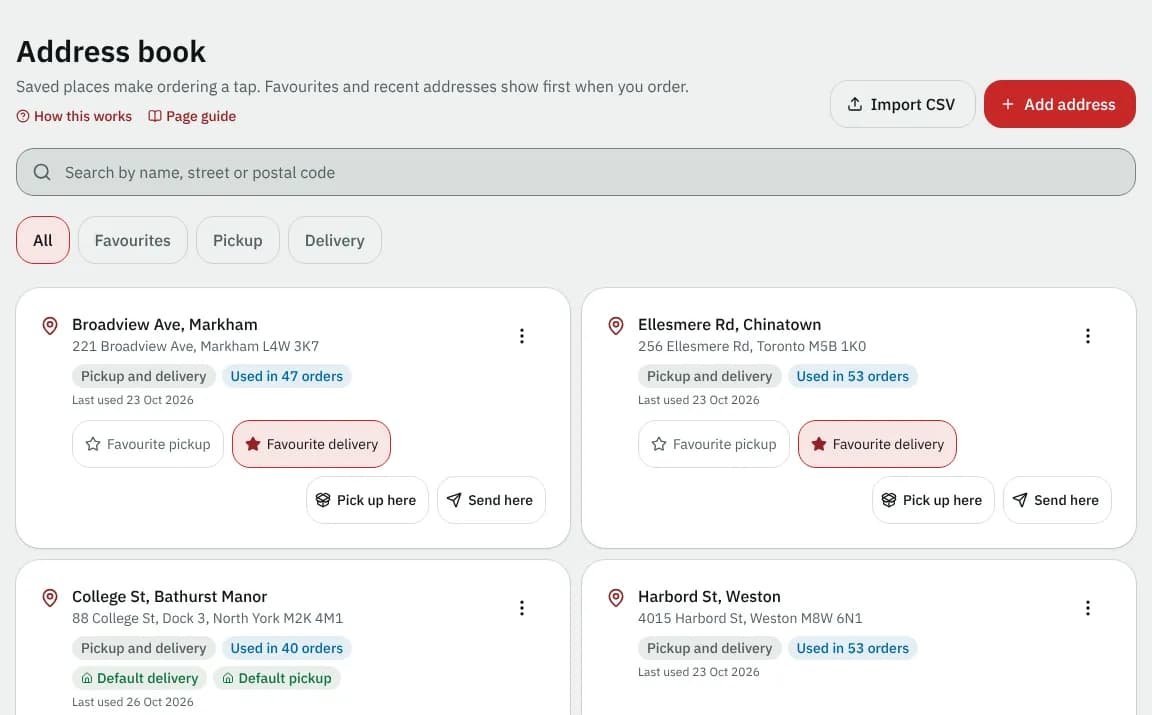
At a glance
| Area | What it does |
|---|---|
| Import CSV, Add address | Add many addresses from a file, or one by hand (with Manage address book) |
| Search | Search by name, street or postal code (any part of the name, street or postal code) |
| Filters | All, Favourites, Pickup, Delivery (kept in the address bar, so Back and shared links keep it) |
| Address cards | One per address, with its badges and actions |
The address cards
Each card shows the name, the address, and badges:
| Badge | Meaning |
|---|---|
| Pickup and delivery / Pickup only / Delivery only | What it can be used for |
| Used in 12 orders | How often you used it |
| Inactive | No longer offered on the order form |
| Not found on the map | The address couldn't be found on the map; edit it and pick it from the address suggestions, or correct the street |
| Default pickup / Default delivery (house icon) | Filled in automatically on a new order |
Last used shows the date of the last order with it.
If you can place orders, Send here on a delivery address starts a new order with it filled in as Deliver to, and Pick up here on a pickup address starts one with it as the pickup (the From line).
With Manage address book:
- Favourite pickup and Favourite delivery star the address (a filled star and a coloured outline when on); favourites come first on the order screen (in Deliver to, the From line and the shortcut buttons).
- The ⋮ menu has Edit, Make my default pickup / Make my default delivery (or Not my default …) and Remove.
- Remove asks Remove … ?: it leaves the book and can't be picked for new orders; past orders keep it, and you are told if an open order still uses it.
The address form
Add address opens Add an address; Edit opens Edit address. Every field is visible at once, in three parts: Contact, Address and Other information (side by side on a wide screen). Your courier can require Company name, Contact name, Phone, Email, Apartment, suite, floor or Instructions for the driver for your company: a required one shows * instead of "optional", and saving without it says "Required for this customer" (also when you edit an older address).
| Field | What to enter | Required | Notes |
|---|---|---|---|
| Company name | e.g. Maple Threads | No (unless your courier requires it) | Shown in your address book. Named from the street when empty |
| Contact name, Phone | No (unless your courier requires it) | Filled into the order (the receiver or pickup contact) when you pick the address | |
| No (unless your courier requires it) | |||
| Search address | start typing, then pick a suggestion | No | When your courier has address search on. A pick fills the street, city, province, postal code and country, sets its place on the map, then moves you to Apartment, suite, floor. Opened from Add a new address on the order screen, it starts with what you typed there. |
| Street address | e.g. 200 King St W | Yes | |
| Apartment, suite, floor | e.g. Suite 400 | No (unless your courier requires it) | |
| City | e.g. Toronto | Yes | |
| Province | e.g. ON | Yes | Reads State for a US address and State / region for any other country |
| Postal code | e.g. M5V 2T6 | Yes | Reads ZIP code for a US address |
| Country | Yes | Starts with your courier's country | |
| Use it for | Pickups and deliveries, Pickups only or Deliveries only | ||
| Contact's language | Automatic or a language | No | For delivery texts and emails. Automatic: French in Québec. |
| Instructions for the driver | No (unless your courier requires it) |
Save address saves it; Cancel closes the form.
Import addresses
Import CSV opens Import addresses.
- Choose a CSV file, or paste rows into the box. Download template gives an example file.
- The dialog counts the rows (up to 200), lists Missing columns (line1, city, state and zip are needed) and Ignored columns.
- Import 25 addresses adds them.
The result says 23 of 25 addresses added, 2 need attention, with each failed row and the problem. Fix the failed rows puts only those rows back in the box; Done closes.
| Column | Meaning |
|---|---|
label | Name for the address |
line1, line2 | Street, and apartment / suite |
city, state, zip, country | state is the province, zip the postal code |
addressType | both, pickup or delivery |
contactName, contactPhone, contactEmail | The contact |
specialInstructions | Instructions for the driver |
Good to know
- An address you add on the order form is saved here too.
- Your address book is empty shows before the first address; No addresses match when a search or filter finds nothing.
Related articles
- How-toKeep an address bookSave the places you send from and to, mark favourites and defaults, and import a list of addresses so ordering takes a few taps.
- How-toPlace an orderBook a pickup and delivery on the screen you land on, repeat an earlier order in one click, see the price before you place it, and change or cancel it while that is still allowed.
Still stuck?
Ask your courier company: they can see your account. Or tell us what you were trying to do.