Place an order
Book a pickup and delivery on the screen you land on, repeat an earlier order in one click, see the price before you place it, and change or cancel it while that is still allowed.
Watch: Place an order in the customer portal
1:12How your customers sign in, say where it goes and what they send, pick a service with its price, and track the order.
On this page
You need the Place orders permission (see Invite colleagues). After you sign in, the portal opens on New order; New order in the top bar (the round + on a phone) brings you back. Every field is explained in the order screen guide.
Fill in the order
- Check the From line: your default or most-used pickup address is filled in. Click Change to pick another or add pickup contacts.
- In Deliver to, type a name, street, postal code or phone (for example
M5V 2T6) and pick a place, or click one of the shortcut buttons. Not saved yet? Pick Add a new address; it's saved for next time (see Address book). This needs the Manage address book permission; without it you send to saved places only. - Check the receiver. Edit changes the name and phone; Receiver email and instructions adds more.
- Under What are you sending?, choose the kind of package, describe What's inside?, and enter How many and the total Weight.
Send the same thing again
When you pick a place you sent to before, a line shows Last time with what that order held. Click Same as last time to copy it. You can also pick an order under Recent orders in the search, click a … again shortcut (named by where it went and when, for example W 38th St, Midtown · 15 Oct again), or click Order again on an old order.
The copy keeps your pickup and Ready for pickup. Your reference, external order ID, appointment reference and any amount to collect are cleared: fill them in for this order.
Fill what your courier needs
If your courier requires something for your account, such as Your reference or a PO number, it's listed under Required by and your courier's name, after the packages. Choices your account fixes show as chips, for example Signature required · set by your account. Everything optional is under Add details (optional).
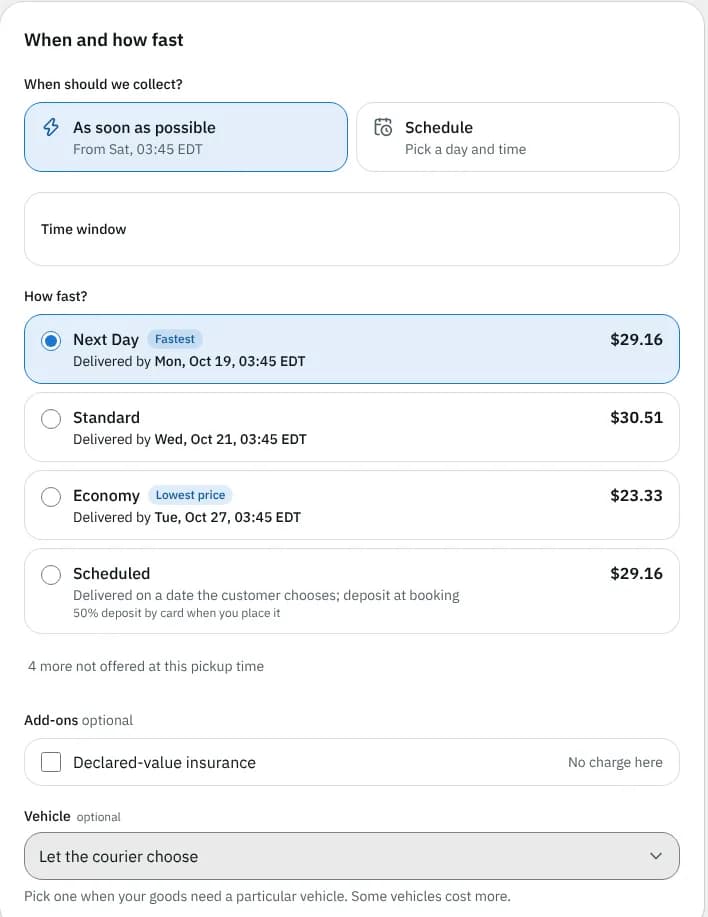
Choose when and how fast
- Under When should we collect?, keep Ready for pickup or pick Schedule and a Pickup day and time. A line above the services shows cut-offs today, e.g. Order by 5:00 PM for Weekend.
- Under How fast?, pick a service; each shows its price and Delivered by date.
- Tick any Add-ons you want.
Place it
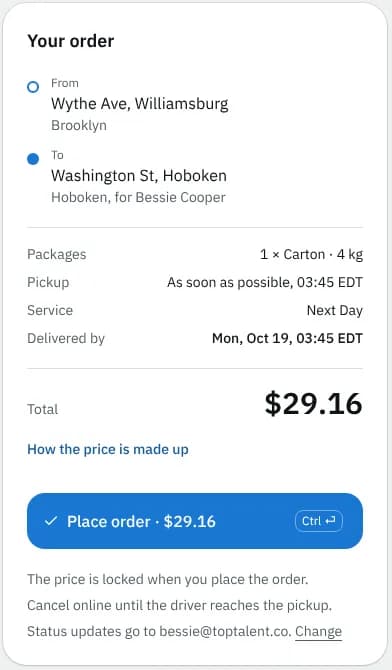
The Your order panel (on a phone, the bar at the bottom) shows the route, packages, service and Total, with tax unless labelled Total before tax.
- Click Place order (or press
Ctrl Enter). If something is missing, To place it, add … links to each missing field. - The order page opens with Order … is placed, the delivery date and a tracking link to pass on (see Track your orders).
Not ready? The order saves itself as a draft once it has a destination and a description. Save draft and exit keeps it under Drafts; next time the screen offers Continue. Discard throws it away.
Change or cancel an order
Under Place order a line says how long you can cancel online, for example Cancel online until the driver reaches the pickup.
- Open the order from Orders.
- At the top of the order, click Change details, change what you need and click Save changes. Packages can't change once placed; cancel and reorder instead.
- To cancel, click Cancel order, say Why are you cancelling? and confirm. A cancellation fee, if any, shows before you confirm and goes on your next invoice.
Related articles
- Page guideNew order screenThe New order screen you land on after signing in, with every section, field and button, the Your order panel and Place order, and the top bar, the phone bottom bar and the account menu.
- How-toTrack your ordersSee what is on the way on your Overview, follow an order step by step, download proof of delivery and share a tracking link with the receiver.
- How-toKeep an address bookSave the places you send from and to, mark favourites and defaults, and import a list of addresses so ordering takes a few taps.
- How-toImport orders from a spreadsheetPlace many orders at once from a CSV or Excel file, match its columns, fix rows with problems and undo an import if needed.
- How-toRepeat an order on a scheduleTurn a delivery you send often into a repeating order, then pause it, skip or change single dates, or change the schedule.
- ConceptCustomer portal FAQShort answers to the questions customers ask most about the portal: signing in, ordering, tracking, paying, colleagues, notifications and your data.
- Page guideEdit order screenEvery section and button of the Edit order page in the portal: what you can still change on a placed order, how the price is re-checked and what the messages mean.
Still stuck?
Ask your courier company: they can see your account. Or tell us what you were trying to do.