Track your orders
See what is on the way on your Overview, follow an order step by step, download proof of delivery and share a tracking link with the receiver.
Watch: Place an order in the customer portal
1:12How your customers sign in, say where it goes and what they send, pick a service with its price, and track the order.
On this page
Everyone who can view orders can track them. The receiver doesn't need an account: you send them a tracking link.
Your overview
Open Overview in the top bar (on a phone, the bottom bar). If you can't place orders, the portal opens on it after you sign in, as Home. The tiles count orders In progress, Delivered and closed, Drafts and, if you can see invoices, the Amount due; click a tile to open that list. On the way lists the orders that are moving, with their status and arrival time.
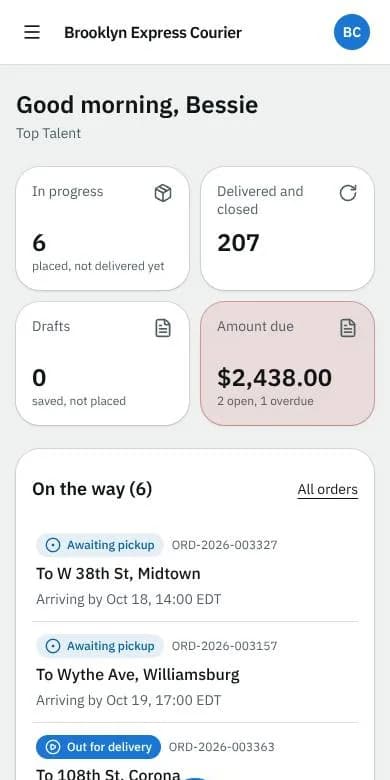
If you place orders, the portal opens on New order instead. A line above the order, On the way 3 · next … by 2:40 PM, shows what's moving; See all opens the list.
On a phone, the bottom bar takes you to Overview (or Home), Orders, a round + for a new order, Invoices and your account menu. On a computer the same pages are in the top bar.
Find an order
- Open Orders.
- Pick a tab: All, In progress, Delivered and closed or Drafts.
- Search by order number, street or reference, or narrow by Pickup from and Pickup until dates.
- Click an order to open it.
Export CSV downloads the list as it is filtered. When your courier lets you print documents, tick several orders and click Print labels to print up to 50 shipping labels at once.
Follow one order
The order page shows:
- the status and what happens next, with Arriving by and who is driving;
- Live location: a map with the driver while the order is out for delivery;
- Progress: each step with its time, from Order received to Delivered, the same steps the receiver sees;
- From, To, Packages, the Price and your reference.
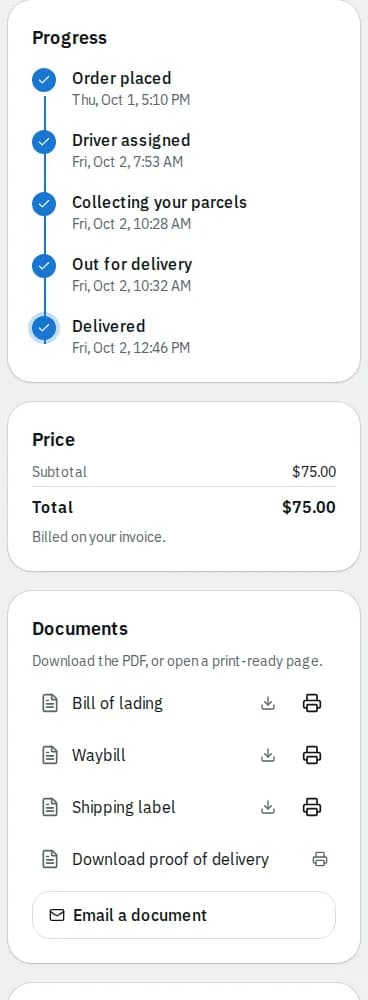
Under Documents, download the Bill of lading, Waybill or Shipping label as a PDF, or click the printer icon for a print-ready page. Email a document sends one as an attachment.
Once the order is delivered, Proof of delivery shows who received it and the driver's photos, and Download proof of delivery opens a printable proof.
Share the tracking link
- On the order, click Share.
- Click Copy next to the link, or enter an address under Or email it to, add a Message if you like and click Send link.
Right after you place an order, the same link is on the confirmation with a Copy button.
Each link has its own secret code at the end, so only people you send it to can open the order. Someone who only has the order number opens it at Track an order with your courier's Courier company ID and the Delivery postal code. That way in shows the order without the delivery photo or who signed. A link stops working 30 days after delivery; you can still open the order and its proof here in the portal.
What the receiver sees
The tracking link opens a public page with the courier's name: the status, the delivery steps, the driver's live location while it is on the way, pickup and delivery addresses and packages. It never shows prices or contact details. When something holds the order up (a missed delivery, a hold, a return or a cancellation), the page says what happens next under the status (after a missed delivery or pickup, with the Reason the driver recorded, as in the recipient's message), and the step the order is at now is marked Now.
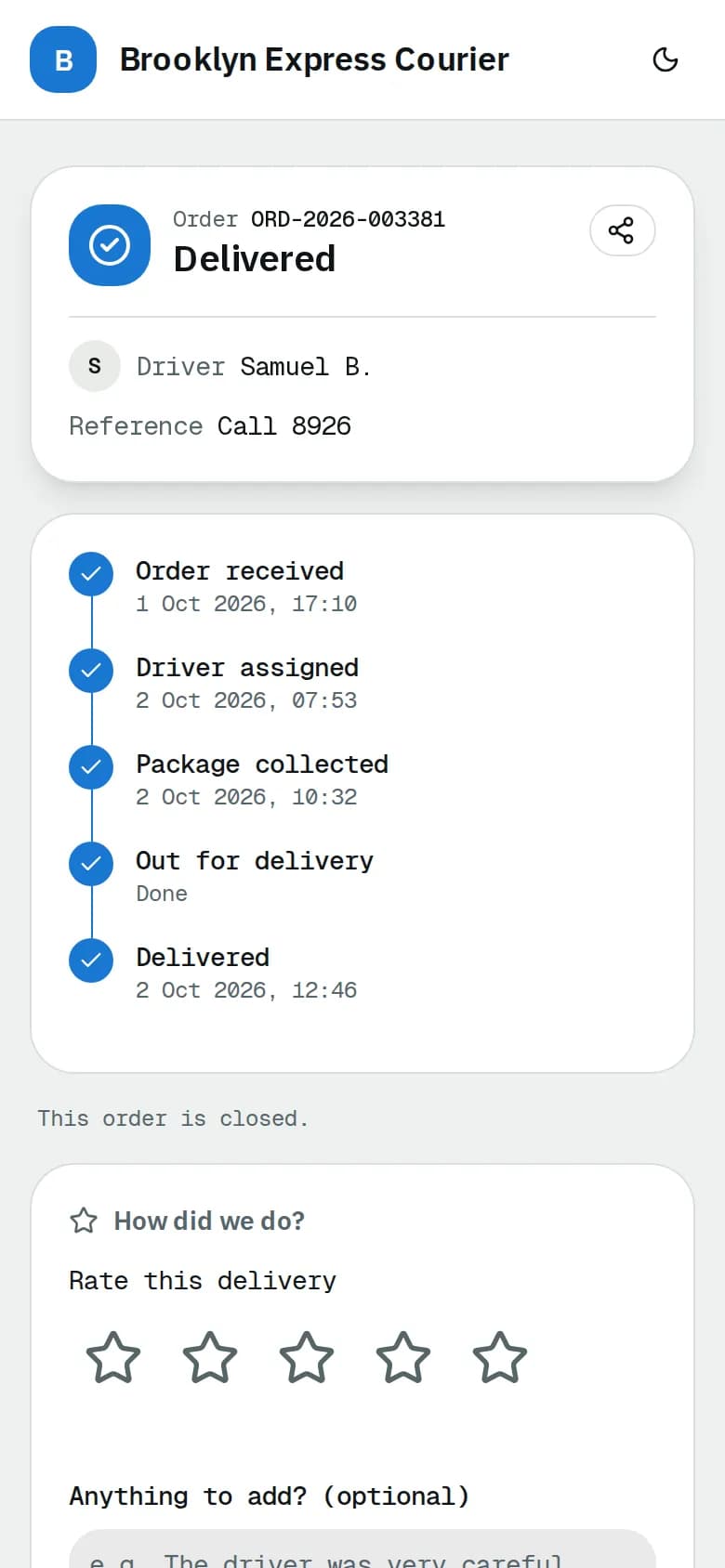
Depending on the courier, the receiver can also leave Delivery preferences (instructions, leave at the door, another day), sign up for Text me updates, and rate the delivery afterwards. Need help? shows how to contact the courier.
Related articles
- How-toPlace an orderBook a pickup and delivery on the screen you land on, repeat an earlier order in one click, see the price before you place it, and change or cancel it while that is still allowed.
- How-toReport a problem or ask for helpTell your courier about a late, damaged or misdelivered order, ask any other question, and follow the answers in one place.
- ConceptWhat the emails and texts you get meanEvery email and text the portal and your courier send about orders, invoices and your account, when each one goes out and which ones you can switch off.
- Page guideOverviewEvery part of the portal Overview page: the greeting, the tiles, your unfinished draft, the orders on the way, open invoices and the messages you may see.
- Page guideOrdersEvery tab, filter, column, button and status on the Orders page of the portal.
- Page guideOrder detailsEverything on one order in the portal: status, live location, addresses, packages, progress, price, documents, and the share, report, tip, change and cancel actions.
Still stuck?
Ask your courier company: they can see your account. Or tell us what you were trying to do.