Send to more than one place (multi-stop orders)
Add extra drop-offs or pickups to one order, bring something back to the pickup, and follow every stop until the job is finished.
On this page
A multi-stop order sends one driver to several addresses on a single job: for example, drop part of the goods at one address, the rest at another, and bring the empty crates back. You need the Place orders permission. Every stop must be an address in your address book.
Add stops to a new order
- Open New order and fill in From and Deliver to as usual (see Place an order).
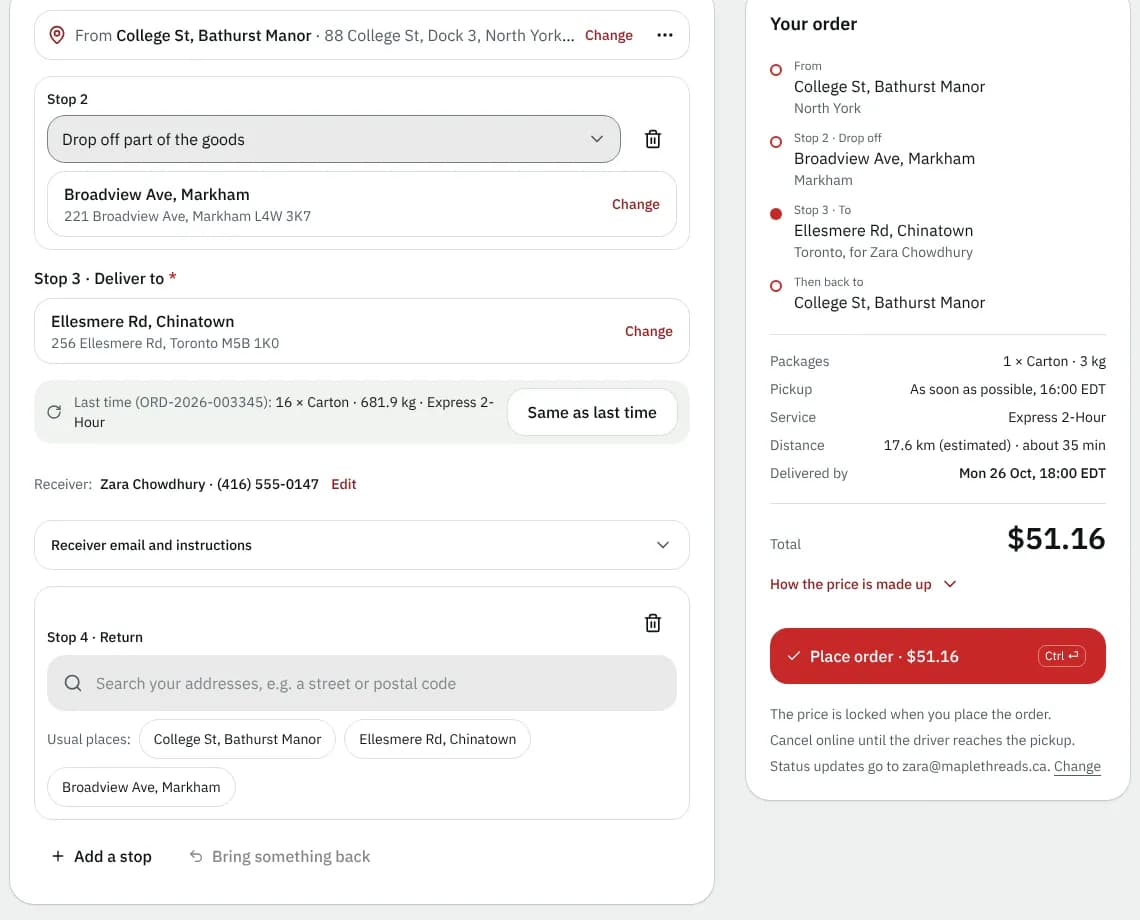
- Click Add a stop. A Stop 2 row appears.
- Choose what happens there: Drop off part of the goods or Collect more goods.
- Pick the stop's address. If you leave it empty the portal says Choose the address of stop 2.
- Add more stops the same way. One order can have up to 25 extra stops.
- To reorder, use the move up and move down buttons on a stop; use the remove button to delete one.
- To bring something back, click Bring something back. This adds a Return stop after the delivery. Leave its address empty to bring the goods back to your pickup address.
- Check the price, then place the order.
What you see before you place it
The summary lists the route in driving order, with From, each stop, To and, for a return, Then back to. Distance is the driving distance and time of the whole trip through every stop. The price shown is worked out with your courier's pricing for that trip; if your courier charges for extra stops or a return, it is included in the price you see before you place the order.
Follow the stops
Open the order from Orders. The Stops · 2 of 3 done card lists each stop as Pickup, Drop-off or Return, with its state:
| State | Meaning |
|---|---|
| To do | The driver has not reached it yet |
| Driver there | The driver has arrived |
| Done | Finished, with the time and Received by when someone signed |
| Not completed | The driver could not finish this stop |
| Skipped | Your courier skipped it |
The driver works the stops in order. The order is Delivered at the final drop; a planned Return stop is still worked after that, and the order is only closed when it is finished.
Change a multi-stop order
You can change the stops while the order has no driver assigned. Once a driver is assigned, the pickup, Deliver to and the stops are locked and only the instructions and contacts can change; tell your courier about anything else (see Edit order screen).
Good to know
- Repeating an earlier multi-stop order (Same as last time) copies its stops as new stops that have not been visited.
Related articles
- Page guideNew order screenThe New order screen you land on after signing in, with every section, field and button, the Your order panel and Place order, and the top bar, the phone bottom bar and the account menu.
- How-toKeep an address bookSave the places you send from and to, mark favourites and defaults, and import a list of addresses so ordering takes a few taps.
- Page guideOrder detailsEverything on one order in the portal: status, live location, addresses, packages, progress, price, documents, and the share, report, tip, change and cancel actions.
- How-toRepeat an order on a scheduleTurn a delivery you send often into a repeating order, then pause it, skip or change single dates, or change the schedule.
Still stuck?
Ask your courier company: they can see your account. Or tell us what you were trying to do.