New order screen
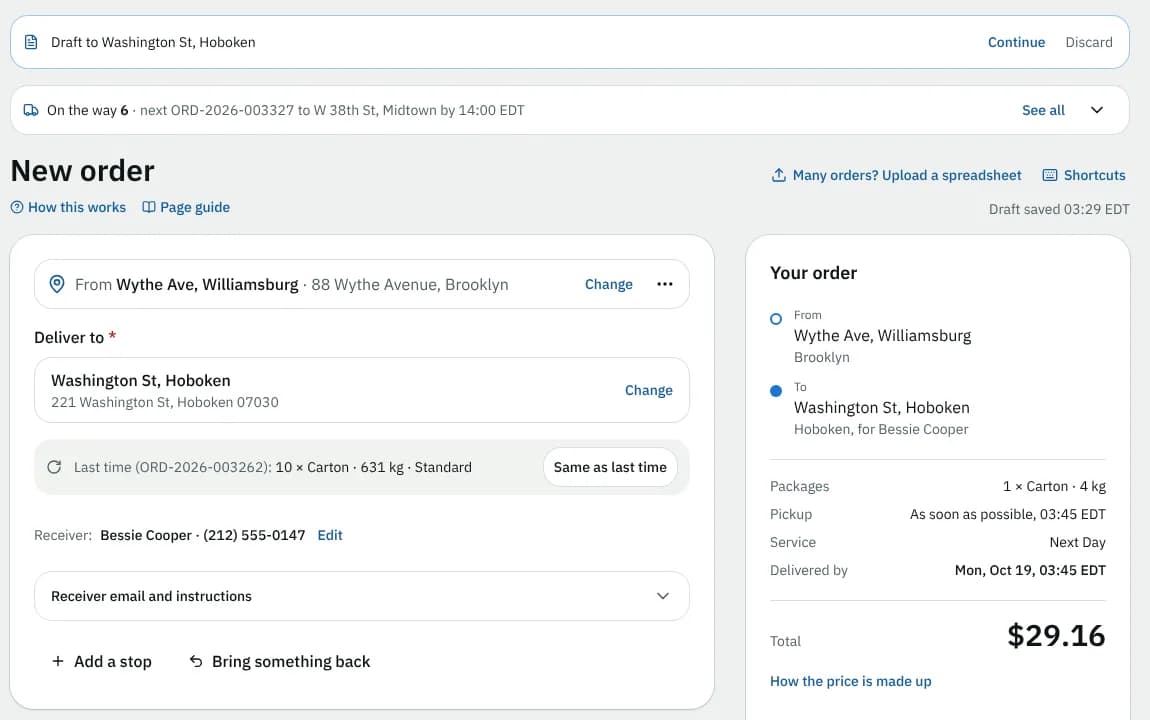
The New order screen you land on after signing in, with every section, field and button, the Your order panel and Place order, and the top bar, the phone bottom bar and the account menu.
On this page
When you can place orders, the portal opens on New order: one page to say where it's going, what you send and how fast, see the price and place it. New order in the top bar (the round + on a phone) brings you back here. Otherwise it opens on Overview, which also has your counts, orders on the way and invoices.
At a glance
| Area | What it shows or does |
|---|---|
| Top bar | Your courier's logo (or name), the main menu, and the company account you are signed in to with your own name next to your account menu |
| Draft line | Draft to … with Continue and Discard, when you left an order unfinished |
| On the way line | How many orders are moving and the next one to arrive, with See all |
| Title line | New order, Many orders? Upload a spreadsheet, Paste an email or note, Shortcuts and the draft status |
| Pickup and delivery | From (your pickup), Deliver to, the receiver and extra stops |
| What are you sending? | Packages |
| Required by your courier | Fields your account must fill in, when there are any |
| When and how fast | Pickup time, time window, service, add-ons and vehicle |
| Add details (optional) | Your reference, notes, proof, cash on delivery and more |
| Your order | The summary, the price and Place order (on a phone: a bar at the bottom) |
The top bar and the menus
| Menu item | Shown when you can |
|---|---|
| New order | Place orders (this screen) |
| Home | Not place orders (it opens the Overview) |
| Overview | Place orders and also view orders or invoices |
| Orders, Repeating | View orders |
| Invoices | View invoices |
| Addresses | Manage the address book or place orders |
| Colleagues | View company contacts |
On other pages a New order button sits on the right of the top bar (on a wide screen just a round +, because the menu already says New order); here it is hidden because the page is the order. Clicking New order while you are already here doesn't start over: it takes you to Deliver to. On a narrow screen the menu folds behind the menu button.
On a phone, the bottom bar has Overview (or Home), Orders, a round + (this screen), Invoices (or Addresses) and your account menu. The place bar sits just above it.
Which company you are signed in to
The right of the top bar always names the company account you are working in, so you know whose orders and invoices you see. On a computer or tablet it shows the company name with your own name under it, next to your initials (for example Maple Threads Apparel, with your name under it). On a phone it shows the company name next to a building icon. A long name is cut short; point at it to see it in full, or open your account menu.
The account menu
Click your initials or the names next to them (on a phone, the initials in the bottom bar). It shows your name, your company and your email, then Switch company (only when your email also signs in to another company account at this courier), My profile, Change password, Saved cards & auto-pay (if you can pay invoices and see every order of the company), Address book (if you can manage addresses or place orders), Colleagues (if you can view contacts) and Developers (primary contact only); under Help, Step-by-step guides and Help and requests; then the theme switch and Sign out. On a wide screen it is a small menu under your initials, and Address book and Colleagues are left out because they are in the top bar already.
Switch company signs you out and opens the sign-in page with your email filled in. Enter your password, then pick the other company under Choose an account.
Above the order
- Draft to King St W, Toronto · Continue · Discard: your last unfinished order. Continue opens it; Discard asks Discard this draft? (Discard draft deletes it, Keep it goes back).
- On the way 3 · next OR-2043 to Fraser Auto Body by 2:40 PM: only when you can view orders and something is moving. See all opens Orders on In progress; the arrow shows the first three orders.
- When your courier updated its terms, one line says We updated our terms. Review opens them with I accept and Later.
Title line
| Item | What it does |
|---|---|
| Many orders? Upload a spreadsheet | Opens Import orders (not on a phone: use Import on Orders) |
| Paste an email or note | When your courier offers AI: opens Fill the order from a message. Paste the order as you'd write it and the AI fills this page from your address book; each section it filled shows Filled by AI. Nothing is placed until you click Place order. |
| Shortcuts | The keyboard shortcuts (computer only) |
| Draft status | after your first change: Saving draft..., Draft saved 3:03 PM or Draft not saved. Retry |
Pickup and delivery
| Field | What to enter | Required | Notes |
|---|---|---|---|
| From line | your pickup address | Yes | Your default, a favourite or your most-used pickup is filled in. Change opens Pickup with Pickup from, Pickup contact, Pickup phone and Pickup instructions. No pickup saved yet: Add your pickup address. |
| Reverse next to From | Swaps pickup and delivery. Greyed out until you choose a delivery address; refused when an address is saved for one-way use | ||
| Deliver to | search by name, street, suite or unit, city, postal code or phone (accents don't matter: ecuyer finds L'Écuyer) | Yes | The list has Saved places, Recent orders (picking one copies that order) and Add a new address, which opens the address form with what you typed already in the search and saves it to your address book. Without the Manage address book permission there's no Add a new address: the list says You can send to saved places only. Ask your company's main contact to add a new one. |
| Shortcut buttons | Before you pick a destination: up to four favourite or most-used places (a star marks favourites) and recent orders named by where they went and when, for example W 38th St, Midtown · 15 Oct again (cancelled orders are left out) | ||
| Last time (OR-…) | After you pick a destination you sent to before: what that order held, with Same as last time to copy it | ||
| Receiver | Your courier decides | Filled from the address: Receiver: Front desk · 416 555 0199 · Edit. Empty: Receiver's name and Receiver's phone. | |
| Receiver email and instructions | Your courier decides | Opens Receiver's email (for delivery updates), Delivery instructions and Receiver's language (Automatic means French for a Québec address; a Québec address also says Delivery texts go out in French) | |
| Add a stop | No | Stop 2: Drop off part of the goods or Collect more goods, then its address. Up to 25 stops, with move up / down and remove buttons. The screen follows the driver's route: the stops show between the pickup and Deliver to, which becomes the stop after them (for example Stop 3 · Deliver to). | |
| Bring something back | No | A Return stop after the delivery; leave the address empty to bring it back to the pickup |
Same as last time, a recent order and a … again shortcut copy the packages, service and options but keep your pickup and Ready for pickup. Your reference, external order ID, appointment reference and the amount to collect are cleared, so you fill them in fresh.
What are you sending?
| Field | What to enter | Required | Notes |
|---|---|---|---|
| What kind of package? | one of your courier's types | When your courier has types | The type your account sends most is picked for you. An envelope-sized type fills the weight with its limit and says so. |
| What's inside? | e.g. "printer paper, legal documents" | Yes | |
| How many | identical pieces | Yes | − and + |
| Weight / Weight (combined total) | in your courier's unit | Yes | With more than one piece, enter the weight of all of them together. The hint shows the limit: the type's limit for one piece × How many |
| Add size or declared value | size and value | Your courier decides | Click it again to hide the fields. What you entered stays on the order and the line says added. It stays open while a field has an error |
| Special handling | No | When your courier offers more than one | |
| Packages already labelled? Add the label codes | one code per package | No | Hides and shows the same way as Add size or declared value |
Add another package adds a row. On the edit page packages are locked.
Required by your courier
Titled Required by and your courier's name. It shows only when your account must fill in an empty field (for example Your reference, a PO number or a receiver's phone). Choices your account fixes show as chips such as Signature required · set by your account.
When and how fast
| Field | Notes |
|---|---|
| Cut-off line | Services with a cut-off today: Order by 2:30 PM for Rush · Same day: ordering closed at 12:00 PM |
| When should we collect? | Ready for pickup (shows the earliest time and keeps it current) or Schedule with Pickup day and time |
| Pickups need at least … notice | When your courier needs notice |
| Time window or dock appointment (optional) | Opens Ready until, Appointment reference, Deliver from and Deliver by |
| How fast? | Each service with its price and Delivered by date; Fastest and Lowest price are marked. A service paid by card says so. Services not offered at that time are listed underneath. |
| Add-ons | Each with what it adds, or No charge here |
| Vehicle | Let the courier choose or a vehicle (when offered) |
Add details (optional)
Click to open: Your reference (on the order and invoice), External order ID, Notes for your courier, Priority, Receiver must sign, Driver takes a photo as proof, Rush delivery, Return service, Collect cash on delivery (COD) with Amount to collect, your courier's own fields and For location / department when your company has locations. Your courier decides which you see; a required one is in the Required by group instead.
Your order and Place order
The panel lists the route in driving order (From, each stop, To, and Then back to for a return), then Packages, Pickup, Service, Distance, Delivered by, Proof and Cash on delivery; click a stop to jump there.
Distance is the driving distance and time of the whole trip, through every stop, in your courier's units, for example 12.4 km · about 25 min. It shows as soon as the pickup and the destination are known (you don't need to pick a service first) and is the distance your price is worked out with. (estimated) after the distance means it is a straight-line estimate because no road route was available. Add both addresses means an end is missing; Can't work it out: an address has no map location means an address needs a pin (see Fix this address below).
| Line | Meaning |
|---|---|
| The price shows as soon as you choose where it's going. | No destination yet |
| Total incl. tax / Total | The price with tax, e.g. $47.66, and the tax lines ($42.18 + $5.48 HST, or incl. … when the price already includes tax) |
| Total before tax | Instead of the line above when your courier shows prices before tax: the price, then + tax. Your invoice, and any card payment when you place the order, include the tax |
| Was $19.44 · +$36.00 after your change | For a few seconds after the total changes (for example a heavier package), with the total highlighted |
| How the price is made up | Opens each price line and tax with its rate. Not shown if your courier gives totals only: the tax then shows as one amount |
| Your courier invoices this order. | Your account doesn't see prices |
| Your courier's reason, for example The delivery address has no map location yet. Edit it in Addresses and pick it from the address suggestions before pricing by distance. | There's no price for this order as it stands. Fix this address opens the address so you can pick it from the suggestions (without Manage address book: ask your company's main contact). After a connection problem: Try again. Place order stays off and says Can't place it yet: … |
Place order · $47.66 (Ctrl Enter or ⌘ Enter) places it. While something is missing the line under it says To place it, add …; each item is a link to its field. Under the button: The price is locked when you place the order., when you can cancel online (for example Cancel online until the driver reaches the pickup.) and where status updates go, with Change.
On a phone, the bar shows the total, the distance and Place order. Each section is a card that opens and closes from its title; Done closes it and moves to the next.
If the connection drops while you place, the page says it can't tell yet if the order went through; Retry never places it twice and opens the order when it was placed. A draft link to an order that was placed since shows Order … is already placed with View order and Start a new order.
After placing, the order page opens with Order … is placed. If you can't view orders, the confirmation shows here instead, with the tracking link, Pay now when the service is paid by card, and Place another order.
Leaving the page
Save draft and exit saves the order and opens Orders on Drafts (without View orders, it stays here with a fresh order). Discard asks Discard this order? (Discard order or Keep editing). Leaving with unsaved changes asks first. A new order is saved as a draft once it has a destination and a description. A flagged value (a PO number in the wrong format, a weight over the limit) doesn't stop the draft saving; fix it before you place the order.
Good to know
/goes to Deliver to,?shows the shortcuts,Esccloses a list. Single-key shortcuts in the shortcuts window turns/and?off.- New orders are paused means your account is on hold; Your account can't place orders means you need the Place orders permission.
- When your courier views the portal as you, the draft line reads Not saved while you view as this contact.
- Times follow your courier's time zone; money and dates its regional settings, for example
$1,441.00.
Related
Related articles
- How-toPlace an orderBook a pickup and delivery on the screen you land on, repeat an earlier order in one click, see the price before you place it, and change or cancel it while that is still allowed.
- Page guideEdit order screenEvery section and button of the Edit order page in the portal: what you can still change on a placed order, how the price is re-checked and what the messages mean.
- How-toKeep an address bookSave the places you send from and to, mark favourites and defaults, and import a list of addresses so ordering takes a few taps.
- How-toTrack your ordersSee what is on the way on your Overview, follow an order step by step, download proof of delivery and share a tracking link with the receiver.
Still stuck?
Ask your courier company: they can see your account. Or tell us what you were trying to do.