Keep an address book
Save the places you send from and to, mark favourites and defaults, and import a list of addresses so ordering takes a few taps.
On this page
Saved addresses show first when you order, favourites and most used at the top. People who can place orders or manage the address book see it; you need Manage address book to add, change or remove addresses.
Open Addresses in the top bar, or Address book in your account menu on a phone.
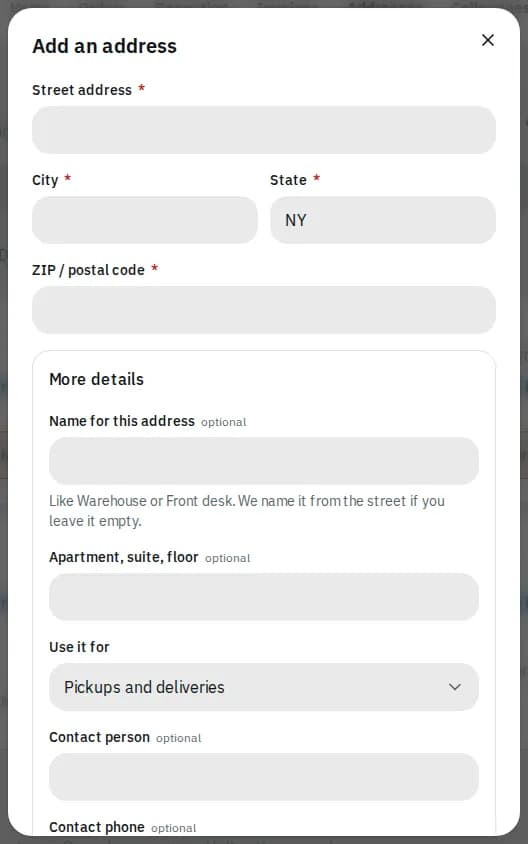
Add an address
- Click Add address.
- Under Contact, add the Company name, Contact name, Phone and Email. They are optional unless your courier requires some for your company: those show * instead of "optional", and saving without them says "Required for this customer".
- Under Address, enter the Street address, City, Province (it reads State or State / region for other countries) and Postal code (ZIP code for the US), and an Apartment, suite, floor if there is one.
- Under Other information, choose Use it for (Pickups and deliveries, Pickups only or Deliveries only) and add Instructions for the driver.
- Click Save address.
Find, favourite and set defaults
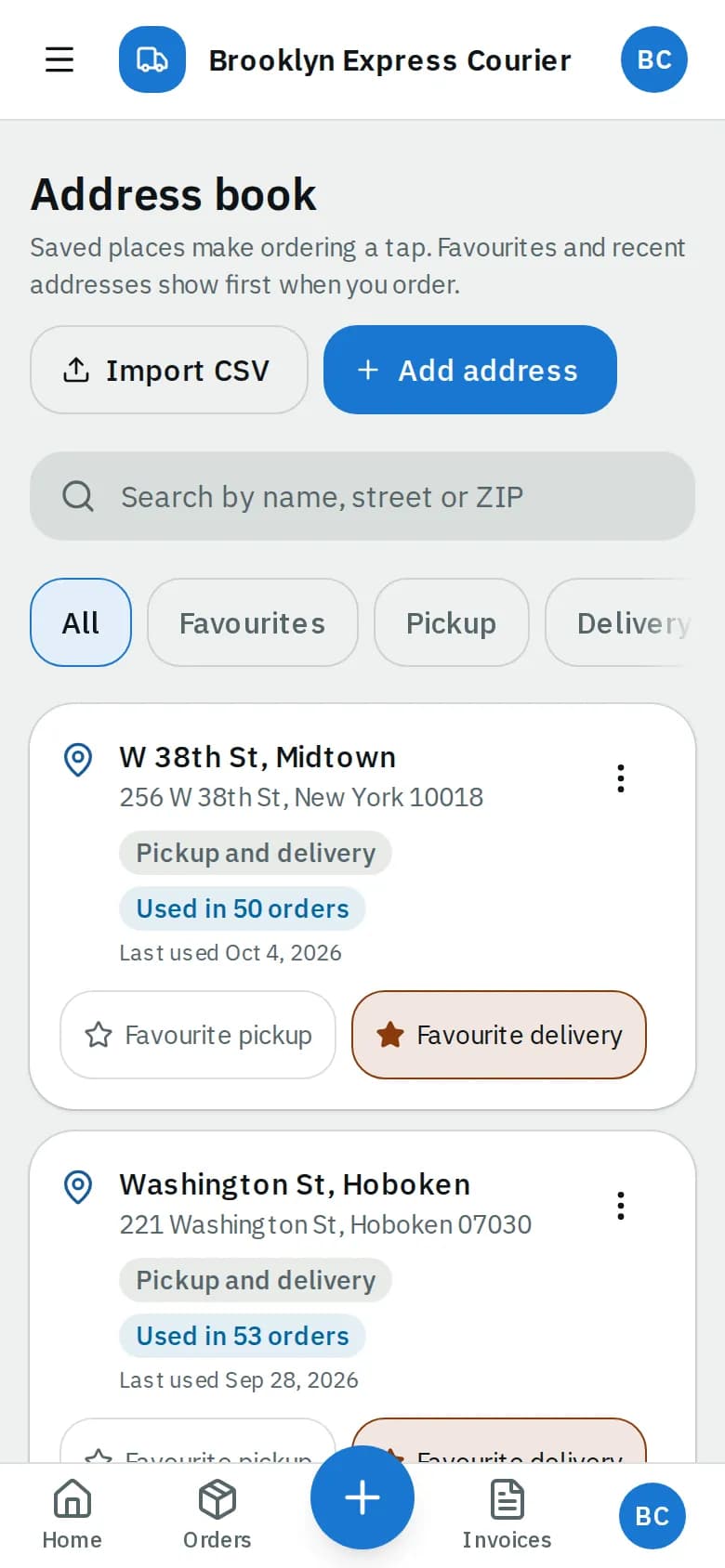
- Search by name, street or postal code, or filter All, Favourites, Pickup or Delivery.
- Click Favourite pickup or Favourite delivery on an address to star it. Favourite addresses come first in the order screen's From and Deliver to pickers and in its shortcut buttons, marked with a star.
- Open the ⋮ menu and pick Make my default pickup or Make my default delivery. A new order starts with your default pickup address filled in (or, without one, a favourite pickup, or your most used).
Each address shows how often it was used and when it was last used.
Change or remove an address
- Open the ⋮ menu on the address.
- Pick Edit, change the details and click Save address, or pick Remove and confirm with Remove address.
Removing takes it out of the book for new orders. Past orders keep it. If an open order still uses it, the portal tells you.
Import a list
- Click Import CSV.
- Click Download template for the columns, then Choose a CSV file or paste the rows into the box. The street (
line1),city,stateandzipcolumns are needed. - Click Import with the number of addresses (up to 200 at a time).
Rows that are fine are added. Rows with a problem are listed with what is wrong; Fix the failed rows puts just those back in the box to correct.
Related articles
- How-toPlace an orderBook a pickup and delivery on the screen you land on, repeat an earlier order in one click, see the price before you place it, and change or cancel it while that is still allowed.
- How-toImport orders from a spreadsheetPlace many orders at once from a CSV or Excel file, match its columns, fix rows with problems and undo an import if needed.
- Page guideAddress bookThe Address book page of the portal: search and filters, address cards and badges, favourites and defaults, the address form and importing a CSV.
Still stuck?
Ask your courier company: they can see your account. Or tell us what you were trying to do.