Import orders from a spreadsheet
Place many orders at once from a CSV or Excel file, match its columns, fix rows with problems and undo an import if needed.
On this page
Import places one order per row of your file. You need the Place orders permission. Nothing is created until you confirm the last step.
Prepare your file
- Open Orders and click Import (or Many orders? Upload a spreadsheet on the order screen).
- Click Download the sample template. It has every column and an example row.
- Fill in one row per order. A CSV or Excel (.xlsx) file can have up to 1,000 rows and 5 MB.
Every row needs these, the rest is optional:
| Needed | Optional |
|---|---|
| Delivery street, city, state and postal code | Your reference, external order ID, service |
| Package description | Pickup date and time, pickup address |
| Weight, per piece or in total, in your courier's unit (kg or lb) | Recipient name, phone and email, delivery instructions |
| Package type, quantity, declared value, notes, your courier's own fields |
Your own column names are fine: the next step matches them.
Upload and match the columns
- Click Choose file (or drop the file on the box).
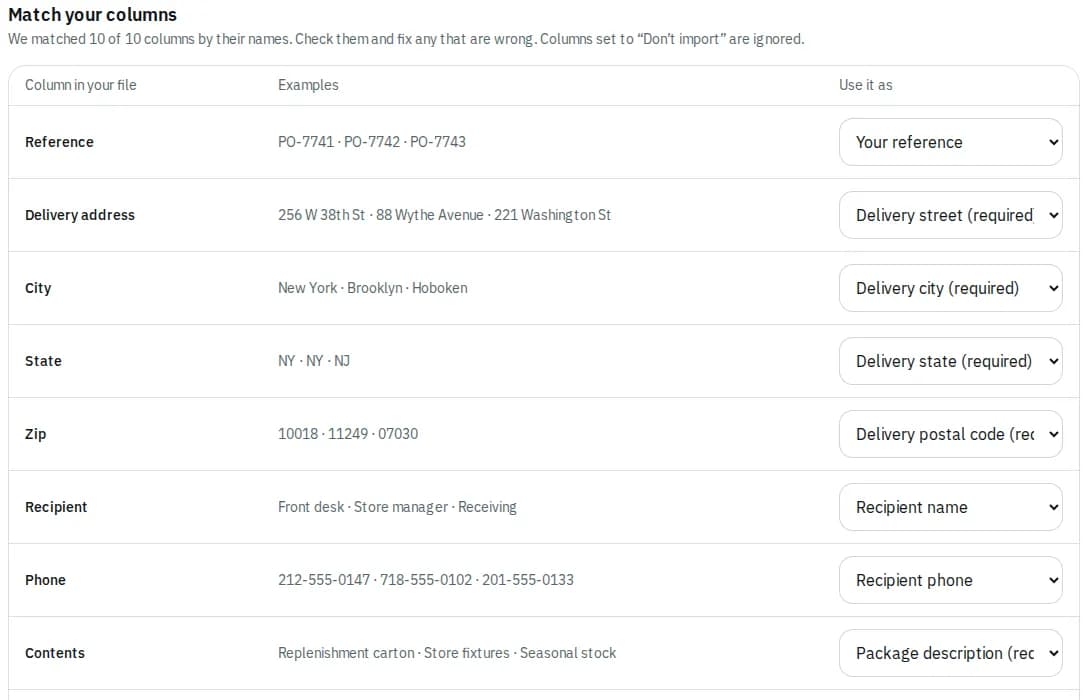
- Under Match your columns, check what each column is used as. Most are matched by their name. Set a column to Don't import to ignore it.
- When every required field has a column, click Check with the number of rows.
Check the rows and import
The check runs every row against your account's rules and prices. It shows how many rows are Ready to import, how many Need a fix and how many New addresses to add to your address book. Problems lists each row with what is wrong, for example a missing weight.
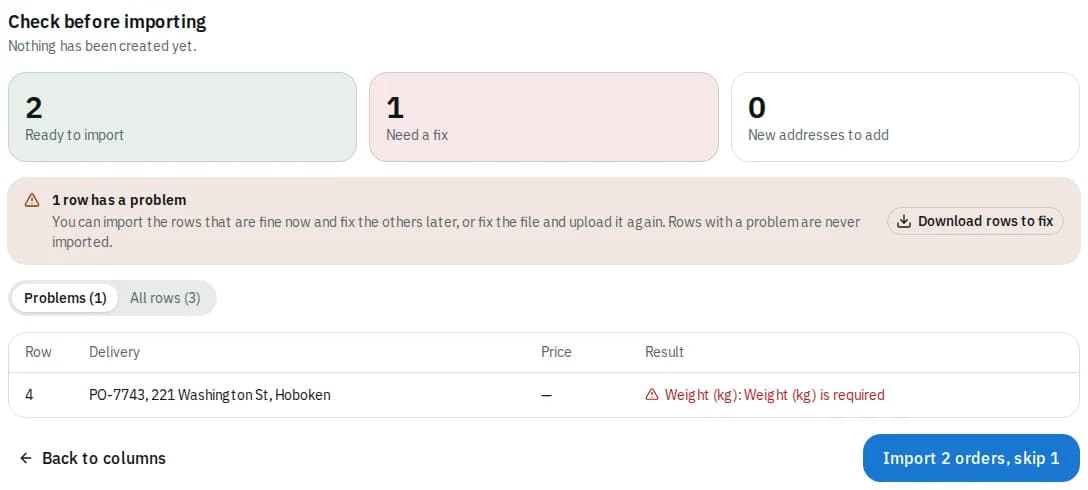
- To fix rows first, click Download rows to fix, correct the file and upload it again.
- Otherwise click Import (for example Import 2 orders, skip 1). Rows with a problem are never imported.
- Click View orders to see them.
Past imports at the bottom of the page lists earlier files with what was created and skipped, so you can download the problems or undo the latest one later.
Related articles
- How-toPlace an orderBook a pickup and delivery on the screen you land on, repeat an earlier order in one click, see the price before you place it, and change or cancel it while that is still allowed.
- How-toKeep an address bookSave the places you send from and to, mark favourites and defaults, and import a list of addresses so ordering takes a few taps.
- How-toConnect your systems with API keys and webhooksCreate API keys so your own software can place and track orders, and webhooks so it hears about new orders and status changes.
- Page guideOrder importThe Import orders page of the portal: the file limits, column matching, the check before importing, the result and Past imports with undo.
Still stuck?
Ask your courier company: they can see your account. Or tell us what you were trying to do.