Repeat an order on a schedule
Turn a delivery you send often into a repeating order, then pause it, skip or change single dates, or change the schedule.
2 min readLast updated
On this page
A repeating order copies one delivery (pickup, delivery, packages and service) onto the dates you choose, so you don't fill in the form each time. You need the Place orders permission to create or change one.
Start a repeating order
- Open an order you placed and click Repeat on a schedule (under More while the order can still be changed). Or open Repeating and click New repeating order, then pick the order or saved draft to repeat.
- Give it a Name.
- Under Repeats, choose Every weekday (Mon-Fri), Every day, Weekly on chosen days, Monthly on a day or Every N days.
- Set Starts and, if it should end, Ends (optional).
- Set the Pickup time and the Delivery window (hours after pickup).
- Leave Skip company holidays on to skip the courier's holidays.
- Check Next 8 dates, then click Start repeating.
Nothing is placed straight away. Each order is created a few days ahead of its date and then shows up in your Orders like any other.
Pause, skip or change one date
Open Repeating and click the series.
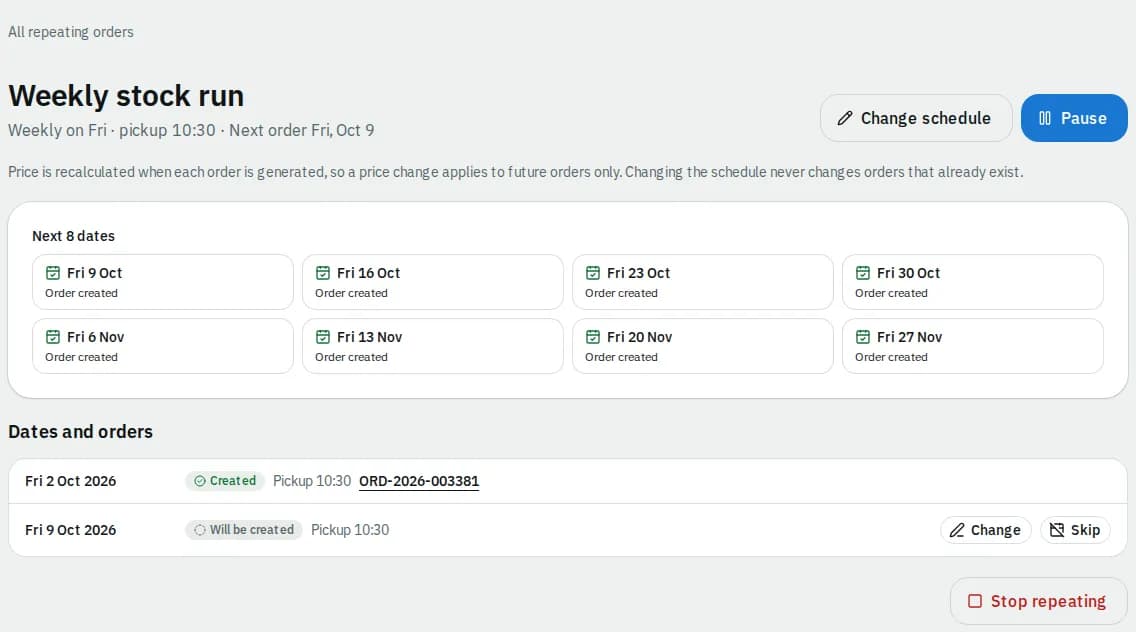
- Pause stops new orders until you click Resume. Dates that pass while it is paused are not made up. You can also pause from the list.
- Under Dates and orders, Skip leaves out one date; Put back undoes it.
- Change on a date sets a different Pickup time, Delivery instructions or Note on the order for that date only. Reset to template removes the change.
Dates that already have an order link to it. To change an order that was already created, open it and change it there (see Place an order).
Change the schedule or stop
- Click Change schedule, change the days, dates or times and click Save schedule. It applies only to dates that have not been created yet.
- To end the series, click Stop repeating and confirm. Orders already created stay as they are.
Related articles
- How-toPlace an orderBook a pickup and delivery on the screen you land on, repeat an earlier order in one click, see the price before you place it, and change or cancel it while that is still allowed.
- Page guideRepeating ordersThe Repeating orders list and one series' page in the portal: schedule fields, the next dates, per-date changes, pause, resume and stop.
- How-toSend to more than one place (multi-stop orders)Add extra drop-offs or pickups to one order, bring something back to the pickup, and follow every stop until the job is finished.
- How-toReport a problem or ask for helpTell your courier about a late, damaged or misdelivered order, ask any other question, and follow the answers in one place.
Still stuck?
Ask your courier company: they can see your account. Or tell us what you were trying to do.