Repeating orders
The Repeating orders list and one series' page in the portal: schedule fields, the next dates, per-date changes, pause, resume and stop.
On this page
A repeating order (a series) copies one delivery onto the dates you choose. Repeating in the top bar lists your series; click one to open it. Anyone who can view orders sees them; you need Place orders to start, change, pause or stop one. For the task step by step, see Repeat an order on a schedule.
At a glance
| Page | What it shows |
|---|---|
| Repeating orders (list) | Each series with its rule, pickup time and next order, and Pause / Resume |
| A series | The schedule, the next dates, Dates and orders, Change schedule, Pause, Stop repeating |
The list
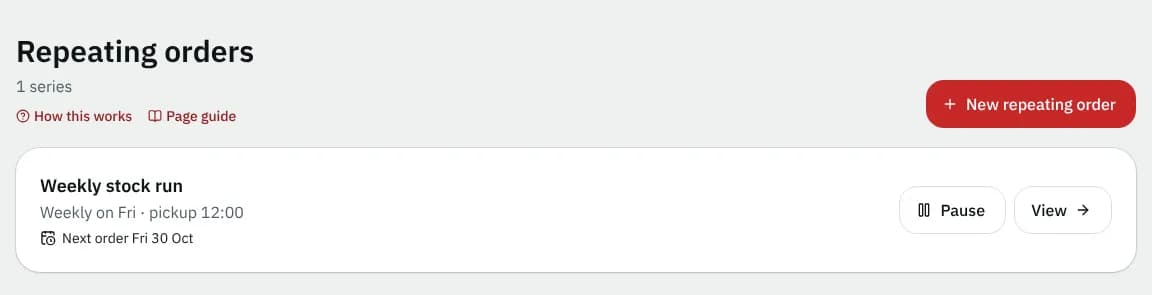
Each card shows the series name, the rule (for example "Every weekday · pickup 09:00") and Next order Mon 12 Oct, Paused or No more dates.
| Button | What it does |
|---|---|
| New repeating order | Opens New repeating order: pick the order or Draft (not placed) to repeat, then fill in the schedule |
| Pause / Resume | Stops or restarts new orders for that series. The message has Undo. |
| View | Opens the series (so does its name) |
With no series yet you see Nothing repeats yet with New repeating order.
The schedule fields
The same fields appear in Repeat this order (from an order), New repeating order and Change schedule:
| Field | What to enter | Required | Notes |
|---|---|---|---|
| Name | a short name | Yes | Up to 80 characters. Starts as "Repeat of OR-1042". |
| Repeats | Every weekday (Mon-Fri), Every day, Weekly on chosen days, Monthly on a day or Every N days | Yes | |
| Days of the week | the days | With Weekly on chosen days | At least one |
| Day of the month | 1 to 31 | With Monthly on a day | On shorter months it falls on the last day |
| Every how many days | 1 to 365 | With Every N days | |
| Starts | the first date | Yes | Starts tomorrow by default |
| Ends (optional) | the last date | No | Empty = until you stop it |
| Pickup time | the time, like 09:00 | Yes | Copied from the order |
| Delivery window (hours after pickup) | whole hours, 1 to 72 | Yes | |
| Skip company holidays | tick | No | On by default; skips your courier's holidays |
Next 8 dates previews the result, marking dates Skipped: Canada Day (a holiday), Skipped by you or Planned (an order is created a few days ahead of each planned date). Start repeating (or Save schedule) saves it. Nothing is placed straight away.
A series' page
All repeating orders at the top goes back to the list. The title line repeats the rule, pickup time and next order. With Place orders you see Change schedule and Pause (or Resume).
- While paused, a card says Nothing is created for this series until you resume. Dates that pass meanwhile are not made up.
- When no date is listed under Dates and orders yet, a Next 8 dates card previews the coming dates and what happens on each.
- Under the dates, a line explains how the price is set for each new order, and that changing the schedule never changes orders that already exist.
Dates and orders
One row per date in the coming days:
| State | Meaning |
|---|---|
| Will be created | The order is made a few days ahead of the date |
| Created | The order exists; its number links to it, with its price |
| Skipped | You skipped this date |
| Holiday: … | Skipped for a company holiday |
| Missed (not created) | The date passed without an order, for example while paused |
| Could not be created | Something stopped it; the reason is shown |
| Blocked by plan limit | Your courier's plan limit was reached |
Changed for this date marks a date with its own pickup time or notes.
For a future date that has no order yet:
| Button | What it does |
|---|---|
| Change | Opens Change Mon 12 Oct: Pickup time, Delivery instructions and Note on the order for this date only. Empty fields keep the series value. Save, or Reset to template to remove the change. |
| Skip | Leaves this date out. The message has Undo. |
| Put back | Brings a skipped date back |
If nothing is scheduled soon the list says so and how many days ahead orders are created.
Stop repeating
Stop repeating asks Stop repeating this order? and says how many orders were already created; those stay as they are. Keep repeating goes back.
Good to know
- Each created order shows up in Orders with Part of a repeating order; change it there like any other order.
- Dates are in your courier's time zone.
- We couldn't find that repeating order means it was removed or isn't yours; Back to repeating orders returns to the list.
Related articles
- How-toRepeat an order on a scheduleTurn a delivery you send often into a repeating order, then pause it, skip or change single dates, or change the schedule.
- How-toPlace an orderBook a pickup and delivery on the screen you land on, repeat an earlier order in one click, see the price before you place it, and change or cancel it while that is still allowed.
- Page guideOrder detailsEverything on one order in the portal: status, live location, addresses, packages, progress, price, documents, and the share, report, tip, change and cancel actions.
- How-toSend to more than one place (multi-stop orders)Add extra drop-offs or pickups to one order, bring something back to the pickup, and follow every stop until the job is finished.
Still stuck?
Ask your courier company: they can see your account. Or tell us what you were trying to do.