Order details
Everything on one order in the portal: status, live location, addresses, packages, progress, price, documents, and the share, report, tip, change and cancel actions.
On this page
Open an order from Orders, the Overview, the On the way line on the order screen or an invoice. The page shows where the order is, what was sent and what it costs, and every action you can still take on it. Anyone who can view the order can open it; some actions need more (noted below).
At a glance
| Area | What it shows or does |
|---|---|
| Header | Order number (or Draft order), status, Part of a repeating order when it came from a series, Placed and the time |
| Header buttons | Continue draft, Change details, Cancel order, Order again, Repeat on a schedule, Share (some under More) |
| Placed panel | Right after you place an order: the delivery date and the tracking link |
| Status card | What is happening now and what comes next, Arriving by and who is driving |
| Live location | A map with the driver while the order is out for delivery |
| From / To | Both addresses with contact, phone and instructions |
| Stops | Every stop of a multi-stop order and how far it got |
| Packages | Packages, service, vehicle, times, your reference, notes, cash on delivery |
| Details | Your company's own order fields |
| Proof of delivery | Who received it, when, and the driver's photos |
| Progress | Each step with its time |
| Price | Subtotal, tax, total and later charges |
| Documents | PDFs to download or print, and Email a document |
| Need something? | Report, tip, your requests |
Header buttons
| Button | Shown when | What it does |
|---|---|---|
| Continue draft | the order is a draft | Opens it on the order screen |
| Change details | the order can still be changed online | Opens the edit form |
| Cancel order | you may cancel and the order can still be cancelled | Opens the cancel window; the button notes free now or fee applies |
| Order again | your courier allows reordering | Opens a new order with everything copied except the pickup time |
| Repeat on a schedule | you can place orders and the order isn't cancelled | Opens Repeat on a schedule (see Repeat an order on a schedule) |
| Share | the order is placed | Opens Share tracking |
While Change details or Cancel order is shown, Order again, Repeat on a schedule and Share sit under More. Right after you place an order, Order again and Repeat on a schedule are in the green panel instead. On a phone the buttons read Change and Cancel.
Share tracking
The link opens a public page that shows where the order is, never prices or contact details.
| Field | What to enter | Required |
|---|---|---|
| Tracking link | (filled in) Copy puts it on your clipboard | |
| Or email it to | the receiver's email | Yes, to send |
| Message | a short note, up to 300 characters | No |
Send link emails it.
Right after placing
The green panel says Order … is placed, the Delivered by date and that the confirmation went to your email. It repeats the tracking link with Copy. If you can place orders it offers New order, Order again and Repeat on a schedule. If you can place orders but not view them, this page doesn't open: the same confirmation shows on the order screen, with Pay now when the service is paid by card and Place another order.
The status card
The first card states what is happening in a sentence (for example that a driver is on the way) and, while the order is moving, Arriving by with the time and … is driving. If your courier needs payment before scheduling the order, it shows Pay now, which opens the payment page.
Live location
Shown while the order is picked up, out for delivery or arriving, once the driver's position is known. The map shows the driver and the delivery address; Updated says when the position was last received.
Addresses, stops and packages
- From and To show the place name, street, postal code, contact and phone, and the instructions for the driver.
- Stops · 2 of 3 done (multi-stop orders) lists each stop as Pickup, Drop-off or Return with its state: To do, Driver there, Done, Not completed or Skipped, the time, and Received by when someone signed.
- Packages lists each line (
2 x Printer paper · Boxand the weight, the total for the line when there are several), then: Service, Vehicle, Pickup (with the end of the pickup window), Delivery window, Appointment, Your reference, Notes, Return service and Cash on delivery when they are set. - Details lists your company's own order fields (for example a PO number), when your courier uses them.
Proof of delivery
When the driver took photos at the delivery, the card says when it was delivered, to whom and whether it was signed on receipt, and shows the photos. Click a photo to open it full size.
Progress
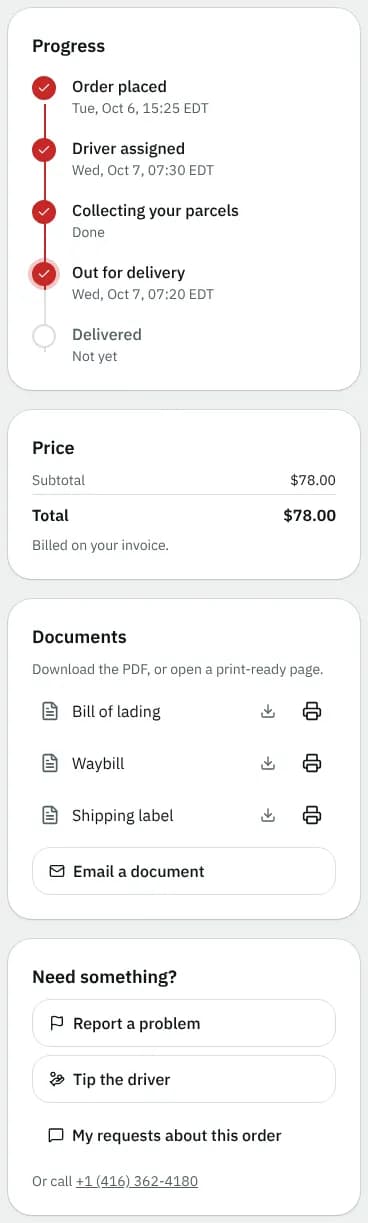
The same steps the receiver sees on the tracking page: Order received, Driver assigned, Package collected, Out for delivery and Delivered, each with a tick and its time once reached, Done when it was reached without a time, or Not yet. The current step is ringed. When an order stops on the way (cancelled, returned, on hold, a failed attempt), only the steps that happened are listed and the last one says what happened, for example Cancelled · Duplicate order with its time.
Price
Shown when you are allowed to see prices.
| Line | Meaning |
|---|---|
| Subtotal | The delivery price before tax |
| Tax | GST/HST, QST or other tax, when charged |
| Total before tax | Instead of these lines when your courier shows prices before tax: the price, then + tax. Your invoice adds the tax |
| Total | What the order costs |
| Charges after pickup or delivery | Extra charges added later, each labelled (for example waiting time or a failed attempt), and Billed for this order |
If your courier gives totals only, the extra charges aren't listed: you see Billed for this order when the amount differs from the delivery price, and your invoice itemises it.
The last line says Billed on your invoice. A cash on delivery order adds that the cash collected is your goods money and is credited to your account, with a COD receipt (PDF) link once it is delivered.
Documents
Shown when your courier lets you download documents and the order is placed.
- Bill of lading, Waybill, Shipping label: click the name to download the PDF, or the printer icon for a print-ready page.
- Download proof of delivery: once delivered, opens a printable proof.
- Email a document: pick the Document, enter Email a copy to and click Email document. It arrives as a PDF attachment.
Need something?
| Button | Shown when | What it does |
|---|---|---|
| Discard draft | the order is a draft | Asks Discard this draft?, then deletes it |
| Report a problem | the order is placed | Opens Report a problem (below) |
| Tip the driver | a driver is assigned and the order isn't cancelled, returned or invoiced yet | Opens the tip window; afterwards it reads Tip: $5.00 (change) |
| My requests about this order | always | Help and requests filtered to this order |
Your courier's phone number is shown under the buttons when they have one.
Report a problem
| Field | Options | Required |
|---|---|---|
| What's wrong? | It's late, Something is damaged, Wrong address or contact, Something else | Yes |
| Tell us more | at least 5 characters, up to 1,000 | Yes |
Send to my courier sends it with the order attached and opens the request, where you follow the answer.
Tip the driver
Enter the Tip (the label shows your currency, for example Tip (CAD); up to 1,000.00) and click Save tip. The tip is added to your invoice as its own line, with no tax, and the driver gets all of it. Remove tip takes it off.
Cancel an order
The window says whether cancelling is free right now or what the Cancellation fee is; the fee is added to your next invoice. Fill in Why are you cancelling? (3 to 200 characters) and click Cancel order (or Cancel and pay the fee). Keep the order closes the window. The driver is told straight away; you can't undo it, but you can reorder.
Good to know
- Your courier decides how long an order can be changed or cancelled online, and your primary contact may turn either off for you. When Change details or Cancel order is missing, use Report a problem.
- Confirming a cancellation accepts exactly the fee shown. If the fee changed in the meantime, the cancellation is refused, so you never pay a fee you didn't see.
- We couldn't find that order means it was removed or belongs to another account; Back to orders returns to the list.
Related articles
- How-toTrack your ordersSee what is on the way on your Overview, follow an order step by step, download proof of delivery and share a tracking link with the receiver.
- How-toPlace an orderBook a pickup and delivery on the screen you land on, repeat an earlier order in one click, see the price before you place it, and change or cancel it while that is still allowed.
- How-toReport a problem or ask for helpTell your courier about a late, damaged or misdelivered order, ask any other question, and follow the answers in one place.
- How-toRepeat an order on a scheduleTurn a delivery you send often into a repeating order, then pause it, skip or change single dates, or change the schedule.
Still stuck?
Ask your courier company: they can see your account. Or tell us what you were trying to do.