Answer customer issues
Read and reply to the problems and help requests customers send from their portal, and close them when they are sorted.
1 min readLast updated
On this page
When a customer uses Report a problem on an order or the help form in their portal, the message lands in Customer issues and in your notifications. Anyone with access to orders can read issues; replying, closing and reopening needs the Dispatcher, Operations Manager or Admin role.
Find the issues waiting for you
- In the sidebar, click Customer issues (under Partners).
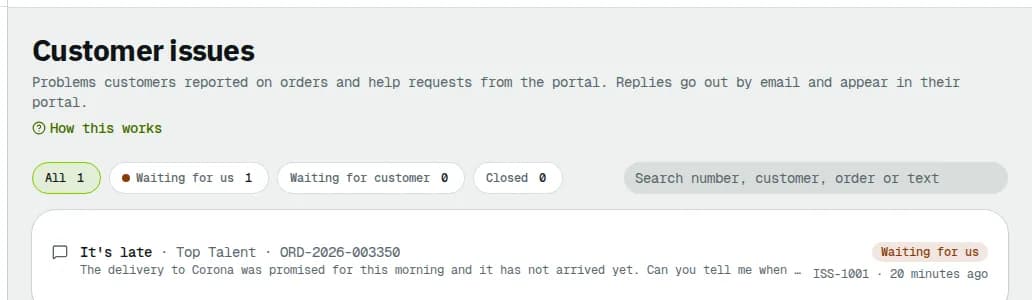
- Use the status chips: Waiting for us (new, or the customer wrote again), Waiting for customer (you replied) and Closed. All shows everything.
- Search by issue number, customer, order or text.
Each row shows the topic (such as It's late, Something is damaged or Wrong address or contact), the customer, the order and the last message. Newer and Older page through long lists.
Reply
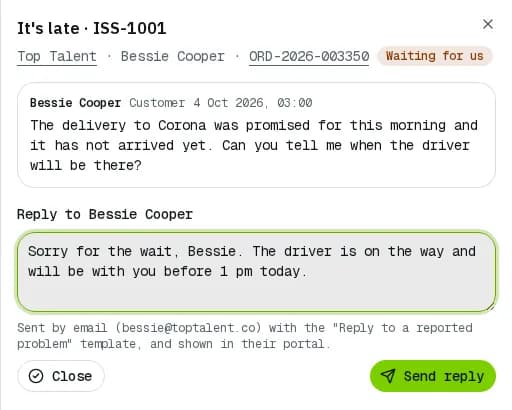
- Click the issue. A panel opens with the whole conversation, the customer and contact, and a link to the order.
- Click the order number first if you need to check the delivery, then come back.
- Type your answer under Reply to contact name.
- Click Send reply. It goes out by email to the contact and appears in their portal. The issue moves to Waiting for customer.
Close or reopen
- Click Close in the panel when the problem is solved.
- Click Reopen on a closed issue if it needs more work.
Related articles
- How-toWork on an orderAssign a driver, change the status, edit the order, add notes and files, share tracking, print documents, cancel or complete it.
- How-toStart your daySee what needs you first on the Operations overview, work through your notifications and choose which alerts reach you.
- Page guideCustomer issuesThe Customer issues inbox: the status chips, search, the issue list, the conversation panel, replying, closing and reopening, and where else issues appear.
Still stuck?
Tell us what you were trying to do. A person reads every message.