Start your day
See what needs you first on the Operations overview, work through your notifications and choose which alerts reach you.
On this page
Begin each shift on the Operations overview: it shows what is waiting for a dispatcher, today's order flow and where the fleet is. Your notifications sit behind the bell in the top bar. Anyone who can see reports can open the overview, and the Dispatcher role can. Every signed-in user has their own notifications and alert settings.
Check what needs attention
When AI is on for your company, start with the Today's AI brief panel at the top: up to five lines on what to do first, written from today's numbers, each one opening the right list. Switch EN / FR for the other language; Refresh (three times a day) rewrites it from the live numbers. See Operations overview.
- In the sidebar, click Operations overview.
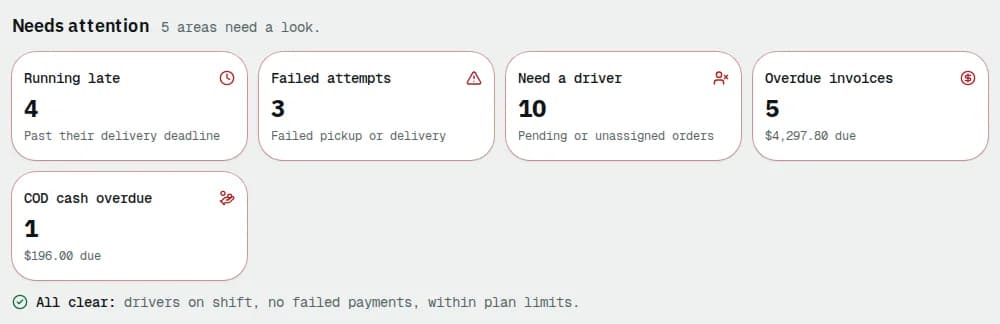
- Read the Needs attention row first. It only shows tiles that have something to do, most urgent first: Running late, Failed attempts, Need a driver, Nobody on shift, and money tiles such as Overdue invoices or COD cash overdue. Everything else is listed after All clear:.
- Click a tile to open the list filtered to exactly those records, for example Need a driver opens Orders showing only orders without a driver.
- In Today's board, the Unassigned, In progress and Done today counters link to the matching orders. Switch between Exceptions and Latest orders below them, or click Open the exceptions queue to work through them one by one.
Further down are the key numbers (Orders, Revenue (invoiced), Collected, Outstanding, Active customers, Drivers on shift), compared with the previous period, then Plan usage, Fleet status, Fulfilment pipeline, Delivery performance, Fleet condition and Deliveries trend.
Read your notifications
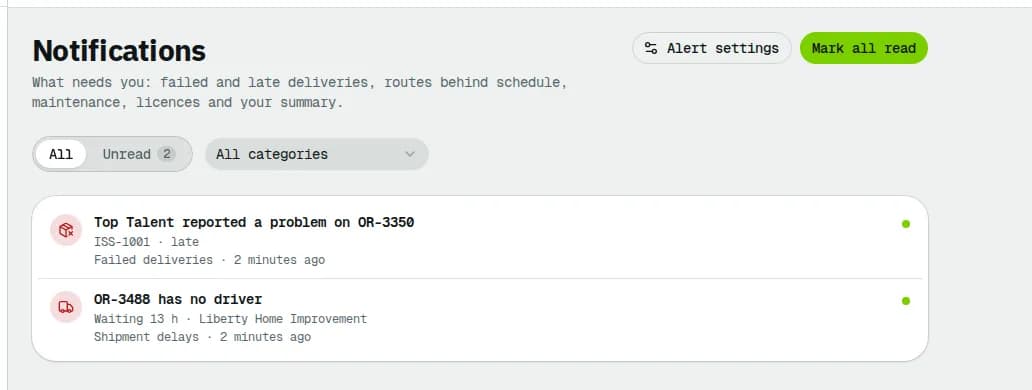
The bell in the top bar shows how many notifications you have not read.
- Click the bell to see the latest ones. Clicking one opens what it is about and marks it read.
- Click Mark all read to clear the count, or View all notifications to open the full Notifications page.
- On the Notifications page, switch between All and Unread, or pick a type in the category list (for example Failed deliveries or Route delays).
Choose which alerts reach you
- Click My alerts on the Notifications page (or the My alerts icon in the bell), which opens My alerts.
- Under Notification channels, turn In-App, Email and SMS on or off.
- Under Alert categories, tick the channels for each type: Shipment delays, Failed deliveries, Route delays, Vehicle maintenance due, Driver license expiry, Fuel index alerts and Daily summary reports, and set the Priority / Frequency.
- Optionally turn on Quiet hours (with From and To) and choose an Email digest under Digest preferences.
- Click Save preferences. Discard changes puts back what was saved.
Related articles
- How-toFind and manage ordersFilter and search the orders list, save views, use the board, and act on many orders at once: assign, print labels, add to a route.
- How-toHandle a failed deliveryDecide what happens after a failed pickup or delivery: schedule a new attempt and tell the recipient, return the package to the sender, or put the order on hold.
- Page guideMy alertsYour personal alert settings - which channels you use (in-app, email, SMS), how each alert type reaches you and how urgent it is, your quiet hours and the email digest.
- Page guideOperations overviewEvery card on the Operations overview: Today's AI brief, Needs attention, Today's board, the key numbers, plan usage, fleet status, fulfilment pipeline, delivery performance, fleet condition and the deliveries trend.
- Page guideInbox (your alerts)The Notifications page: your own alerts about failed and late deliveries, route delays, maintenance, licences and the daily summary, with the All / Unread switch, the category filter and Mark all read.
Still stuck?
Tell us what you were trying to do. A person reads every message.