Handle a failed delivery
Decide what happens after a failed pickup or delivery: schedule a new attempt and tell the recipient, return the package to the sender, or put the order on hold.
On this page
When a driver can't collect or deliver, they report it in the app and the order becomes Pickup failed or Delivery failed. You then decide what happens next. This needs the Dispatcher, Operations Manager or Admin role.
Find failed orders
- On Orders, click the Failed chip under Needs attention.
- On the Operations overview, click the Failed attempts tile.
- In Exceptions, filter on Failed.
Open the order. A red banner says The delivery failed (or The pickup failed) with the driver's reason, the time, and how many attempts are used, for example Attempt 2 of 3 failed · 1 retry left. The buttons on the banner are your choices.

Schedule a new attempt
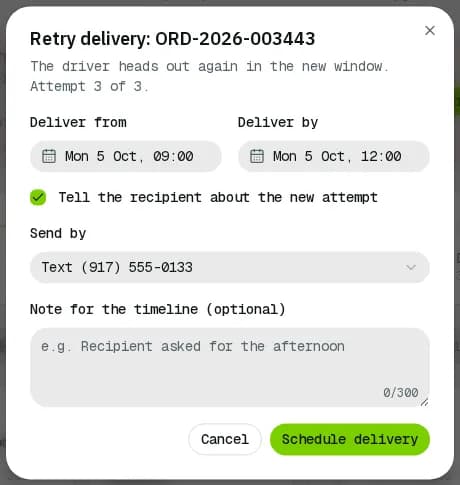
- Click Retry delivery (or Retry pickup).
- Set the new window: Deliver from and Deliver by (for a pickup the fields are Pick up from and Deliver by (optional)). It starts as tomorrow 09:00–12:00 in your company's time zone.
- For a delivery, leave Tell the recipient about the new attempt ticked and pick how under Send by (a text to their phone or an email). The box is greyed out when the order has no recipient phone or email.
- Optionally add a Note for the timeline (optional), such as "Recipient asked for the afternoon".
- Click Schedule delivery (Retry pickup for a pickup). The driver heads out again in the new window.
Tell the customer
To explain a failed, late or rescheduled delivery to the customer who ordered it, click Draft with AI on the order (when AI is on for your company). You get an English or French email or text draft built from the order's facts (order number, reason, new window, tracking link), which you can edit before pressing Send email or Send text. See Order detail.
Return the package to the sender
Only for a failed delivery (the driver has the package):
- Click Return to sender, add a Note (optional) and confirm with Return to sender. The order becomes Return to sender and the driver takes the package back to the pickup address. If the address only got its map location after the order was booked, that location is used.
- When the sender has it, click Mark returned, enter Received by (who took the goods back, required) and an optional Note (optional). The order becomes Returned and is closed: it was not delivered, so there is no Mark completed step.
If the pickup address has no map location and the order has no located depot, the return is refused. Set the location on the address (Use the address book) and click Return to sender again. A failure reason that returns the goods automatically puts such an order On hold instead, with the reason on the order, so the driver's report still goes through. The customer gets no email for that hold.
Put an order on hold
Use a hold when you are waiting for the customer, for example for a new address or a payment.
- Click Put on hold, write the Reason (required) and click Put on hold. Nothing moves until you release it; an order that is not yet picked up also leaves the driver's app.
- When you can continue, open the order and click Release hold. A hold made after a failed delivery can also go straight to Return to sender.
You can put several orders on hold at once from the orders list (see Find and manage orders).
Related articles
- How-toWork the exceptions queueOne list of everything that needs a dispatcher now: failed and late orders, orders without a driver, delayed vehicles, lost signal and driver issues. Take, snooze or resolve each one.
- How-toWork on an orderAssign a driver, change the status, edit the order, add notes and files, share tracking, print documents, cancel or complete it.
- How-toReport a failed deliveryMark a delivery attempt as failed with a reason and photos, or send a problem report, and bring the package back to the depot.
- How-toCreate an orderBook a pickup and delivery for a customer, compare services and see the live price before you save.
Still stuck?
Tell us what you were trying to do. A person reads every message.