Order detail
Every part of an order's page: header badges and buttons, every action in the ⋯ menu with who can use it and what it changes, the status banner, and the General, Packages, Price breakdown, Attachments and History tabs.
Watch: A multi-stop job
3:08One pickup, several drops and a return leg on one order: how to enter it, how it is priced and how the driver works through it.
Watch: Create an order
1:43Pick the customer, the route and what is moved, compare the services by price and delivery time, and create the order.
On this page
The order page (/orders/ORD-…) shows one order and everything you can do with it. Anyone with orders access can open it; changing it needs orders:write (Dispatcher, Operations Manager, Admin). Some actions need more, as listed below. For a walkthrough see Work on an order; for the status rules see Order statuses and lifecycle.
At a glance
| Area | What it shows or does |
|---|---|
| Header | Order number, badges, "Created on … · By …", the buttons and the tab bar. From tablet width up it stays stuck under the top bar while you scroll. |
| Status banner | Shown for drafts and for cancelled, on-hold, failed, rejected, returning and returned orders, with the matching buttons (for example Retry delivery, Release hold). |
| Customer instructions | The customer's special instructions, when set. |
| Progress | Order placed, Driver assigned, Picked up, Out for delivery, Delivered, each with its time. Hidden on cancelled orders. |
| Tabs | General, Packages, Price breakdown, Attachments, History (the tab is kept in the address). |
Header
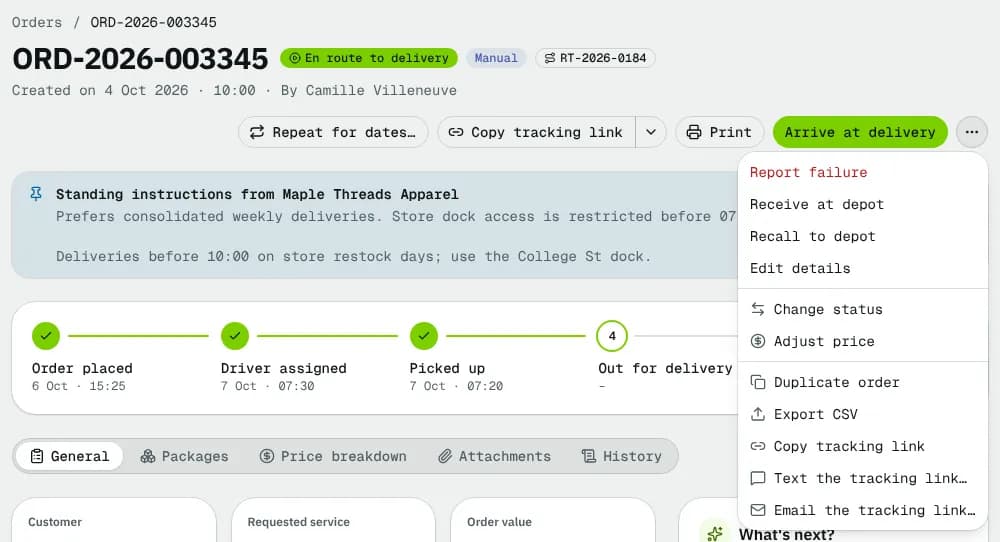
Badges: the status (with "partial" for a partial delivery), the source (Portal, API, CSV, Manual), a recurring badge for orders from a series, the route the order is on (opens the route; needs routes access), Invoiced (opens the invoice; needs invoices access) and Price overridden (hover for the reason).
Buttons, left to right:
- Copy tracking link (open orders, wide screens): copies the public tracking page link. Its arrow offers Email the tracking link… and Text the tracking link….
- Print (tablet width up): Labels (PDF): Label 4×6, Label 4×6, one per package, Labels on A4 (4 per sheet), Labels on Letter (4 per sheet). Documents: Waybill (PDF), Bill of lading (PDF), and Proof of delivery (PDF) once captured. Print from the browser: Shipping label, Waybill, Bill of lading.
- Edit order (tablet width up, when the order can be edited and it isn't the main button): opens Edit order.
- Draft with AI (the indigo AI button;
orders:write, only when AI is on for your company and only on late, failed or rescheduled orders): an AI draft of an email or text to the order's customer contact. See Draft with AI below. - The main button: the next step for the status (for example Assign driver, Complete delivery), else Approve order, Confirm order or Edit order.
- ⋯ (More actions): every other action below, then Repeat for dates… (
orders:create; not on drafts or cancelled orders: turns this order into a recurring series, see Set up recurring orders), Export CSV (one row per package line), Copy tracking link, Text the tracking link… and Email the tracking link… (only where the Copy tracking link button isn't shown) and, last, Decline order, Cancel order, Delete order.
A deleted order shows "This order is deleted" and only Restore order (orders:write).
Draft with AI
Draft with AI opens Message the customer (marked AI) and writes a draft about the problem: the order is running late (past its Deliver by), the pickup or delivery failed, or a new attempt is scheduled after a failure. While it writes, a status line reads "Writing the message from the order's facts…". The AI writes it from the order's own facts only: the order number, status, the promised time, the new expected time or window, the failure reason, the delivery city, the contact's first name, the customer company and the tracking link. A draft that adds a time, link or number not in the order is thrown away, never shown.
- Send by: Email or Text. It starts on email when the contact has one. Text is only offered when the contact's own Receive SMS setting is on and their SMS consent is on file; otherwise it is greyed out with "This contact doesn't receive texts (their SMS setting is off), so only email is offered." Switching writes a new draft for that channel (texts are short and start with your company name).
- Language: English or Français. It starts in the contact's language, else the customer's, else your company's. Switching writes a new draft.
- Email address / Mobile number: the order's customer contact, editable. Subject (email) and Message are editable; a text shows its character count (up to 320). Every draft sits in an indigo box labelled AI suggestion — review before sending.
- Nothing is sent until you press Send email or Send text. The message goes out through your normal customer messages: it is logged on the order and under Notifications, your branding is applied to emails, a first text carries the opt-out line, and a number that replied STOP is never texted ("This number can't receive texts (invalid or opted out).").
- If the AI fails while it is on, the dialog says so and you can write the message yourself in the same fields. When AI is off the button isn't there.
Example: order VNP-10482 for Fromagerie Atwater in Laval is 2 hours late. The French text draft reads "VNP Transport : Bonjour Marie, la commande VNP-10482 pour Laval est en retard. Nouvelle arrivée prévue aujourd'hui entre 16 h 00 et 17 h 00. Suivi : …".
Every action
All need orders:write unless noted. Only actions valid for the current status appear.
Moving the order
| Action | When | What it changes |
|---|---|---|
| Approve order | Awaiting approval | → Pending. The price stays as locked. A lane outside the service's zone table (hold for a quote) goes On hold ("Quote needed") instead, unless you already set its price with Adjust price. The credit rule is checked again; a pickup time in the past must be edited first. The customer is emailed and the auto-assign rule runs. |
| Decline order | Awaiting approval | → Cancelled. Reason for the customer (required, 200 characters) is emailed to them. |
| Confirm order | Draft | Submits it: → Pending, and the price is calculated and locked. |
| Assign driver | Pending, Rejected | → Assigned. Pick a Driver (each line shows on shift, distance, active orders and why auto-assign would skip them; drivers who can't carry the handling are disabled) or Auto-assign (best fit). An out-of-zone driver, or one whose licence has expired, shows a warning, not a block; auto-assign never picks a driver with an expired licence ("Licence expired on …"). |
| Redeliver: assign driver | At depot | Assigns a driver to collect it at the depot. |
| Assign return driver | Return to sender with no driver | Assigns the return run. |
| Accept order / Reject order | Assigned | On the driver's behalf. Reject needs a Reason (too far, too many orders, vehicle not suitable, package too heavy, outside service hours, other) and an optional Note → Rejected. |
| Transfer to another driver | Assigned, Driver accepted, En route to pickup | Hands it to another active driver. |
| Unassign driver | Same | Back to Pending. |
| Start pickup run, Arrive at pickup, Start delivery run, Arrive at delivery | The matching status | One click, no proof. |
| Complete pickup / Complete delivery | At pickup / At delivery | → Picked up / Delivered. Asks for what the proof rules require (see below). |
| Report failure | En route to or at the pickup or delivery | → Pickup failed / Delivery failed. Reason from your failure reasons and an optional Note; shows "Attempt n of max". The reason may hold the order or return it automatically. A failed delivery's signature, photo and label scan move to Attachments: the next attempt captures its own. |
| Retry delivery / Retry pickup | Failed, attempts left | A delivery goes back to the same driver (Deliver from, Deliver by); a pickup goes back to the driver (or the pool) with Pick up from, Deliver by (optional). Tell the recipient about the new attempt with Send by text or email, and Note for the timeline (optional). Refused once the attempts are used up. |
| Put on hold | Pending, Assigned, Driver accepted, En route to pickup, failed, At depot | → On hold. Reason required. The driver loses it from the app until released. |
| Release hold | On hold | Back to where it was held from (or the pool if the driver left). A "quote needed" hold needs Adjust price first. |
| Return to sender | Delivery failed, At depot (or on hold from those) | → Return to sender. Goes to the pickup address, or the depot where the sender collects it. Optional Note. |
| Mark returned | Return to sender | → Returned (closed, not delivered). Received by required, Note optional. |
| Receive at depot / Move to another depot | After pickup, failed, returning, on hold; or before pickup when collected at a customer address | → At depot. Pick the Depot; optional Note (e.g. shelf). |
| Recall to depot | Picked up, En route to delivery, Delivery failed, Return to sender, with a driver | Tells the driver to bring it back. Bring it to and Reason. |
| Mark completed | Delivered | → Completed (also happens automatically after 24 hours). |
| Change status | Any but awaiting approval | Only the legal next statuses, undoable from the toast. On hold: only back to where it was held, At depot or Cancelled (plus Pending if it was held before pickup). Force a different status… (orders:delete: Admin and Operations Manager by default) sets any status with a required reason and clears later-stage details. |
Changing the order
| Action | When | What it changes |
|---|---|---|
| Edit order | Draft, Awaiting approval, Pending | Opens Edit order. |
| Edit details | Assigned through Delivery failed, and On hold | Dialog with Recipient, Recipient phone, Pickup contact, Pickup contact phone, Pickup from, Pickup until (optional), Deliver from (optional), Deliver by, Appointment reference, Delivery instructions, Pickup instructions, Reference, Tags (comma separated), Internal notes, and Tolls for price holders. Addresses, packages and price stay; the driver is notified. |
| Adjust price | Not cancelled; needs the order price permission | New total and Reason (required); a table shows What changes. The price stops recalculating, the Price overridden badge shows and the change is logged. Refused once the order is invoiced, locked or its cash collected. |
| Duplicate order | Always (orders:create) | Makes a draft copy without dates and opens it for editing. A multi-stop job keeps its stops, all back to To do; a stop whose address is no longer active is left out and the timeline says so. |
| Cancel order | Before pickup, at depot, failed or on hold | → Cancelled. Reason from your list, What happened / Details (optional). If the service charges a cancellation fee now, it is shown and billed with the order; with orders:delete (Admin and Operations Manager by default) you can tick Waive the fee (kept, voided, for the record). The customer and driver are told. |
| Delete order | Draft (orders:delete) | Hidden from every list; restorable from ⋯ > Show deleted orders on the list. |
Completing a pickup or delivery
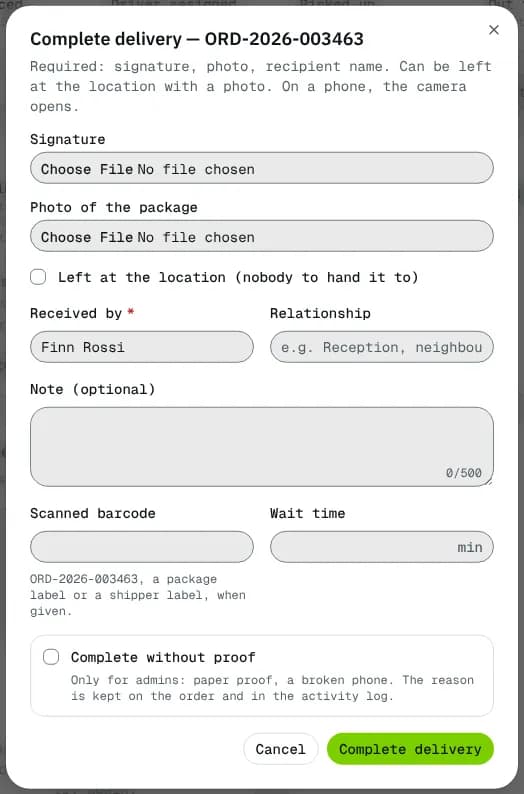
The dialog lists the proof the rules ask for: Signature, Photo of the package, Left at the location (nobody to hand it to) when safe drop is allowed, Received by / Handed over by, Relationship, ID seen and Birth date on the ID (checked, not stored), Delivery PIN, Note (optional), Scanned barcode, Wait time, Temperature reading for cold goods, and Packages handed over to mark refused, damaged or missing pieces (the order shows Delivered (partial)). For cash on delivery: Collected, Method (Cash, Cheque, Card on delivery) and Why is it different? when the amount differs. With orders:delete (Admin and Operations Manager by default) you can tick Complete without proof with a Reason.
General tab
| Card | Shows |
|---|---|
| Customer, Requested service, Order value | The contact; pickup, delivery window, appointment and receiving hours; the total (marked Tax included or Before tax, per your tax settings) with Adjust price. |
| Pickup & delivery | The addresses as snapshotted when placed, with contacts and instructions. |
| Stops · n of m done | The whole job in driving order, with Complete, Failed, Skip, Reopen and, on a failed drop, Redeliver on extra stops. See Work the stops of a job. |
| Assignment | The driver and vehicle. |
| Proof of pickup & delivery | Signer, time, photos, PIN, GPS check; Download POD and Send POD (email attaches the PDF, text sends the link). |
| Charges after pickup or delivery | Rule and manual charges, "Cancelling now would charge" and "Billed for this order". Add charge (Label, Amount, Detail (optional)) until invoiced; voiding a line needs orders:delete and a reason. |
| Driver tip | Add tip / Change tip until invoiced: billed without tax and paid to the driver in full. |
| Proof & delivery rules | What this order needs, GPS checks and attempts; Change for this order. |
| Cash on delivery | Due, collected, difference, collector, method, remittance. COD orders only. |
| Order details | Created, reference, location, external id, priority, service, vehicle class, payment, signature / photo, return service, submitted, completed. |
| Custom fields, Customer issues, From the receiver | Order custom field values; problems the customer reported; requests and ratings from the tracking page (Done / Decline). |
| Side: What's next?, Driver issues, Notes, Driver network, Latest activity, Messages | The next step in words; issues from the driver app; team notes (Add note, tick Send to the driver to push it); offer the order to network drivers (price, wallet check); the last 5 events; emails and texts sent. |
Packages tab
Packages: Package, Type, Qty., Weight each, Line weight, Volume, Declared value, Handling, plus each label's Outcome after a partial delivery. Chain of custody: When, From, To, Pieces, Temp., Confirmed by.
Price breakdown tab
Base price, each modifier, discount and minimum / maximum lines, Subtotal, Adjustment, Tolls (pass-through), the total and the GST / HST / PST / QST lines the invoice will add, and Total with tax. A note says whether the price is recalculated (draft), locked (with the time) or overridden. COD orders say the price is billed on the customer's invoice and link the COD receipt (PDF) for the goods money collected. Without the order price permission the tab says prices are hidden.
Attachments tab
Drop photos or scans, or Choose images (orders:write). Each file can be downloaded or removed (logged in the history).
History tab
Activity: every event with its time, actor and note. Assignment history: Driver, Vehicle, Method (auto / manual), Assigned, including transfers and unassigns.
Good to know
- Every action re-checks the status on the server; if someone else changed the order, reload and try again.
- Drafts have no tracking link.
- Once invoiced, the price, customer, payment method and COD amount are locked until the invoice is voided.
Related articles
- How-toWork on an orderAssign a driver, change the status, edit the order, add notes and files, share tracking, print documents, cancel or complete it.
- ConceptOrder statuses and lifecycleEvery order status, how an order moves from one to the next, who or what moves it, and what each status means for the price and the invoice.
- How-toHandle a failed deliveryDecide what happens after a failed pickup or delivery: schedule a new attempt and tell the recipient, return the package to the sender, or put the order on hold.
- How-toSet up recurring ordersRepeat an order on a schedule, skip or change single dates, pause a series and see which dates were created or blocked.
- How-toFind delivered orders that are not invoicedSee which customers have delivered orders that are not on an invoice yet, and bill them in a few clicks.
- How-toWork the stops of a jobFollow a multi-stop job on the order page, and complete, fail, skip or reopen a stop from the office when the driver cannot.
- ConceptMulti-stop jobs explainedHow a job with extra pickups, drops and a return works from booking to completion: stop types, the order they are worked in, price, distance, proof, failures and who sees what.
- TroubleshootingOrder and dispatch error messagesWhat the red messages mean when you save an order, work a stop, change a status or run a route, and how to fix each one.
Still stuck?
Tell us what you were trying to do. A person reads every message.