Work the stops of a job
Follow a multi-stop job on the order page, and complete, fail, skip or reopen a stop from the office when the driver cannot.
On this page
On a multi-stop job the driver closes each stop in the app. The office can do the same from the order page when a stop was done on paper, the phone failed or a stop must be dropped. You need the orders edit permission; completing a stop without its proof also needs the right to delete orders (admins and operations managers).
Follow the job
Open the order. The Stops · n of m done card lists every stop in driving order with a badge (To do, Arrived, Done, Failed, Skipped), the address, the contact and instructions, and for closed stops the time, who received it, how many photos and any failure reason.
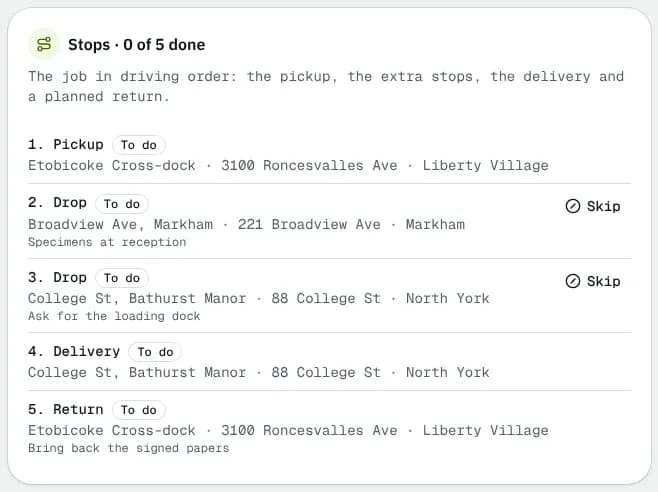
The card only appears on orders with extra stops. The first and last entries are the order's own Pickup and Delivery: they follow the order's status and have no buttons here. Their proof is handled as for any order (Work on an order).
Complete a stop
- On the stop, click Complete.
- Fill Received by (or Handed over by for a pickup stop) and an optional Note (optional).
- Click Complete stop.
If the proof rules ask for proof the driver app did not capture, the save is refused with a proof required message. Let the driver add it in the app or, if you may delete orders, tick Complete without the proof the stop asks for (paper proof, broken phone) and write Why there is no proof. The reason is kept on the stop and logged as a warning.
Mark a stop failed
Click Failed, enter Why it failed (required, for example "Closed, nobody there") and click Stop failed. The job goes on to the next stop. It is not retried by itself and shows on Exceptions until dealt with: Reopen it while the driver is out, or Redeliver it.
Redeliver a failed drop
When the driver has moved on or the job is Delivered, click Redeliver on the failed drop (needs the right to create orders).
A new Draft opens for that stop's address and contact, with the job's packages, no other stops and no cash on delivery. Check the packages and price, set the dates and submit it. It is billed as its own order.
The stop then links to it under Redelivery: and leaves Exceptions. A drop can be redelivered once.
Skip a stop
Click Skip when nobody should go there on this job (the customer cancelled that drop). Why (optional) is a free note. Skipped stops no longer hold up the final drop.
Reopen a stop
Click Reopen and confirm "Reopen this stop?". It goes back to To do and its proof or failure is cleared. You cannot reopen:
- an extra stop once the job is delivered, or while the driver is at the final drop;
- anything once the order is Completed, Returned or Cancelled. (A return stop can still be reopened until the order is completed.)
Rules to know
| Rule | What happens |
|---|---|
| Office can work any open stop | Out of sequence is allowed (a stop done off-app). |
| Extra stops can be done only after pickup | Before the pickup you can only Skip a stop. |
| A failed stop holds the nightly auto-close | The order stays Delivered until the stop has a redelivery or you click Mark completed. Resolving the Exceptions row only hides it. |
| A forced status resets the stops | Back before the pickup reopens every stop; back before the final drop reopens the return. Old stop proof goes to the attachments and the timeline says "Stops reset". |
When the last stop before the delivery is closed, the order moves to En route to delivery by itself. The driver's order of work is in Multi-stop jobs. Every stop action goes to the order timeline and the Activity log.
Related articles
- ConceptMulti-stop jobs explainedHow a job with extra pickups, drops and a return works from booking to completion: stop types, the order they are worked in, price, distance, proof, failures and who sees what.
- How-toBook a multi-stop jobAdd extra pickups, drops and a return to an order, check the distance and price, save it and give it to a driver.
- TroubleshootingOrder and dispatch error messagesWhat the red messages mean when you save an order, work a stop, change a status or run a route, and how to fix each one.
- How-toProof and delivery rulesChoose the proof drivers capture at pickup and delivery (signature, photo, name, ID and age, PIN, safe drop), the GPS check, failure and cancel reasons, and attempts — for the company, a service, a customer, an address or one order.
- Page guideOrder screenEverything on one order in the driver app: the progress bar, the Pickup and Delivery stops with Navigate, Call and Text, stops, cash, packages, notes, pay, proof, history, the next-step button and the Order actions menu (report, contact, edit, transfer, decline).
Still stuck?
Tell us what you were trying to do. A person reads every message.