Book a multi-stop job
Add extra pickups, drops and a return to an order, check the distance and price, save it and give it to a driver.
On this page
Use extra stops when one driver collects or delivers at several places for one customer on one order. Dispatchers, operations managers and admins can do it on the create and edit forms. For how it all works, see Multi-stop jobs explained.
Before you start
- The customer needs a saved address for every stop, on their Addresses tab. Pickup stops use addresses set to Pickup only or Pickup and delivery. Drop stops use Delivery only or Pickup and delivery.
- If your price uses distance, each address needs a map location (no Location needed badge). See Use the address book.
Add the stops
- Open Orders and click Create order, or open a Draft, Awaiting approval or Pending order and click Edit order.
- Fill in the Customer account, the pickup (Depot or Pickup address) and the delivery Address as for any order. This pickup is stop 1 and this delivery is the last drop.
- In Extra stops, click Add stop. The buttons stay disabled until a customer is chosen.
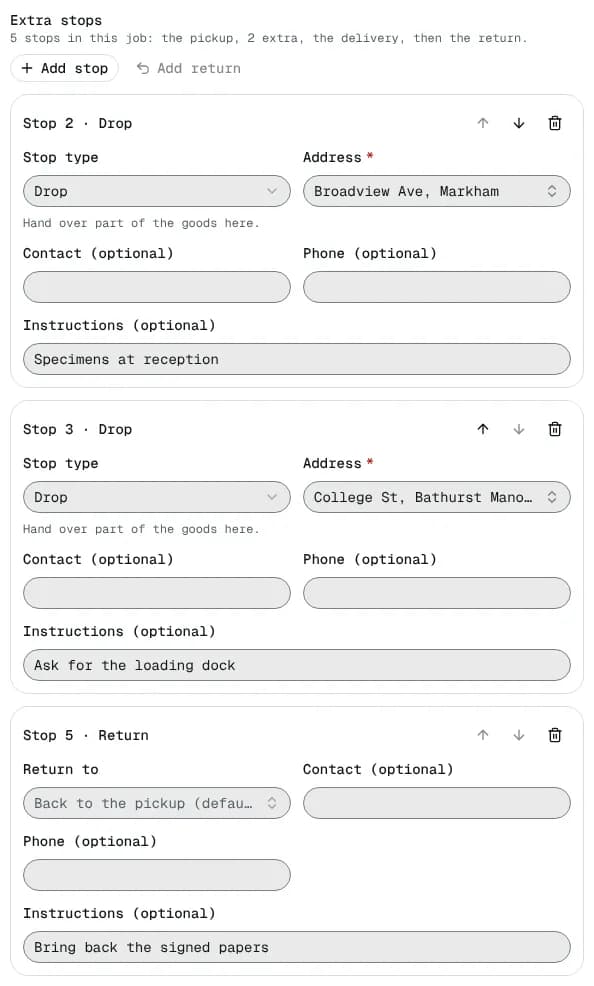
- In the new card, set Stop type: Pickup (collect more goods here) or Drop (hand over part of the goods here), then pick the Address.
- Optionally fill Contact (optional), Phone (optional) and Instructions (optional), for example "Specimens at reception". The driver sees them at that stop.
- Repeat for more stops. Use the up and down arrows to change the order. Cards are titled Stop 2 · Drop, Stop 3 · Pickup and so on, in the order the driver works them.
- To bring something back, click Add return. Leave Return to empty to go back to the first pickup ("Back to the pickup (default)"), or pick another address. Add the instruction, for example "Bring back the signed papers". The return is always the last card and you can have only one.
The line above the cards counts the job: "5 stops in this job: the pickup, 2 extra, the delivery, then the return."
Check the distance and price
- Estimated route and Order preview show one Distance and drive time through every stop, and a Stops line such as "5 · 2 extra + return".
- The Payment summary includes your extra-stop rate and return fee when your price set has the Per extra stop or Return trip modifiers. If a line is missing, ask an admin to add the modifier (Per-unit modifiers).
- You can add up to 25 extra stops.
Save and send it to a driver
- Click Create order (or Save draft; drafts only need the customer). Fix any red message on a stop first: see Order and dispatch error messages.
- Assign a driver. A multi-stop job is not put on a depot route: assign from the order page, the Assign button in the orders list, Assign driver on the Live map, or use auto-assign.
- The driver works the stops in order in the app. You can follow progress in Stops · n of m done on the order.
Standing jobs
A recurring order repeats an existing order, stops included: book the multi-stop order first, then pick it as the order to repeat (Repeat for dates… in its ⋯ menu, or New recurring order). Every order the series creates gets the same stops, all To do, not the progress of the source order. See Recurring orders.
Related articles
- ConceptMulti-stop jobs explainedHow a job with extra pickups, drops and a return works from booking to completion: stop types, the order they are worked in, price, distance, proof, failures and who sees what.
- How-toWork the stops of a jobFollow a multi-stop job on the order page, and complete, fail, skip or reopen a stop from the office when the driver cannot.
- How-toUse the address bookLook up saved pickup and delivery addresses, check their pricing zone, and find addresses that need fixing before orders can use them.
- How-toRoutes with or without a depotWhere a route starts and ends, why every route needs a depot, and how to run direct pickup-to-delivery jobs when your company has no depot.
- TroubleshootingOrder and dispatch error messagesWhat the red messages mean when you save an order, work a stop, change a status or run a route, and how to fix each one.
Still stuck?
Tell us what you were trying to do. A person reads every message.