Import orders from a spreadsheet
Create many orders at once from a CSV or Excel file, fix the rows that have problems, or paste one row into a new order.
On this page
When a customer sends a list of deliveries, import it instead of typing each order. Dispatchers, operations managers and admins can import. Every row is checked against the customer's own rules and prices, and nothing is created until you confirm.
Upload the file
- Open Orders and click Import.
- Pick the Customer the rows are for. To mix customers in one file, add a Customer column with the customer code or exact company name.
- Click Choose file (or drop the file on the box). CSV or Excel (.xlsx), one row per order, up to 1,000 rows and 5 MB.
Match the columns
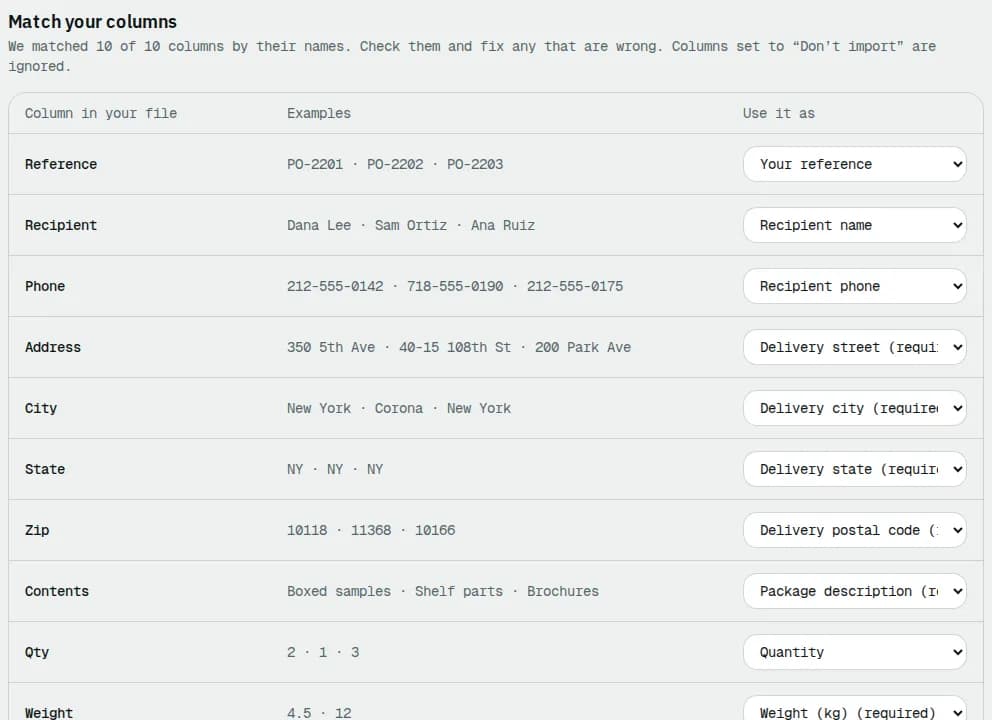
The Match columns step lists each column of your file with a few example values.
- Under Use it as, check the field each column is matched to. Pick Don’t import for columns you don't need.
- Make sure the required fields are matched: Delivery street, Delivery city, Delivery state, Delivery postal code, Package description and a weight column: Weight per piece or Total weight, read in your company's weight unit. A warning lists any that are missing.
- Click Check n rows.
Check and import
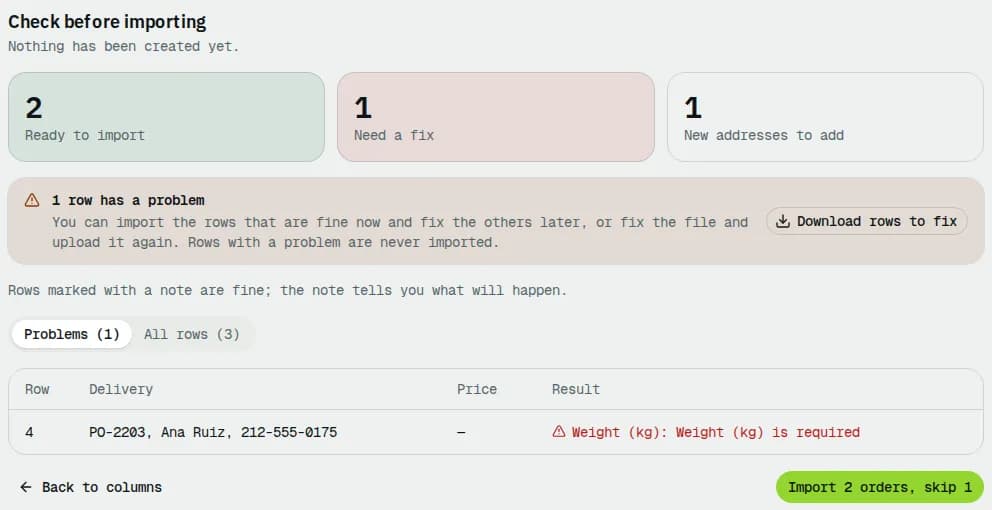
Check before importing shows how many rows are Ready to import, how many Need a fix and how many New addresses to add.
- Switch between Problems and All rows. Each problem says which field is wrong; each ready row shows its price.
- Click Download rows to fix to get the failed rows as a spreadsheet with a Problem column. Fix them and import that file later.
- Click Import n orders (or Import n orders, skip *n* when some rows have problems). Rows with a problem are never imported.
The result says how many orders were imported. Click View orders to see them, or Import another file.
Past imports at the bottom of the page lists earlier files with their result, so you can download the problems (Problems) or Undo the latest one later.
Paste one order from a spreadsheet
For a single row, you don't need a file:
- On Orders, open ⋯ in the toolbar and choose Paste from spreadsheet….
- Copy the cells in your spreadsheet (a header row is recognised) and paste them in the box.
- Under each column, pick the order field it fills, or Skip.
- Click Prefill new order. The create order form opens with the reference, contact, instructions, priority and first package filled in. Pick the customer, route and service, then save as usual (see Create an order).
Related articles
- How-toCreate an orderBook a pickup and delivery for a customer, compare services and see the live price before you save.
- How-toUse the address bookLook up saved pickup and delivery addresses, check their pricing zone, and find addresses that need fixing before orders can use them.
- Page guideImport ordersThe Import orders page step by step: the customer picker, the four import steps, every column the file can have, the check table, the result and the past imports list with undo.
- How-toWork on an orderAssign a driver, change the status, edit the order, add notes and files, share tracking, print documents, cancel or complete it.
Still stuck?
Tell us what you were trying to do. A person reads every message.