Import orders
The Import orders page step by step: the customer picker, the four import steps, every column the file can have, the check table, the result and the past imports list with undo.
On this page
Import orders creates many orders from a CSV or Excel file. It needs orders:create (Dispatcher, Operations Manager, Admin). Open it with Import on the Orders page, or Import orders in a customer's ⋯ menu (the customer is then preselected). Every row is checked against its customer's own rules and prices, and nothing is created until you confirm. For the how-to see Import orders from a spreadsheet.
At a glance
| Area | What it does |
|---|---|
| Customer | The customer the rows are for. Required before you can upload. |
| Steps | Upload, Match columns, Check, Done. Changing the customer restarts them. |
| Past imports | Earlier files with their result, problem downloads and undo. |
Upload
Choose your file: one row per order, CSV or Excel (.xlsx), up to 1,000 rows and 5 MB. Drop the file or click Choose file. Until a customer is picked the box says "Pick the customer first." Download the sample template gives a file with every column and an example row (the customer's default address, a pickup a week from today, no service so the customer's default applies).
To put several customers in one file, add a Customer column with the customer code or exact company name; rows without it go to the picked customer.
Match your columns
NemiRoute matches columns by their names ("We matched n of m columns"). For each Column in your file you see Examples and pick Use it as, or Don't import. Custom fields appear under Custom fields as "Custom: …". If something required isn't matched, "Some required information is not matched yet" lists it. Click Check n rows to continue.
| Column | Required | Notes |
|---|---|---|
| Customer | No | Code or exact name; overrides the picked customer. |
| Your reference | No | PO or reference. |
| Location / department | No | The customer's location name or code. |
| External order id | No | Your customer's own id. |
| Service | No | The service (price set) name, e.g. Standard. |
| Vehicle class | No | |
| Pickup date and time | No | e.g. 2026-11-02 09:30. |
| Pickup until, Deliver from, Deliver by | No | The window ends. |
| Appointment reference | No | |
| Pickup company, Pickup street, Pickup suite / unit, Pickup city, Pickup state, Pickup postal code, Pickup country | No | A pickup address other than the depot. Empty country means your company's country. |
| Pickup contact, Pickup phone | No | |
| Recipient company | No | |
| Delivery street | Yes | |
| Delivery suite / unit | No | |
| Delivery city | Yes | |
| Delivery state | Yes | Province for Canadian addresses, e.g. ON. |
| Delivery postal code | Yes | e.g. M5V 2T6. |
| Delivery country | No | Empty means your company's country. The postal code is checked against this country. |
| Recipient name, Recipient phone, Recipient email | No | |
| Recipient language | No | English or French. |
| Delivery instructions | No | |
| Package description | Yes | |
| Package type, Quantity | No | Quantity defaults to 1. |
| Weight per piece or Total weight | One of the two | A total weight is spread over the pieces. |
| Length, Width, Height | No | |
| Signature required, Photo required | No | yes / no. |
| Cash on delivery | No | Amount to collect from the receiver; must be above 0. The order is created as a cash on delivery order. |
| Declared value | No | |
| Package labels | No | The shipper's own barcodes. |
| Handling | No | |
| Notes | No | Customer notes. |
| Custom: … | Per the customer's settings | Required when the customer requires the field. |
Check before importing
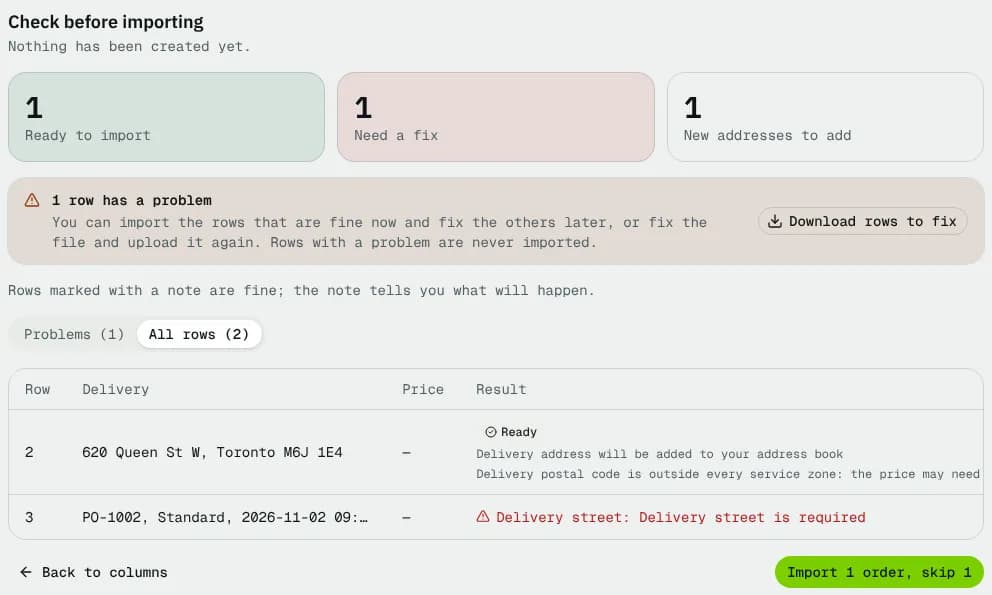
"Nothing has been created yet." Three tiles show Ready to import, Need a fix and New addresses to add (delivery addresses not yet in the customer's address book are added when imported). Switch between Problems (n) and All rows (n). The table shows Row, Delivery, Price (what the order will cost) and Result: Ready with any note, or the problems in red. Rows with a problem are never imported. The check runs the import's own rules: a pickup date before today, a date that doesn't exist (2026-11-31), and, for a service priced by distance, a new address the map can't place are all flagged here. A refused row adds nothing to the address book.
Buttons: Back to columns, and Import n orders (or Import n orders, skip m when some rows have problems).
Done
"n of m orders imported". A staff import counts as placed by staff, so the orders are Pending (they never wait for approval) and the auto-assign rule applies. Buttons:
- View orders opens the orders list.
- Download rows to fix: your rows with a Problem column, ready to fix and upload again. Problem list only downloads just the problems.
- Import another file.
- Undo this import (confirm with Undo import): cancels and removes the orders from this file and tells drivers already lined up. Added addresses stay. Only works for the customer's latest import, while every order is still Awaiting approval, Pending or Assigned.
Past imports
| Column | Shows |
|---|---|
| File | The file name. |
| Customer | Shown when no customer is picked. |
| When | Date and time. |
| Result | "n created, m skipped", or Undone. |
| Actions | Problems (download), Undo, or "Can't undo: …" with the reason. |
Empty: "No imports yet".
Good to know
- A postal code outside every service zone shows a note on its row: the price may need a quote.
- To prefill one order from a copied spreadsheet row instead, use the paste button on the Orders page.
Related articles
- How-toImport orders from a spreadsheetCreate many orders at once from a CSV or Excel file, fix the rows that have problems, or paste one row into a new order.
- How-toUse the address bookLook up saved pickup and delivery addresses, check their pricing zone, and find addresses that need fixing before orders can use them.
- How-toAdd custom fields to customers and ordersCreate your own extra fields, such as a PO number or a department, choose their type and who sees them, and see where the values show up.
- How-toCreate an orderBook a pickup and delivery for a customer, compare services and see the live price before you save.
Still stuck?
Tell us what you were trying to do. A person reads every message.