Orders
Every part of the Orders list: the work cards, the attention chips, filters, saved views, the table and board, row actions, bulk actions, dispatch rules and deleted orders.
On this page
Orders is the list of every order, from draft to delivered. Anyone with orders access can open it, search, print and export. Changing orders needs the orders:write permission (Dispatcher, Operations Manager, Admin); creating needs orders:create; deleting needs orders:delete (Operations Manager, Admin). For the step-by-step version see Find and manage orders.
At a glance
| Area | What it shows or does |
|---|---|
| Header | Import (to Import orders) and Create order (to Create order). Both need orders:create. |
| Work cards | Pending, Needs driver, Late, In progress: counts that filter the list. |
| View switch and chips | Table or Kanban, and the needs-attention chips. |
| Toolbar | Search, page size, date filter, All statuses, All depots, All drivers, More filters, custom field filters, the bookmark (Saved views), ⋯, Export, Clear, columns. |
| Table or board | The orders, with a ⋯ menu per order. |
| Bulk bar | Appears when you tick orders in the table. |
Work cards
Counts come from the server for your current search, source, customer and other filters (not the status filter). Click a card to show only those orders; click it again to show all. A card turns green at zero.
| Card | Counts | Caption |
|---|---|---|
| Pending | Orders in Pending or Rejected (the board's Pending lane), with a small trend line | incl. rejected |
| Needs driver | Pending, Rejected and At depot orders, and Assigned orders without a driver, whenever their pickup is. Exceptions Needs a driver now only lists those whose pickup is close | no driver yet |
| Late | Open orders past their required delivery time | past delivery deadline |
| In progress | Assigned, Driver accepted, en route, at pickup, picked up and at delivery | with a driver |
Needs-attention chips
Next to the Table / Kanban switch:
- Awaiting approval: only while an order waits for approval. Approve or decline it from its ⋯ menu.
- Failed: pickup or delivery failed, needs a decision.
- On hold: orders paused by a dispatcher or by the system.
- Network jobs: only when the driver network has open or taken offers.
Search and filters
| Control | What it does |
|---|---|
| Search orders... | Searches the list. Typing a full order number (ORD-2026-003495) and pressing Enter opens that order. |
| Date filter (Any date) | Pickup today, Pickup tomorrow, Pickup this week, Due today, Created today, Created this week, or Custom range… with Date of (Pickup, Due (required delivery), Created), From, To and Apply range. Days are your company's days, in its time zone. |
| All statuses | One or more of the 20 statuses (see Order statuses and lifecycle). |
| All depots | The pickup depot. |
| All drivers | Drivers, or No driver. |
| More filters | Opens the less used filters below, each with its label. The button shows how many of them are set. |
| All sources (in More filters) | Portal, API, CSV, Manual. |
| All priorities (in More filters) | Standard, High, Urgent. |
| Driver network (in More filters) | Offered, waiting, Taken by a network driver, Offer expired. |
| Any billing (in More filters) | Unbilled (delivered, not invoiced): closed orders with something to bill and no invoice. |
| Custom fields | One filter per order custom field your company has. |
| Customer chip | Shown when you came from a customer (?customerId=). Remove it with its ×. |
| Clear (n) | Shows how many filters (and the search) narrow the list, including custom field and column filters, and clears them all. With nothing set it is a plain funnel button. |
A filter that is set has a highlighted outline; unset filters are grey. Every filter, the search, the sort and the page live in the page address, so you can bookmark or share a filtered list.
Saved views
Click the bookmark button (Saved views). Save current view… (available once a filter, search or sort is set) opens Save this view with a Name (up to 60 characters) and, with orders:write, Share with the team. Your views are under My views, shared ones under Team views ("Shared by …"). Each view has Open, Open orders with this view (your default; Stop opening with this view turns it off), Share with the team / Stop sharing (your own views) and Delete view. Deleting a view never touches the orders.
The ⋯ menu and other toolbar buttons
- ⋯ → Dispatch rules…: how new orders find a driver. Auto-assign new orders (portal, API, import and repeating orders go to the best-fitting driver; if nobody fits the order waits in Pending), How drivers are weighed (On shift, Close to the pickup, Fewest open orders, Zone match, each 0–10), Postal zones (Required or Preferred), Only drivers on shift, and Farthest from the pickup in your distance unit (km or mi) (empty = no limit). Everyone can read the rules; only an administrator (
settings:write) can Save rules. - ⋯ → Show deleted orders (
orders:write): shows only deleted drafts and cancelled orders, with a Back to all orders button (or ⋯ → Hide deleted orders). Their row menu offers View order and Restore order. - ⋯ → Paste from spreadsheet… (
orders:create): Paste an order from a spreadsheet maps pasted columns to order fields; Prefill new order opens the create form with the first row. - Export: downloads the whole filtered list as CSV, including custom field columns.
- Columns and page size: the table's column menu shows or hides columns (custom fields are hidden by default).
The table
| Column | Shows |
|---|---|
| Order | Order number, source badge, created date and time; "Deleted … by …" on deleted orders. Sorting it sorts by creation time. |
| Customer | Customer name and industry. |
| Route | Pickup depot and the delivery street. |
| Service | The service type (price set). |
| Packages | Package count and total weight. |
| Driver | The driver's name; an Assign button on Pending and Rejected orders (orders:write); a Needs driver badge otherwise when one is needed. |
| Total | The order total. Roles without the order price permission see it hidden. |
| Status | Status badge (with "partial" for a partial delivery) and "Late by …" when late. |
Click a row to open the order. Empty list: "No orders yet" with Create order.
Row ⋯ menu
| Item | When it shows | Permission |
|---|---|---|
| View order | Always | read |
| Assign driver… | Pending, Rejected | orders:write |
| Print label (PDF) | Not on drafts | read |
| Copy tracking link | Not on drafts | read |
| Change status… | Not while awaiting approval | orders:write |
| Confirm order | Drafts (submits it) | orders:write |
| Approve order / Decline order | Awaiting approval | orders:write |
| Duplicate order | Always (opens the new draft) | orders:create |
| Cancel order | When the order can still be cancelled (needs a reason; a cancellation fee may apply) | orders:write |
| Delete order | Drafts. Soft delete with an undo toast. | orders:delete |
The board (Kanban)
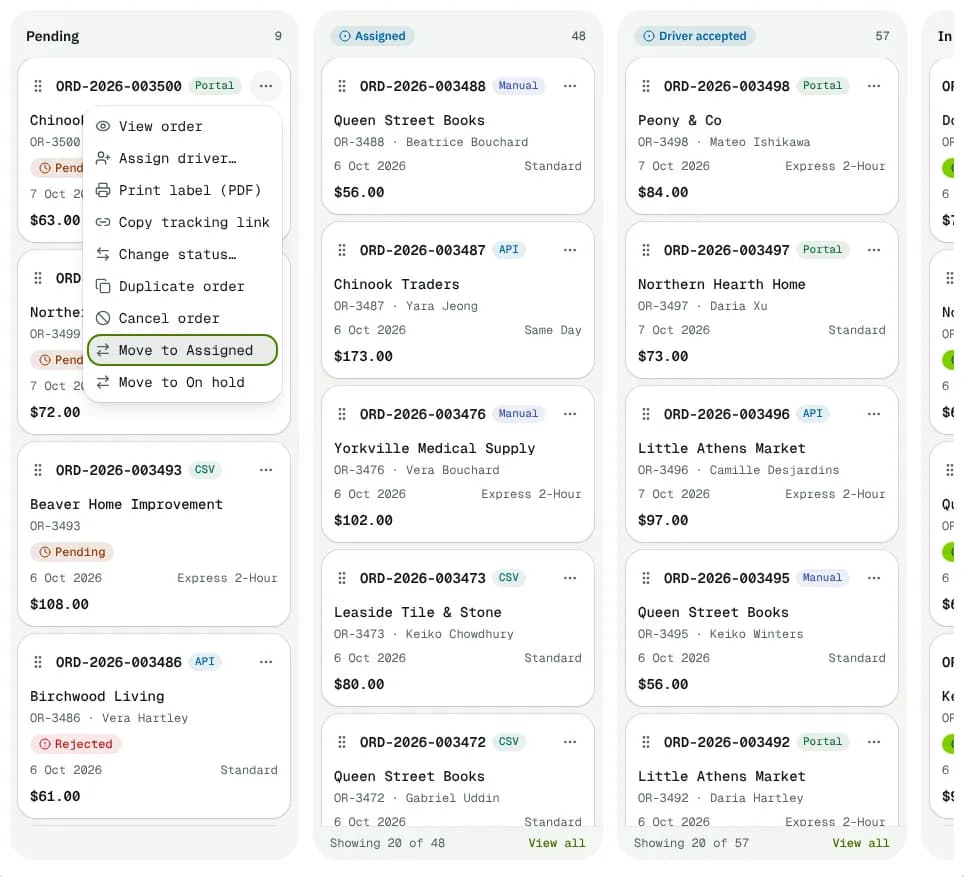
Lanes: Awaiting approval (only while orders wait), Pending (incl. Rejected), Assigned, Accepted, In transit, At depot, Failed (incl. Return to sender), On hold, Delivered (incl. Completed). Drafts, Returned and Cancelled orders are table-only. Each lane has View all, which opens the table filtered to that lane.
Each card shows the order number, source, customer, the driver once assigned, the created date, service and total.
Drag a card, or use its ⋯ menu (Move to …, Mark completed), to move it. Only legal moves work: dropping on Assigned opens the assign dialog, On hold asks for a reason, Delivered marks the order completed. In transit, At depot, Failed and Awaiting approval can't be dropped on: the driver app or the order's own actions move those.
Bulk actions
Tick orders (across pages) to show the bar: the count and Clear on the left, then Assign driver, Add to route, Put on hold, Print and More (Change status, Create invoice, Export selected (CSV), Cancel orders). A greyed button says why when you point at it; a greyed More item says why under its name. Orders an action doesn't apply to are skipped and counted in the result, never forced.
| Action | What it does | Permission |
|---|---|---|
| Assign driver | One active Driver for all Pending and Rejected orders (drivers on break or unavailable aren't listed), or Auto-assign (least busy in zone). The result names the reason of a failed order and any warning (outside the driver's zones, expired licence). | orders:write |
| Change status | Only statuses every selected order can move to. | orders:write |
| Add to route | Pick a Day and a Route not on the road yet; orders join as the last stops and the route re-plans. | orders:write |
| One PDF of labels (4×6 in label printer, A4 sheet, 4 per page, Letter sheet, 4 per page, One 4×6 label per package) or Waybills (one PDF). Drafts skipped; up to 200 orders. | read | |
| Create invoice | Unbilled orders only. One customer opens the invoice form; several customers offer Create … draft invoices (one per customer) or Open invoice per customer. | invoices:create |
| Export selected (CSV) | CSV of the selected orders. | read |
| Put on hold | Needs a Reason (required); drivers are told. Undo releases them. | orders:write |
| Cancel orders | Needs a Cancellation reason (required); customers are notified. Can't be undone in bulk. | orders:write |
Good to know
- The list refreshes on its own every few seconds.
- A deleted order is hidden from every list until restored.
- Warehouse Managers see orders without prices.
Related
Related articles
- How-toFind and manage ordersFilter and search the orders list, save views, use the board, and act on many orders at once: assign, print labels, add to a route.
- ConceptOrder statuses and lifecycleEvery order status, how an order moves from one to the next, who or what moves it, and what each status means for the price and the invoice.
- Page guideCreate orderEvery section and field of the Create order form: customer, route and extra stops, packages, schedule and service, order details, custom fields, dispatch, and the live price.
- How-toFind delivered orders that are not invoicedSee which customers have delivered orders that are not on an invoice yet, and bill them in a few clicks.
Still stuck?
Tell us what you were trying to do. A person reads every message.