Create order
Every section and field of the Create order form: customer, route and extra stops, packages, schedule and service, order details, custom fields, dispatch, and the live price.
Watch: A multi-stop job
3:08One pickup, several drops and a return leg on one order: how to enter it, how it is priced and how the driver works through it.
Watch: Create an order
1:43Pick the customer, the route and what is moved, compare the services by price and delivery time, and create the order.
On this page
Create order books a pickup and delivery for a customer and shows the price before you save. It needs the orders:create permission (Dispatcher, Operations Manager, Admin). Open it with Create order on the Orders page or New order on a customer (the customer is then preselected). For the short how-to see Create an order.
At a glance
| Area | What it does |
|---|---|
| Header | Back to orders, Save draft and Create order (Ctrl Enter / ⌘ Enter also creates). It stays under the top bar while you scroll; a dot and "Unsaved changes" show beside the buttons once you edit. |
| Callouts | Plan usage, a resumable unsaved order, save errors. |
| Ask AI to fill this order | Paste an email, text, WhatsApp message or voicemail transcript (English or French); the AI drafts the order from your own customers, their address books and your services for you to check. Only when AI is on for your company. |
| The form | Customer, Route, What's being moved, Schedule & service, Order details, Custom fields, Dispatch (optional). |
| Right rail | Order preview, Payment summary, What happens next?. On phones a bar at the bottom shows the Estimated total, the distance and Create order. |
Saving
- Save draft checks only the customer. The draft is not dispatched and has no tracking link; its price is recalculated until it is confirmed.
- Create order checks everything and places the order as Pending (orders your team creates never wait for approval). Both buttons open the new order.
- If the customer is over its credit rule, Over the credit limit opens; Place order anyway needs the
customer:writepermission. - If your plan's monthly order limit is reached, Order limit reached shows with Upgrade plan; drafts can still be saved. A warning appears from 80 % of the limit.
- Leaving with unsaved changes asks Discard unsaved changes? (Keep editing / Discard changes).
- While you type, the form keeps a copy in this browser. Coming back offers Resume or Discard.
Ask AI to fill this order
The indigo panel with the AI mark above the form. It shows when AI is on for your company (your plan includes the AI assistant and it isn't paused for the month); it never shows when you open the form from an existing order. When AI is off the page has no AI panel, marks or buttons at all.
- Paste the message into the box and select Draft with AI (
Ctrl Enter/⌘ Enter). While it works, a status line reads "Reading the message and matching it to your customers and addresses…"; it takes a few seconds. - What the AI understood — review before filling the form lists what it found: Customer, From (the sender), Pickup from, Deliver to, Packages, Pickup, Delivery, Service, Reference, Priority, Proof, Pickup notes, Delivery notes. An address marked please check was matched on weaker clues (a partial street, a city). When the message says to pick up "chez nous", "our place" or "from us", Pickup from is the customer's default pickup address (or its only pickup address), shown as "assumed from “chez nous”" and marked please check.
- Still needed lists what it couldn't match. It never invents: a sender who isn't one of your customers, or a place that isn't in that customer's address book, stays empty here (e.g. "Delivery address — “Bell Centre, 1909 av. des Canadiens-de-Montréal” isn't in TechFix Computers's address book").
- Fill the order form writes the draft into the form below (nothing is saved). Discard drops it.
- After filling, the panel says how many fields the AI filled and keeps Still needed in view. Each form section the AI filled (Customer, Route, What's being moved, Schedule & service, Order details) shows a Filled by AI mark next to its title until you change a field in it. Another message starts over.
What it fills: the customer and contact, a pickup from the customer's own address (the depot becomes No depot), the delivery address, contacts and instructions at each end, packages (quantity, type, weight each in kg, size, handling), the pickup day / time / latest pickup, the delivery day / earliest / deadline, the service when the message asks for one ("même jour", "rush"), the reference number, priority, signature / photo, Entry reason (email, phone or other) and an Internal notes line with the message. Relative dates ("demain", "next Tuesday", "avant midi") are read in your company's time zone.
If the AI fails while it is on (a timeout, the monthly AI budget used up), a plain message says so and the form works as usual. If AI is switched off for your company while the page is open, the panel simply disappears.
Customer
| Field | What to enter | Required | Notes |
|---|---|---|---|
| Customer account | Search and pick an active customer. | Yes | Fills the contact, the default delivery address and the customer's default service. Service, priority and package type are prefilled from the customer's last order (with Reset). A customer on hold, inactive or archived can't get new orders. |
| Contact person | Name of the person who ordered. | Yes (on create) | Max 80 characters. Empty: "Enter the contact person". |
| Their email. | Yes | Must be a valid address. | |
| Phone | Their phone. | Yes | 7–30 characters, else "Enter a phone number". |
Contacts (shown when the customer has several) fills these from a saved contact. A Credit used meter shows how much of the credit limit is used (warning from 80 %). The customer's special instructions show as a callout.
Route
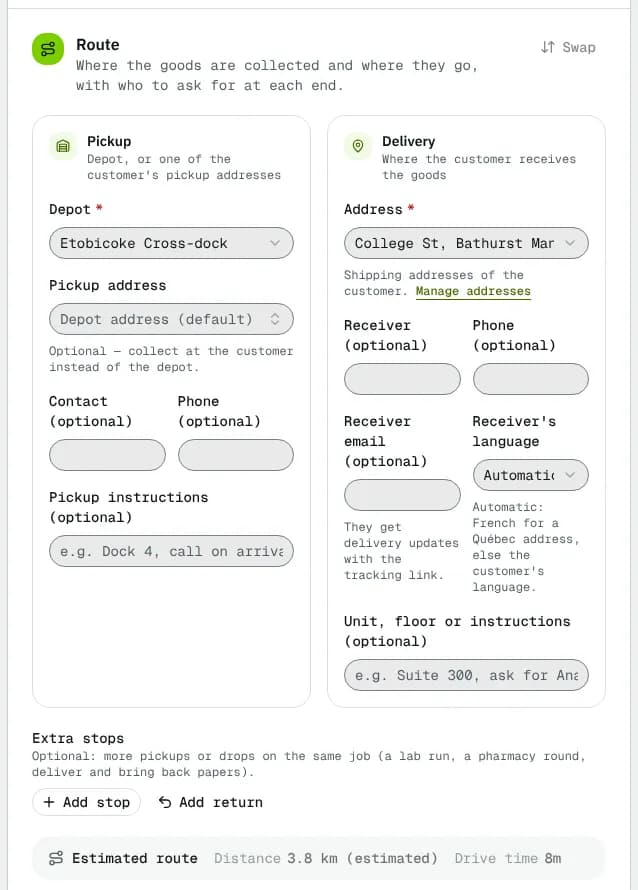
Two cards, Pickup and Delivery (side by side when the form is wide, one above the other on a laptop), and Swap, which exchanges a customer pickup address and the delivery address with their contacts and instructions.
| Field | What to enter | Required | Notes |
|---|---|---|---|
| Depot | The depot the order starts from. | Yes, unless a pickup address is picked | The first depot is preselected. No depot — direct job appears once a pickup address is chosen: the driver goes straight from pickup to delivery (not routed through a depot). |
| Pickup address | One of the customer's pickup addresses. | No | Empty = collect at the depot address. |
| Contact (optional), Phone (optional) | Who to ask for at the pickup. | No | 80 / 30 characters. |
| Pickup instructions (optional) | e.g. "Dock 4, call on arrival". | No | 500 characters. |
| Address | One of the customer's shipping addresses. | Yes | Pickup-only and inactive addresses are refused. Manage addresses opens the customer. |
| Receiver (optional), Phone (optional) | The person receiving. | No | |
| Receiver email (optional) | Gets delivery updates with the tracking link. | No | |
| Receiver's language | Automatic, English or Français. | No | Automatic = French for a Québec address, else the customer's language. |
| Unit, floor or instructions (optional) | e.g. "Suite 300, ask for Ana". | No | 500 characters. |
Extra stops
Add stop adds a stop between the pickup and the delivery (up to 25), Add return adds one return at the end (back to the pickup by default, for example to bring back signed papers). Stops are numbered in the order the driver does them: the pickup is stop 1, the extra stops follow, then the delivery, and a return comes last (for example Stop 2 · Drop and Stop 4 · Return with one drop). Each stop has Stop type (Pickup: collect more goods here, or Drop: hand over part of the goods here), Address (or Return to), Contact (optional), Phone (optional) and Instructions (optional), plus move up / down and remove buttons. Extra stops change the price. Step by step: Book a multi-stop job; the rules: Multi-stop jobs explained.
Estimated route
Once both ends have a map location, the line shows Distance and Drive time (marked "estimated" when it is a straight-line estimate) and a map. An address with no map location is named, with a reminder to fix it on the address (pick it from the address suggestions); distance prices and routes need it.
What's being moved
One block per package line (at least 1, up to 50). Picking a package type card fills empty weight and size fields.
| Field | What to enter | Required | Notes |
|---|---|---|---|
| Description | e.g. "Office chairs". | Yes | 120 characters. Empty: "Describe what is in the package". |
| Quantity | Number of packages on this line. | Yes | Whole number, 1–10,000. |
| Weight each | Weight of one package, in your company unit (kg or lb). | Yes | The line weighs weight × quantity. Weight drives the price and the vehicle check. |
| Dimensions (L × W × H) | Per package, in your company unit (cm or in). | No | Each side above 0. Shows the line volume. |
| Handling | Standard or one of your handling types (fragile, temperature-controlled…). | No | Drivers who can't carry it are flagged when assigning. |
| Declared value | Value of one package. | No | Per package. |
| Shipper barcodes (optional) | One label per line, e.g. an SSCC. | No | Scanned as-is. Leave empty to print ours. A label can't repeat on the order. |
Use the copy and bin buttons to duplicate or remove a line; Add package adds one. The total pieces, weight and volume show under the lines.
Schedule & service
| Field | What to enter | Required | Notes |
|---|---|---|---|
| Pickup (date) | Earliest day to collect. | Yes | Starts on today. |
| From (pickup) | Earliest pickup time. | No | Defaults to the next quarter hour today, 08:00 on a later day. Times are in your company time zone (shown under the field). |
| Until | Latest pickup time. | No | Must be on or after From. |
| Delivery (date) | Deadline day. | Yes | Follows the chosen service's promise until you change it. A same-day service sets it to the pickup day. |
| From (delivery) | Earliest delivery time. | No | Can't start before the pickup. |
| By | Latest delivery time. | No | 17:00 if empty (18:00 for a same-day service). |
| Appointment reference | Dock or booking reference the driver quotes. | No | |
| Service type | One card per active service, each with its price and delivered-by time for this order. | Yes | Prices show once the depot and delivery address are set. With no active price set: "No service types yet." and, with pricing rights, Create your first price set. |
| Vehicle class | Service default, a class, or No vehicle requirement. | No | Vehicle surcharges follow the class. |
When the delivery address has receiving hours they show here, with a warning if the delivery window misses them. If the customer marks fields as required, a line lists them ("This customer requires: …"). Those fields lose "(optional)" in their label (for example Receiver instead of Receiver (optional)) and Create order stops on the first empty one with "Required for this customer". Save draft doesn't check them.
Order details
| Field | What to enter | Required | Notes |
|---|---|---|---|
| How did this order come in? | Phone, email, portal, API, CSV import, replacement or other. | Yes | For reporting. |
| Reference number (optional) | The customer's PO or reference. | No | 80 characters. Some customers require a PO. |
| Location / department | One of the customer's active locations. | No | Shown only when the customer has locations. Its default reference fills an empty one. |
| Priority | Standard, High, Urgent. | No | Can be priced by modifiers. |
| Receiver must sign | Tick to require a signature. | No | |
| Photo as proof of delivery | Tick to require a photo. | No | |
| Internal notes (optional) | Only staff see these. | No | 500 characters. |
Custom fields
Shown when your company has order custom fields (Add custom fields). Required ones are marked * and can stay empty on a draft. Values the customer has locked arrive prefilled; you can still change them.
Dispatch (optional)
| Field | What it does | Who sees it |
|---|---|---|
| Assign a driver now | Assigns an active driver as soon as the order is created. | Everyone on the form |
| Offer it to the driver network | Nearby network drivers get the request; the first to accept takes it. Off when a driver is picked. | Only when the driver network is on |
| Set the total by hand (optional) | Replaces the calculated price; logged as a price override. | order_price:read and orders:write |
| Tolls (optional) | Bridge or road tolls passed on as their own line. | Same |
| Cash on delivery (optional) | The value of the goods the driver collects from the receiver for this customer, e.g. $500.00. That money is credited to the customer's account; the delivery price is invoiced as usual. | Everyone on the form |
| Driver tip (optional) | The customer's tip for the driver, billed as its own tax-free line and passed on in full. | order_price:read and orders:write |
Skip this section to plan the order on a route later.
The price
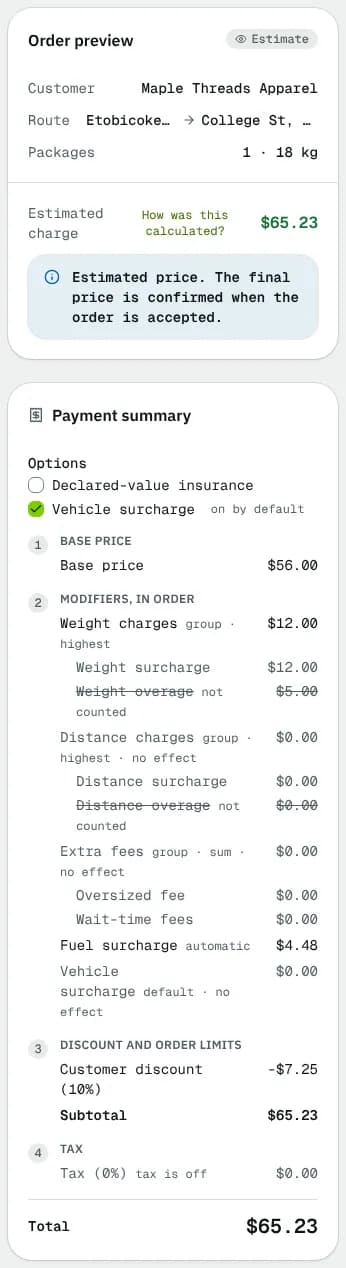
Order preview shows the customer, route, Stops (with extra stops or a return, for example "5 · 2 extra + return"), packages and weight, Distance (the trip through every stop with its drive time, for example 12.4 km · about 25 min, the same distance the price uses; (estimated) for a straight-line estimate, No map location when an end has no pin), and the Estimated charge (How was this calculated? jumps to the breakdown). Payment summary lists Base price, Modifiers, in order, Discount and order limits, Tax and Total with tax, plus Options: optional extras of the service you can tick on or off. When inputs change, the price is marked Out of date with Recalculate. Roles without the order price permission see that the price is hidden.
Good to know
- Duplicate order on an order makes a draft copy without dates and opens it in Edit order, not here.
- Changing the customer clears both addresses.
Related articles
- How-toCreate an orderBook a pickup and delivery for a customer, compare services and see the live price before you save.
- Page guideOrdersEvery part of the Orders list: the work cards, the attention chips, filters, saved views, the table and board, row actions, bulk actions, dispatch rules and deleted orders.
- Page guideOrder detailEvery part of an order's page: header badges and buttons, every action in the ⋯ menu with who can use it and what it changes, the status banner, and the General, Packages, Price breakdown, Attachments and History tabs.
- ConceptOrder statuses and lifecycleEvery order status, how an order moves from one to the next, who or what moves it, and what each status means for the price and the invoice.
- How-toAdd custom fields to customers and ordersCreate your own extra fields, such as a PO number or a department, choose their type and who sees them, and see where the values show up.
- How-toCustomer settings and order form field modesChoose what customers can do, fill in and see in the portal and on tracking links, set each order form field to hidden, optional, required or locked, and override it for one customer.
- How-toBook a multi-stop jobAdd extra pickups, drops and a return to an order, check the distance and price, save it and give it to a driver.
- ConceptMulti-stop jobs explainedHow a job with extra pickups, drops and a return works from booking to completion: stop types, the order they are worked in, price, distance, proof, failures and who sees what.
Still stuck?
Tell us what you were trying to do. A person reads every message.