Find and manage orders
Filter and search the orders list, save views, use the board, and act on many orders at once: assign, print labels, add to a route.
On this page
Orders lists every order with its customer, route, driver, total and status. Anyone with access to orders can search and print; changing orders needs the Dispatcher, Operations Manager or Admin role.
Find orders
- Click a card at the top to show only those orders: Pending, Needs driver, Late or In progress. Click it again to show all.
- Use the Needs attention chips on the right for Failed and On hold orders.
- Type in Search orders.... Typing a full order number such as ORD-2026-003495 and pressing
Enteropens that order. - Use the date filter (Any date) for quick picks such as Pickup today, Due today or Created this week, or Custom range….
- Narrow down with All statuses, All depots and All drivers (including No driver); More filters holds All sources, All priorities, Driver network and Any billing. Clear (n) removes every filter at once.
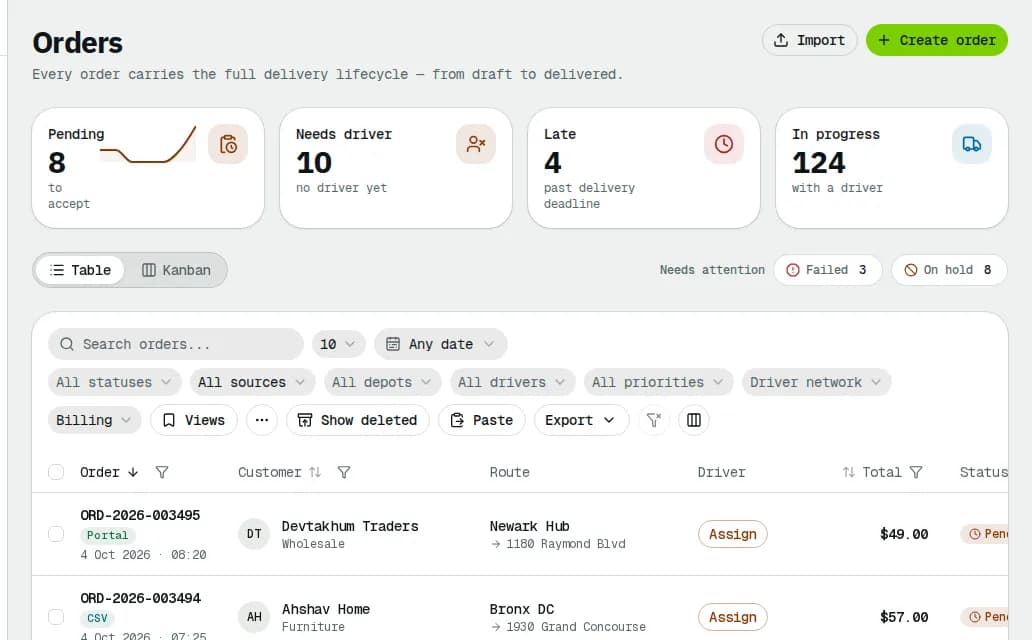
The filters live in the page address, so you can bookmark or share a filtered list. Export downloads the filtered list as CSV.
Save a view
- Set the filters, search and sort you want.
- Click the bookmark button (Saved views) and pick Save current view…, give it a Name and save.
- Reopen it from the same menu under My views. In a view's submenu you can Open orders with this view (your default), Share with the team or Delete view. Views others shared appear under Team views.
Use the board
Click Kanban to see orders in lanes: Pending, Assigned, Accepted, In transit, At depot, Failed, On hold and Delivered (plus Awaiting approval while orders wait). Drag a card to another lane, or use its ⋯ menu (Move to …). A card can only move to a lane that is a legal next step; otherwise a message tells you where it can go. In transit, At depot and Failed are moved by the driver app or the order's own actions and are read-only.
Act on one order
Click a row to open the order, or use the ⋯ menu at the end of the row: View order, Assign driver…, Print label (PDF), Copy tracking link, Change status…, Confirm order (drafts), Duplicate order and Cancel order. In the Driver column, Assign opens the assign dialog directly for orders waiting for a driver.
Act on many orders
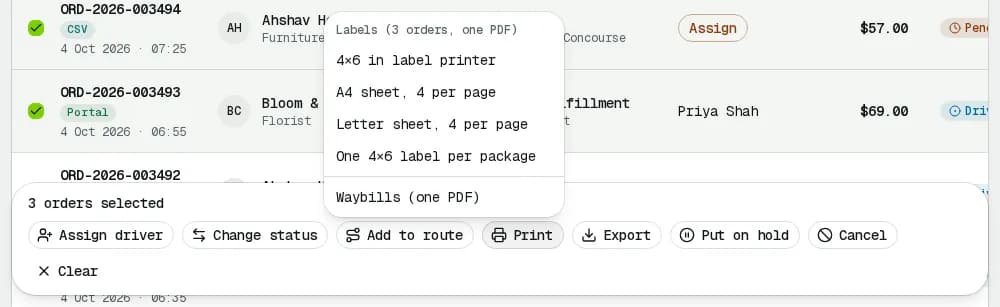
Tick the boxes in the first column. A bar appears with the actions for the selection:
- Assign driver: one driver for all orders waiting for one, or Auto-assign (least busy in zone).
- Change status: only statuses every selected order can move to are offered.
- Add to route: pick the Day and a Route that is not on the road yet. Orders join as the last stops and the route re-plans.
- Print: labels as one PDF (4×6 in label printer, A4 sheet, 4 per page, Letter sheet, 4 per page or One 4×6 label per package) or Waybills (one PDF). Drafts are skipped; up to 200 orders per PDF.
- Export, Put on hold (a reason is required) and Cancel (a cancellation reason is required).
Related articles
- How-toCreate an orderBook a pickup and delivery for a customer, compare services and see the live price before you save.
- How-toWork the exceptions queueOne list of everything that needs a dispatcher now: failed and late orders, orders without a driver, delayed vehicles, lost signal and driver issues. Take, snooze or resolve each one.
- Page guideOrdersEvery part of the Orders list: the work cards, the attention chips, filters, saved views, the table and board, row actions, bulk actions, dispatch rules and deleted orders.
- How-toBook a multi-stop jobAdd extra pickups, drops and a return to an order, check the distance and price, save it and give it to a driver.
Still stuck?
Tell us what you were trying to do. A person reads every message.