Work on an order
Assign a driver, change the status, edit the order, add notes and files, share tracking, print documents, cancel or complete it.
3 min readLast updated
On this page
The order page shows where an order is and everything you can do with it. Its main button is always the next step for the current status, for example Assign driver or Retry delivery; everything else is in the ⋯ menu and in the What's next? card. Changing an order needs the Dispatcher, Operations Manager or Admin role.

Assign and move the order along
- On a Pending order, click Assign driver. Pick a Driver (each shows whether they are on shift, how far they are from the pickup, their active orders, and why auto-assign would skip them), or Auto-assign (best fit), which names the driver it would pick, and click Assign. How auto-assign weighs drivers is set in Orders → ⋯ → Dispatch rules.
- Once assigned, the ⋯ menu offers Transfer to another driver and Unassign driver. Drivers normally move the order on from their app; you can do the same steps from the menu when needed.
- To set a status by hand, pick Change status in the ⋯ menu, choose the New status and click Change status. Only legal next steps are offered. Force a different status… skips the normal flow and needs a reason.
- When a delivered order is finished, click Mark completed.
The progress bar under the header shows each step with its time. The History tab lists every change and the assignment history.
Change the order
- Draft, Awaiting approval or Pending: click Edit order in the header (in the ⋯ menu on a phone). You can change the order details, contact, route, schedule, service and packages, then Save changes. The customer can't be changed; duplicate the order instead.
- After dispatch (assigned up to delivery): click Edit details. You can change the recipient and pickup contacts, the pickup and delivery times, the instructions, Reference, Tags and Internal notes. Addresses, packages and the price stay as they are, and the driver is told in the app.
- Adjust price in the ⋯ menu changes the total of a priced order.
Notes and attachments
- In the Notes card, type a note and click Add note. Tick Send to driver to show it to the assigned driver too.
- On the Attachments tab, drop photos or scans (delivery notes, damage photos) or click Choose images. Each file can be downloaded or removed.
Share tracking and print
- Click Copy tracking link for the public tracking page (on smaller screens it is in the ⋯ menu, with the send options). The arrow next to it offers Email the tracking link… and Text the tracking link…; the send is logged on the order. Drafts have no tracking link.
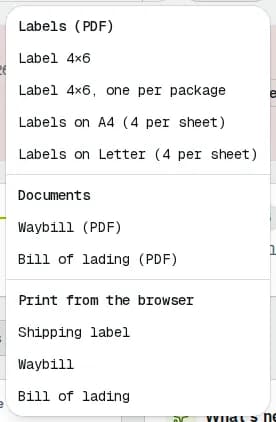
- Click Print for Label 4×6, labels one per package or on A4 / Letter sheets, Waybill (PDF), Bill of lading (PDF) and, once delivered, Proof of delivery (PDF). Print from the browser opens printable pages instead.
Cancel, duplicate or repeat
- To cancel, pick Cancel order in the ⋯ menu and give a reason. You can cancel before pickup, and while an order is failed or on hold. If the service charges a cancellation fee at that stage, the dialog shows it; an admin or operations manager can tick Waive the fee. Fees, waiting time, failed attempts and other charges after pickup or delivery are listed on the order under Charges after pickup or delivery, where you can also Add charge by hand or void one.
- Duplicate order creates a draft copy without dates and opens it for editing.
- Repeat for dates… in the ⋯ menu turns the order into a recurring series (see Set up recurring orders).
Related articles
- How-toHandle a failed deliveryDecide what happens after a failed pickup or delivery: schedule a new attempt and tell the recipient, return the package to the sender, or put the order on hold.
- How-toSet up recurring ordersRepeat an order on a schedule, skip or change single dates, pause a series and see which dates were created or blocked.
- Page guideOrder detailEvery part of an order's page: header badges and buttons, every action in the ⋯ menu with who can use it and what it changes, the status banner, and the General, Packages, Price breakdown, Attachments and History tabs.
- Page guideEdit orderThe Edit order form for drafts, orders awaiting approval and pending orders: every section and field, what can and can't change, and when you must confirm a new price.
Still stuck?
Tell us what you were trying to do. A person reads every message.