Set up recurring orders
Repeat an order on a schedule, skip or change single dates, pause a series and see which dates were created or blocked.
Watch: Recurring orders
2:18Turn an order into a schedule, see the dates before they happen, handle exceptions, and pause without losing the pattern.
On this page
A recurring order repeats an existing order (same pickup, delivery and packages) on a schedule. The orders are created a few days ahead of each date and priced when they are created. Dispatchers can start, change and pause series; customers can also set them up in their portal.
Start a series
- Open an order and pick Repeat for dates… in the ⋯ menu, or go to Recurring orders, click New recurring order and pick the order that should repeat.
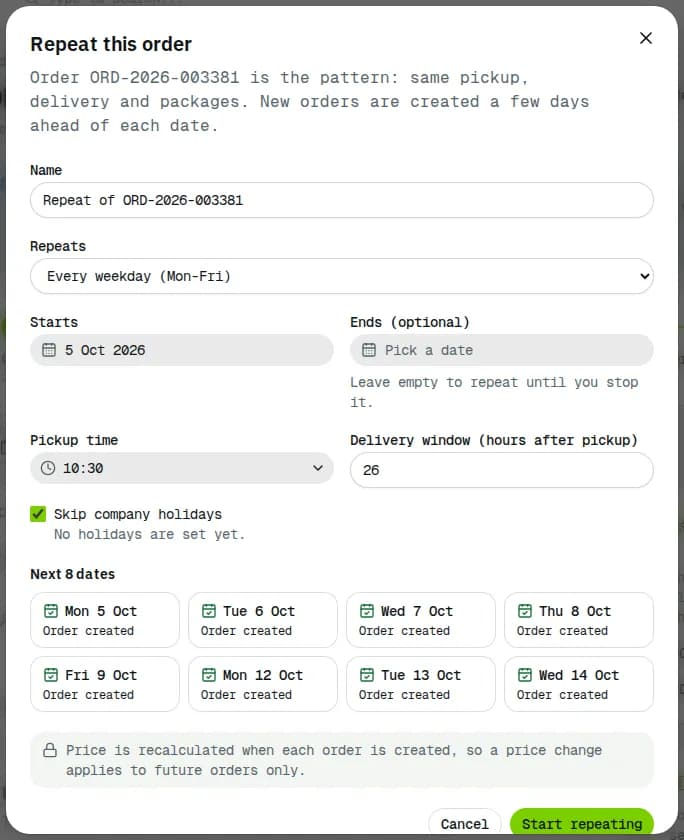
- Give it a Name and choose how it Repeats: Every weekday (Mon-Fri), Every day, Weekly on chosen days, Monthly on a day or Every N days.
- Set Starts, optionally Ends (optional) (leave it empty to repeat until you stop it), the Pickup time and the Delivery window (hours after pickup).
- Keep Skip company holidays ticked to leave out the holidays of your Business calendar (public holidays and your own closed days).
- Check Next 8 dates, then click Start repeating. The series opens.
Check your series
The list shows each series with its Schedule, Status, Next order and how many orders it created. Use the chips to show Active, Paused or Blocked dates (dates the series could not create an order for, such as when the plan limit was reached). Search by name or customer.
Change one date or the whole schedule
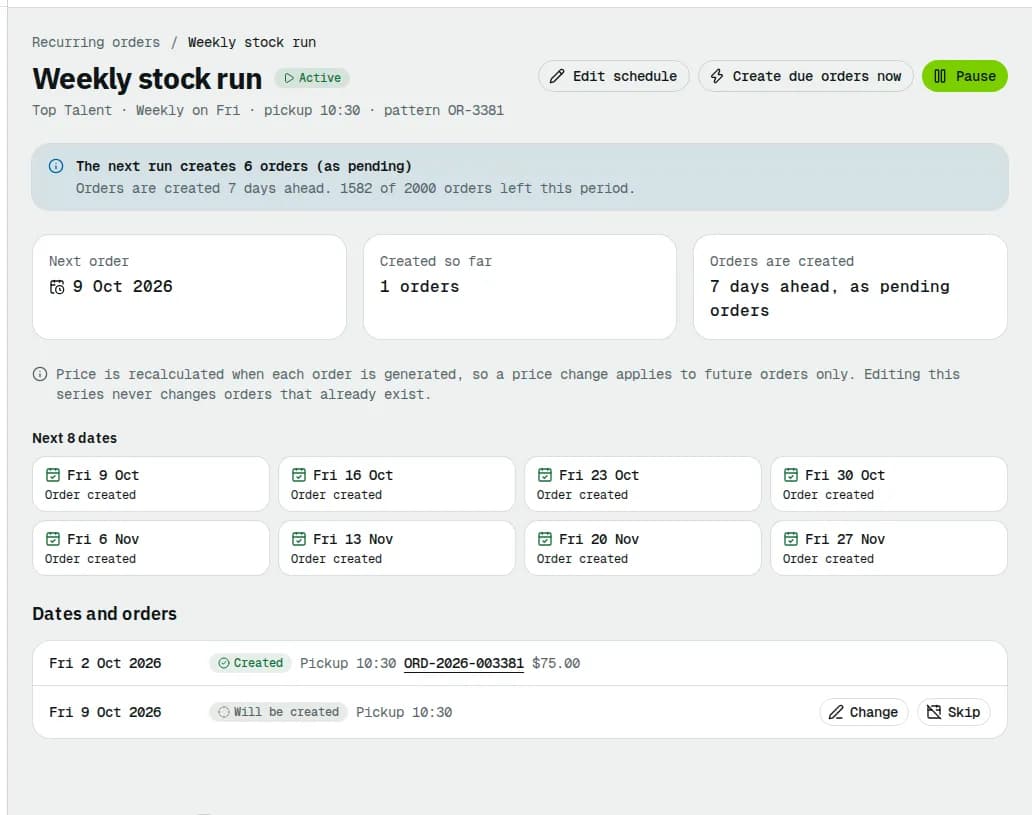
Open a series. Dates and orders lists the coming dates: Will be created, Created (with a link to the order), Skipped, Holiday, skipped, Blocked by plan limit or Could not be created.
- Skip leaves one date out; Put back undoes it.
- Change sets a different Pickup time, Delivery instructions or Note on the order for that date only. Reset to template removes the change.
- Edit schedule changes the rule for dates that have not been created yet. Orders that already exist never change.
- Create due orders now creates the orders that are due without waiting for the hourly run.
Pause, resume or end
- Click Pause on the series (or in the ⋯ menu of its row in the list). Nothing is created until you click Resume. Dates that passed while paused are not filled in afterwards.
- To stop for good, an Operations Manager or Admin clicks End this series. Orders already created stay as they are.
Related articles
- How-toWork on an orderAssign a driver, change the status, edit the order, add notes and files, share tracking, print documents, cancel or complete it.
- How-toCreate an orderBook a pickup and delivery for a customer, compare services and see the live price before you save.
- How-toFind and manage ordersFilter and search the orders list, save views, use the board, and act on many orders at once: assign, print labels, add to a route.
- ConceptMulti-stop jobs explainedHow a job with extra pickups, drops and a return works from booking to completion: stop types, the order they are worked in, price, distance, proof, failures and who sees what.
- Page guideRecurring ordersThe Recurring orders list: the plan forecast, the filters, the table, pausing a series, starting a new one from an order and the company-wide recurring settings.
- Page guideRecurring order detailOne recurring series: its badges and buttons, the facts, the next dates, the date list with skip and change, the schedule form fields and ending the series.
Still stuck?
Tell us what you were trying to do. A person reads every message.