Work the exceptions queue
One list of everything that needs a dispatcher now: failed and late orders, orders without a driver, delayed vehicles, lost signal and driver issues. Take, snooze or resolve each one.
2 min readLast updated
Watch: The live map
1:04See the fleet at a glance, find the vehicle that needs attention, and read its next stop, ETA and delay.
On this page
Exceptions collects what needs a dispatcher in one queue, so nothing gets lost between screens. Anyone with access to orders can see it; taking, snoozing and resolving needs the Dispatcher, Operations Manager or Admin role.
Read the queue
- In the sidebar, click Exceptions (under Orders).
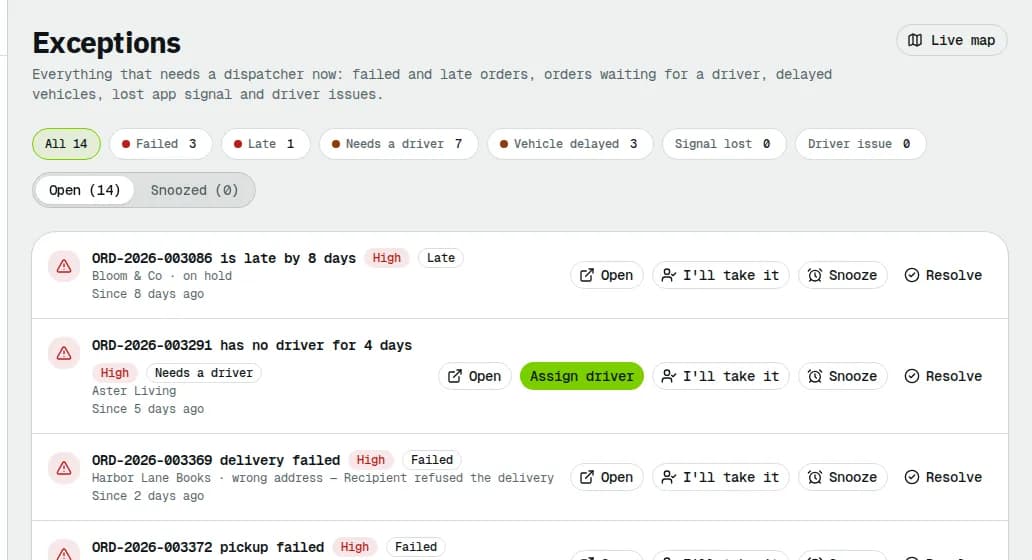
- Each row says what is wrong, for example "ORD-2026-003291 has no driver for 4 days", with a High or Medium badge, its type, the customer or driver, and how long it has been open (Started … ago).
- Filter on a type with the chips at the top: Failed, Late, Needs a driver now, Vehicle delayed, Signal lost or Driver issue. All shows everything.
- Switch between Open and Snoozed.
Act on an exception
- Open goes to the order, vehicle or driver it is about, where you fix the cause. For failed orders see Handle a failed delivery.
- Assign driver (on orders waiting for a driver) opens the assign dialog right here: pick a driver or Auto-assign (best fit).
- I'll take it marks you as the owner, so the team sees Owned by your name and doesn't work on it twice.
- Snooze hides it For 30 minutes, For 2 hours or Until tomorrow 8:00. It comes back by itself when the snooze ends; Wake up on the Snoozed tab brings it back early.
- Resolve removes it from the queue once it is handled.
Related articles
- How-toHandle a failed deliveryDecide what happens after a failed pickup or delivery: schedule a new attempt and tell the recipient, return the package to the sender, or put the order on hold.
- How-toWork on an orderAssign a driver, change the status, edit the order, add notes and files, share tracking, print documents, cancel or complete it.
- Page guideExceptionsThe Exceptions queue: the six exception types, when each appears and how severe it is, the Open and Snoozed views, and what Assign driver, I'll take it, Snooze, Wake up and Resolve do.
- How-toDispatch and run a routeMove a route from draft to ready, dispatch it, print the run sheet, change the driver, record stops and close or cancel the route.
Still stuck?
Tell us what you were trying to do. A person reads every message.