Plan a route
Build a route from unassigned orders, put the stops in a good order, pick the vehicle and save it as a draft or dispatch it.
Watch: Plan a route, with or without a depot
1:49Put the day’s orders on a vehicle, let the planner order the stops, fine-tune them, and decide whether the route ends back at the depot.
On this page
A route is one vehicle's run from a depot through a list of delivery stops. Dispatchers can plan and dispatch routes; viewers and warehouse managers can only look.
Find your routes
- In the sidebar, click Route planner.
- The cards at the top count Total routes, In progress, Ready to dispatch and Completed. They follow your search and the driver and vehicle filters.
- Search, or filter with All statuses, All drivers and All vehicles. Export downloads the list as CSV.
- Click a row to open the route. Its ⋯ menu can also Dispatch route (ready routes, on the day), Cancel route or Delete draft.
Create a new route
- Click Create route.
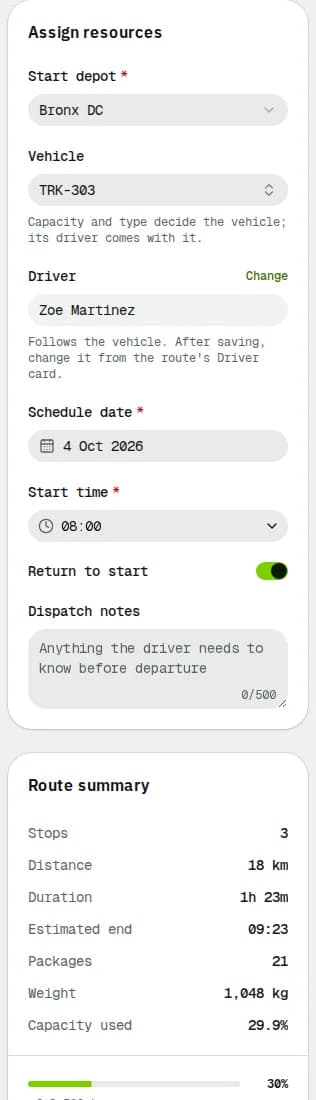
- On the right, under Assign resources, pick the Start depot. The Unassigned orders list on the left then shows only orders picked up at that depot that are on no route yet.
- Tick the orders you want and click Add selected. They join the Stop sequence in the middle, up to the Max stops per route in Fleet settings (50 by default).
- Pick the Vehicle. Its driver fills the Driver field by itself: the driver always comes with the vehicle. To use a different driver, click Change, which opens the vehicle in Fleet.
- Set the Schedule date and Start time. Turn Return to start off if the vehicle ends at the last stop. Add Dispatch notes if needed (the driver sees them under Notes from dispatch on the route's orders, and they print on the run sheet).
- Check the Route summary: distance, duration, Estimated end, weight and Capacity used.
Put the stops in order
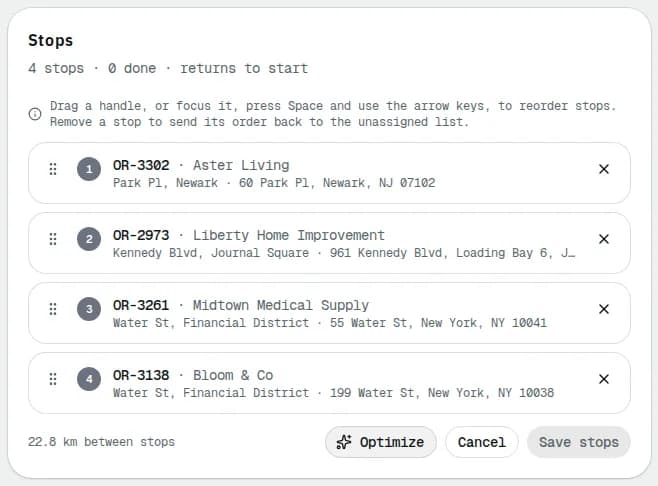
- Drag a stop by its handle, or focus the handle and use the arrow keys. The ETA of each stop updates after a moment.
- Click Optimize on the Route preview card: it meets delivery windows first, then shortens the drive. It needs a depot and at least 3 stops.
- Click × on a stop to take it off the route.
Read any yellow box before you save. Stops from another depot means an order is picked up somewhere else (click Remove it). Heads up lists warnings such as a vehicle that is over capacity, has no driver or is already busy that day.
Save or dispatch
- Save draft keeps the route as a draft. It only needs a depot, date and start time.
- Dispatch route needs at least one stop and a vehicle with a driver. If the date is today the driver leaves now; for a later date the route is saved as Ready and you dispatch it on the day.
Either way the route page opens. See Dispatch and run a route.
Change the stops of a saved route
On the route page, the Stops card has two buttons while the route is a draft, planned or ready:
- Add orders opens the unassigned orders of the route's depot. Tick them and click Add selected. They go at the end.
- Edit stops lets you drag stops, remove them (their orders go back to unassigned) or click Optimize. It shows how many km you save. Click Save stops.
Once the route is on the road the button is Reorder stops: done stops stay fixed and you can only reorder the open ones.
Related articles
- Page guidePlan a new routeEvery panel of the route planner: unassigned orders, the AI assistant, the preview map and Optimize, the stop sequence, vehicle and driver, capacity, warnings, Save draft and Dispatch route.
- How-toRoutes with or without a depotWhere a route starts and ends, why every route needs a depot, and how to run direct pickup-to-delivery jobs when your company has no depot.
- How-toFind and manage ordersFilter and search the orders list, save views, use the board, and act on many orders at once: assign, print labels, add to a route.
- How-toManage vehiclesFind a vehicle, add one, assign its driver, see who is driving it and release it, take it out of service and keep its maintenance and documents up to date.
- How-toRun the depot day and scan stationSee what leaves each depot today and scan packages in at the depot so you know they arrived and where they go.
- Page guideRoute plannerEvery field, filter, column and action on the Route planner list, where you find, export, dispatch, cancel and delete routes.
Still stuck?
Tell us what you were trying to do. A person reads every message.