Run the depot day and scan station
See what leaves each depot today and scan packages in at the depot so you know they arrived and where they go.
On this page
Each depot page shows the depot's day: the orders picking up there, the routes leaving and the load on the vehicles. Its scan station checks packages in. Dispatchers can open depots and scan; adding, editing and deleting a depot needs the Admin role (warehouse managers can add and edit).
Open a depot
- In the sidebar, click Depots.
- Search, or filter with All statuses and All locations. Click a depot to open it.
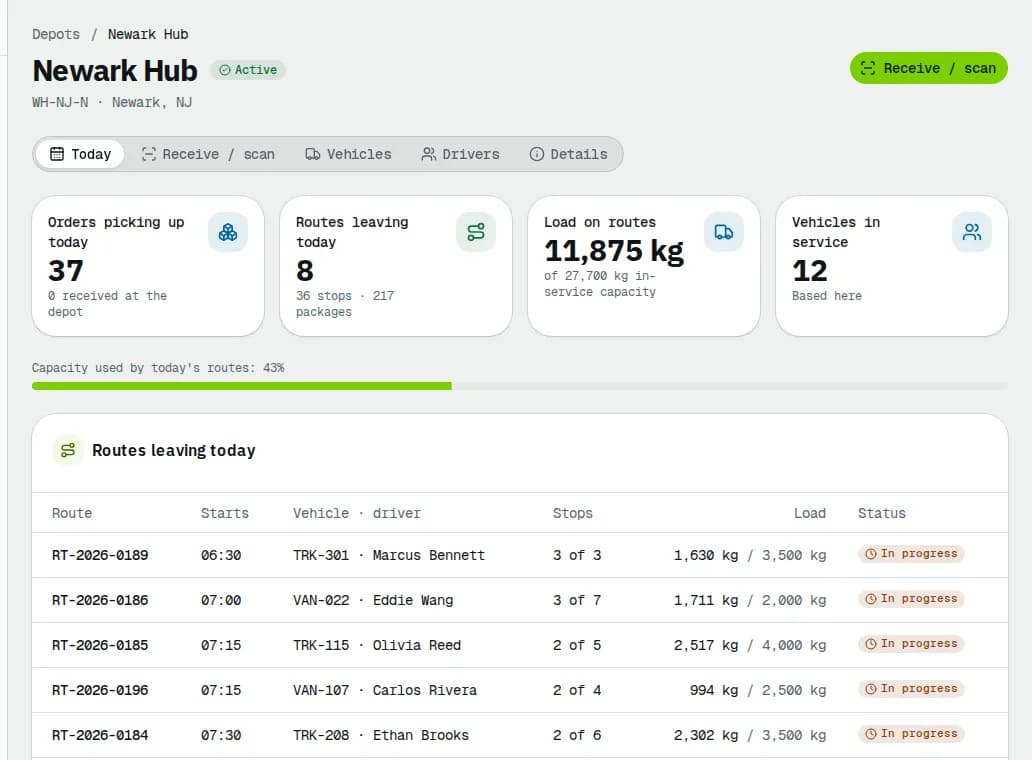
The depot page has the tabs Today, Receive / scan, Vehicles, Drivers and Details. Vehicles and Drivers list who is based at this depot and whether they are on a route or on shift today.
Check today's work
The Today tab shows:
- Orders picking up today, with how many were received at the depot.
- Routes leaving today, with their stops and packages.
- Load on routes against the capacity of the vehicles in service here. The card turns orange from 80% and red from 90%; the bar below shows the same share.
- Vehicles in service based here.
Below, Routes leaving today lists each route with its start time, vehicle and driver, stops done and load. Click a route to open it. In this depot's care lists goods the depot holds now (collected, failed, recalled, from another depot or held), with Here since and their route or Not routed: redeliver, hold or return them from each order. Orders picking up here today lists each order with its route (or Not routed) and, under At the depot, the time it was received or Not scanned. The chips above the table count the orders per status.
Scan packages in
- Click Receive / scan (the button at the top or the tab).
- Scan the label barcode into Order or package code (our label or the shipper's own label, such as an SSCC), or type the order number, and press
Enter(or click Receive). For cold-chain goods, type the reading in Temp. °C first. The box stays ready for the next scan, so a handheld scanner works without touching the screen. - Read the result. A high beep means it worked; a low beep means look at the screen:
| Result | What it means |
|---|---|
| Received | The package is checked in. The box shows the route and stop to sort it to, or Not on a route yet. |
| Received from another depot | Checked in here although it belongs to another depot (cross-dock). |
| Already received | This package was scanned here today already. |
| Wrong depot | Not collected yet and belongs to another depot: take it there. |
| Not recognised | Unknown code, or an order that can't be received (for example delivered or cancelled). The reason is shown. |
For orders with several packages, the result counts them (for example 2 of 3 packages). Click Reprint label if a label is damaged.
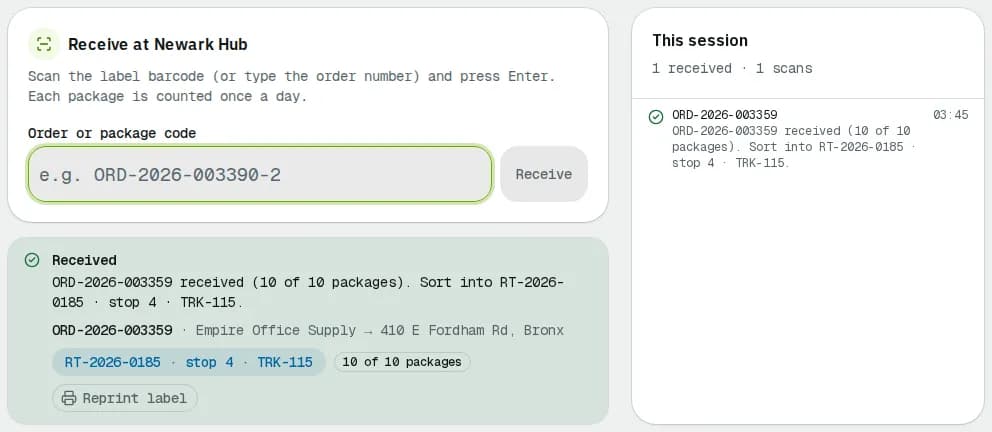
This session on the right lists your scans until you leave the page.
Related articles
- Page guideDepot detailEvery tab of a depot's page: Today (routes leaving, load against capacity, goods in the depot's care, orders picking up), Receive / scan, Vehicles, Drivers and Details, plus editing and deleting the depot.
- How-toPlan a routeBuild a route from unassigned orders, put the stops in a good order, pick the vehicle and save it as a draft or dispatch it.
- How-toManage vehiclesFind a vehicle, add one, assign its driver, see who is driving it and release it, take it out of service and keep its maintenance and documents up to date.
- How-toAdd and manage driversFind drivers, add a new one, send the driver app invitation, keep licences and documents up to date and set what each driver may do in the app.
- How-toSet up your company on day oneWork through the setup guide, see what each step means and mark the steps NemiRoute can't detect as done.
- Page guideDepotsEvery column, filter and action on the Depots list, and every field of the Add depot and Edit depot form.
Still stuck?
Tell us what you were trying to do. A person reads every message.