Add and manage drivers
Find drivers, add a new one, send the driver app invitation, keep licences and documents up to date and set what each driver may do in the app.
Watch: Add a driver and a vehicle
2:29Add a driver with what dispatch needs, invite them to the driver app, and give them a vehicle.
On this page
The Drivers page lists every driver with their vehicle, current route, status and app tracking. Dispatchers can look at drivers and message them. Adding, editing, inviting and changing documents needs the Admin or Operations manager role.
Find a driver
- In the sidebar, click Drivers.
- Use the Needs attention filters: On shift now, Documents expiring (anything expired or expiring within 30 days), Not on the app and Suspended. Click one again to clear it.
- Search, or filter by status, depot, licence status and driver app status. Click a driver to open the profile.
The Compliance & availability card below the list shows drivers with expiring documents or limited availability. Click View all compliance to see everyone.
Add a driver
Admin or Operations manager.
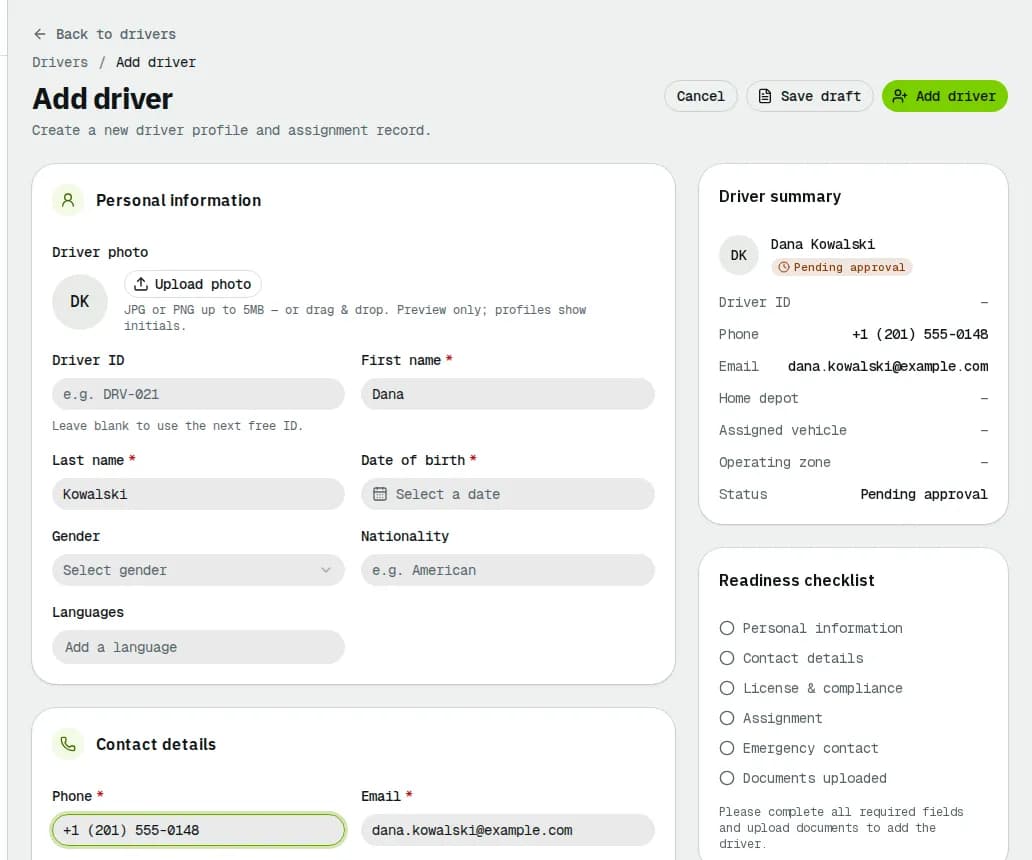
- Click Add driver.
- Fill in Personal information, Contact details (the Email is the driver's app sign-in), Licence & compliance, Assignment (at least the Status), Compensation and Emergency contact.
- Under Documents, drop the licence, medical card or other PDFs and set each one's Type, Document No. and Expiry date.
- Keep Invite to the driver app ticked to e-mail the app links, your company ID and a set-password link.
- Click Add driver, or Save draft to finish later.
- A new driver starts as Pending approval unless you pick another Status. Open the driver and click Approve driver once you have checked them; until then you can't assign them a vehicle.
Invite a driver to the app
If the driver is not on the app yet, the profile header shows Invite to app (or Resend invite). The Driver app card has the same with Send invitation. After sending, a dialog shows the link: click Copy invite link or Text the link. The link works once and expires in 7 days.
To invite several drivers at once, tick them in the list and click Invite to app. Revoke access on the Driver app card signs a driver out of the app.
Keep licences and documents current
- Open the driver and click the Licence & documents tab.
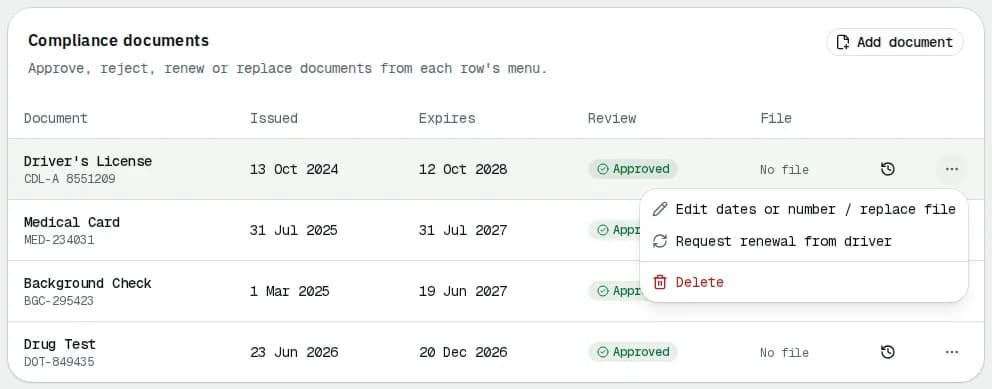
- In Compliance documents, click Add document, or use a row's ⋯ menu: Approve or Reject… documents the driver uploaded, Edit dates or number / replace file, or Request renewal from driver.
- In Document requests, click Request document to ask for a missing one in the app.
Drivers are reminded in the app 30 and 7 days before a document expires; past-due documents turn expired, and your company address gets a summary e-mail. You can also get licence expiry alerts yourself in My alerts.
Edit, status and app permissions
- Edit driver opens the same form. Assign vehicle / Change vehicle assigns a vehicle to the driver.
- In the Assigned vehicle card, Current vehicle shows the vehicle the driver holds now. Set current vehicle (choose the Vehicle, click Set vehicle) puts the driver in a vehicle that is free; Release frees it, and the driver keeps the assignment. A vehicle another driver holds shows In use by and can't be chosen. If the driver is clocked in, Force end the shift first. Vehicles driven lists the last 30 days. See Share company vehicles between drivers.
- The ⋯ menu changes the status (Mark on break, Mark unavailable with a reason and end date, Suspend driver, Deactivate driver), unassigns the vehicle or ends employment. Everyone can Copy driver ID.
- The Permissions tab sets what this driver sees and may do in the app. Settings that differ from the company show Custom. Click Save permissions, or Reset to tenant defaults.
Company-wide driver defaults are explained in Driver app settings.
Related articles
- ConceptShare company vehicles between driversChoose whether drivers pick only their assigned vehicles or any company vehicle, how the one-driver rule and releases work, and how to read the vehicle usage numbers.
- How-toMessage drivers and handle their issuesCall, text or send an app message to one driver or a group, read replies, and acknowledge and resolve the problems drivers report from the app.
- How-toManage vehiclesFind a vehicle, add one, assign its driver, see who is driving it and release it, take it out of service and keep its maintenance and documents up to date.
- How-toDriver app settingsDecide what drivers can see and do in the driver app, the proof they capture, the GPS check, failure and cancel reasons, the pre-shift vehicle check, document rules, push notifications and location tracking.
- How-toInstall the app and sign inAccept your invitation, install the NemiRoute driver app, sign in with your company ID and turn on fingerprint or face unlock.
- Page guideDriversEvery part of the Drivers page — the quick filters, the drivers table, bulk actions, the compliance card and the Issues, Messages, Time clock and Performance views.
- Page guideDriver detailEvery part of a driver's page — the header actions, and the Profile, Licence & documents, Compensation, Permissions, Shifts & payouts and Location history tabs.
- Page guideAdd or edit a driverEvery field of the Add driver and Edit driver form — personal, contact, licence, assignment, pickup and delivery areas, fallback pay, emergency contact and documents — what is required and what Save draft does.
Still stuck?
Tell us what you were trying to do. A person reads every message.