Driver detail
Every part of a driver's page — the header actions, and the Profile, Licence & documents, Compensation, Permissions, Shifts & payouts and Location history tabs.
On this page
A driver's page holds everything about one driver: contact, vehicle, app access, documents, pay and shifts. Open it by clicking a driver on Drivers. You need permission to view drivers; changes need permission to edit drivers, and the pay cards need payroll access.
At a glance
| Area | What it shows / does |
|---|---|
| Header | Name, badges (On shift, tracking, status, Draft), driver ID and the actions. From tablet width up the header and the tab bar stay stuck under the top bar while you scroll. |
| Profile tab | Current route, reported problems, contact details, messages, trips, vehicle, app access, availability, notes, activity |
| Licence & documents tab | Licence details, compliance documents, certifications, document requests, notifications sent |
| Compensation tab | Pay plan, pay statements, tax and payee, recurring adjustments, fallback rates |
| Permissions tab | What this driver may see and do in the driver app |
| Shifts & payouts tab | Shift pay totals and the shift history |
| Location history tab | The driver's path on one day |
The open tab is kept in the link (?tab=license), so you can share it.
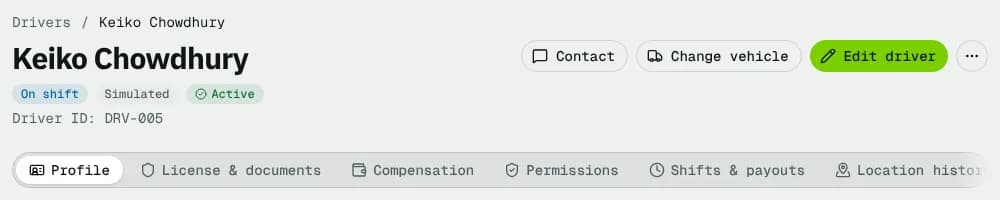
Header actions
| Action | What it does | Who sees it |
|---|---|---|
| Approve driver | Makes a Pending approval driver Active | Can edit drivers; pending drivers only |
| Contact | Call and Text message (when a phone is on file), and Send app message | Everyone; app message needs order edit rights |
| Invite to app / Resend invite | E-mails the app invitation (see Driver app below). Disabled without an e-mail address | Can edit drivers; drivers not on the app yet |
| Assign vehicle / Change vehicle | Assigns a vehicle to the driver (see Current vehicle below) | Can edit drivers; not for drafts, pending, inactive, suspended or terminated drivers |
| Edit driver | Opens the edit form (field guide) | Can edit drivers; not after employment ended |
| ⋯ | Status changes and more (below) | Everyone (Copy driver ID); the rest needs edit rights |
The ⋯ menu
Under Status (not on drafts, pending or terminated drivers):
- Mark active, Mark on break, Deactivate driver, Suspend driver: change the status at once.
- Mark unavailable: pick a Reason (Sick, Vacation, Personal, Vehicle problem, Training, Other), an optional Back on date and Note, then Mark unavailable. Dispatch can't assign orders until that date or until you mark the driver active.
Then:
- Unassign vehicle ID: removes the vehicle (Remove vehicle to confirm). Open routes of that vehicle lose their driver; ready routes go back to planned.
- End employment: enter a reason (at least 3 characters) and confirm. The driver leaves dispatch and is unassigned from their vehicle. This can't be undone. If the driver also has dispatcher access, Also remove dispatcher access is ticked: leave it ticked so their phone leaves dispatcher view too. Without team edit rights you see a note instead, and an admin removes the access.
- Copy driver ID.
- Delete driver (needs delete rights): removes the profile, documents and notes. If the driver has history, the dialog says so and offers Deactivate driver instead.
The Profile tab
| Card | What it shows / does |
|---|---|
| Current assignment | Route, Stops, Origin, Destination, Next stop, ETA. Without a route: No active route. |
| Reported problems | Open problems the driver reported in the app, with Acknowledge, Resolve… and Reopen (order edit rights). Hidden when there are none. |
| Driver information | Phone, Email, Home depot, Employee ID, Date joined, Licence No., then for the pickup side and the delivery side: Pickup zones / Delivery zones (each picked zone with x of y codes covered), Pickup extra postal codes / Delivery extra postal codes and Pickup area / Delivery area (Covers 14 postal codes, Covers no postal codes when the picked zones have no code left, or Covers everywhere when that side has no zone and no extra code). An order fits the driver when its pickup is in the pickup area and its delivery in the delivery area |
| Messages | The conversation with the driver. Type and press the send button (or Ctrl Enter); up to 1,000 characters. Needs order edit rights. The driver's replies count as read once someone with order edit rights has this card open in a visible tab; a read-only user opening the page leaves them unread. |
| Performance & trip history | Last 30 days: Delivered (30 d), On time, Failed, Distance, Per hour on shift; then every finished order with Date, Order, Distance, Duration, On-time and Status |
| Assigned vehicle | Registration (links to the vehicle), Make / Model, Vehicle type, Year, Capacity, Registration date, and the Current vehicle row (below); or No vehicle assigned with an assign button |
| Own vehicles | Vehicles the driver registered in the app: registration, year, make, model, class, Odometer, Insurance and Registration expiry with the usual expired / expiring colours. Hidden when there are none |
| Vehicles driven | Last 30 days, one row per vehicle: Vehicle (links to it), Sessions, Hours held and Distance. Needs driver view rights |
| Driver app | App access (below) |
| Availability & shift | Availability, Shift status, Location (tracking state and last seen), Weekly off, Shift type, Next off |
| Driver notes | Free notes (lanes, preferences, restrictions). Edit rights: add or edit, then Save. Shows who last changed them. |
| Recent activity | Changes to the driver; View all activity / Show recent |
Current vehicle
The Current vehicle row of the Assigned vehicle card shows the vehicle the driver holds now: the one they picked in the app or you set. One driver holds a vehicle at a time (see Share company vehicles between drivers). The row is empty when the driver holds none. Edit rights:
- Set current vehicle opens Set current vehicle: choose the Vehicle and click Set vehicle. Vehicles another driver holds (In use by that driver) can't be chosen, and the driver must not be clocked in. Which vehicles are offered follows Driver vehicle access in Fleet settings.
- Release frees the vehicle. The assignment stays, so the driver can pick it again. While the driver is clocked in on it, Force end the shift first (see Shifts & payouts).
Assign vehicle / Change vehicle decides who may use a vehicle (Only assigned vehicles) or which vehicles the driver sees first (All company vehicles). If someone else holds the vehicle you assign, it becomes the driver's current vehicle once it is released.
Driver app
| Field | Meaning |
|---|---|
| Status | Not invited, Invited, Active, Suspended |
| Sign-in e-mail | The address the driver signs in with |
| Invited | When, and when an open invitation expires |
| Last sign-in | Last time the driver signed in |
| Signed-in devices | Phone platform and app version |
- Send invitation / Resend invitation: e-mails the App Store and Google Play links, your company ID and a set-password link. A dialog then shows the Invite link: click Copy invite link, or Text the link to the driver's phone. The link works once and expires in 7 days.
- Revoke access: signs the driver out of the app; they can't sign in until invited again. Any dispatcher access ends too.
- Dispatcher view (team edit rights, driver has accepted the invitation): Give access lets the driver switch to dispatcher view in the app. When on, it reads Dispatcher view: On with the role and last use, and Remove access ends it. See Give a driver dispatcher access.
The Licence & documents tab
Licence & compliance
Read-only: Licence number, Licence class (named from Fleet settings), Issuing province (Issuing state for a US company), Issued, Expiry, Endorsements, Medical card, Drug test due. Change them with Edit driver.
Compliance documents
The current document of each kind; View all documents adds older versions (Show current only switches back). A count shows documents waiting for review.
| Column | What it shows |
|---|---|
| Document | Kind and number |
| Issued, Expires | Dates; expiring and expired dates are coloured |
| Review | Pending review, Approved, Rejected (with the reason) or Expired, and who reviewed it |
| File | View file, or No file |
| Who opened | The eye button lists every time the file was opened or refused. Only administrators can open ID and licence files. |
Add document (edit rights): pick the Document kind, enter the number and the expiry date (issue date optional), attach a PDF or image, and click Add document. It starts as pending review.
Row menu (edit rights): Approve and Reject… (pending documents; the reason is saved and the driver can upload again), Edit dates or number / replace file, Request renewal from driver (current documents) and Delete.
Certifications
Training and permits that handling types need (set on Handling and certifications). With edit rights, click Add, pick the Certification, enter the Number and Expires date, then Save certifications (Discard undoes). Each shows Valid or Expired; an expired one no longer counts. Without any certifications set up you see Set up certifications.
Document requests
Documents you asked the driver to upload in the app. Request document (edit rights): pick the Document, an optional Due date and Note, then Send request. Request states: Waiting for driver, Ready to review, Approved, Rejected, Cancelled. On a submitted request, Approve or Reject (with a reason the driver sees); an open request can be cancelled.
Notifications
What the app sent this driver and whether the push reached the phone: Delivered, Sent, awaiting receipt, Push failed, Not pushed or In-app only, with the time and whether it was read. Without app access it says No app access yet.
The Compensation tab
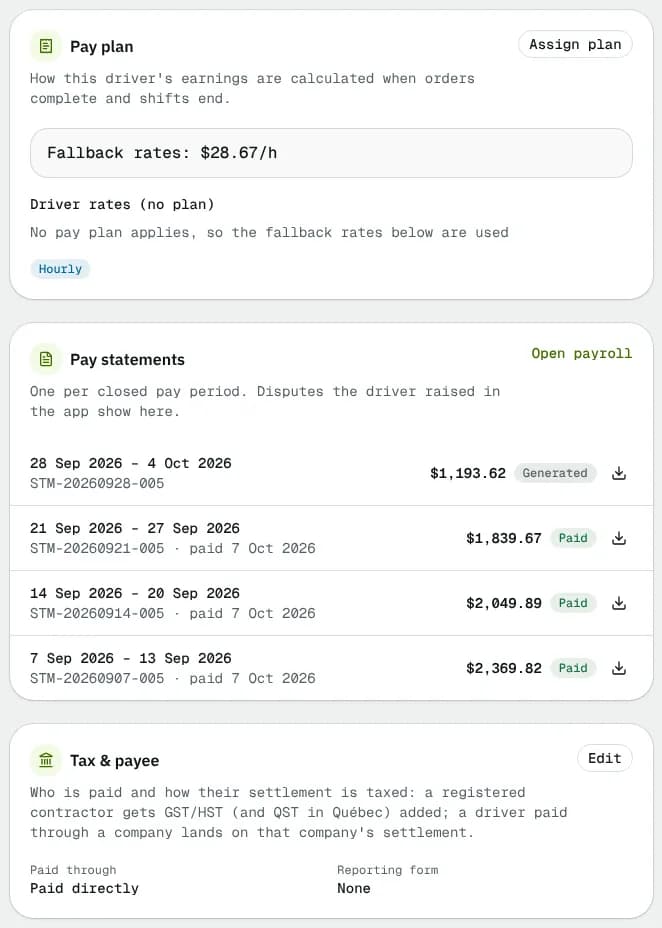
Payroll cards (Pay plan, Pay statements, Tax & payee, Recurring adjustments) only show to people with payroll access; others see Employment & fallback rates only. The side column repeats Assigned vehicle and Availability & shift.
| Card | What it shows / does |
|---|---|
| Pay plan | The plan that pays this driver and where it comes from: Assigned to this driver, By vehicle ownership, By employment type, Company default, or no plan (fallback rates). The plan name links to it; badges list its pay components. Payroll edit rights: Assign plan / Change plan (pick the Pay plan and Effective from date, then Assign) and End assignment. A driver-level plan beats the others; earnings already booked keep their pay. |
| Pay statements | One per closed pay period, with a PDF download; disputes the driver raised in the app show here. Open payroll goes to Payroll. |
| Tax & payee | Paid through (a payee company or paid directly) and the tax profile. Edit (payroll edit rights) opens: Paid through company, Business / operating name, Tax ID type and Business tax ID (a business number, never a SIN), Year-end reporting form (None, T4A (Canadian contractor), T4 (Canadian employee), 1099-NEC (US contractor)), GST/HST number (123456789 RT0001), Province of supply and, for Québec, QST number. A GST/HST-registered contractor gets GST/HST (and QST in Québec) added to their settlement. Applies to statements generated from now on. |
| Recurring adjustments | Deductions, chargebacks, escrow, allowances and reimbursements booked into every pay period they overlap; Add needs payroll edit rights. |
| Employment & fallback rates | Fallback hourly rate, Fallback commission (of the order subtotal), Fallback distance rate (says whether it is paid on the driver's own or a company vehicle), Fallback per-delivery rate, Employment type, Start date, Employee ID, Approved, Terminated, Termination reason. Payroll uses these rates only when no pay plan applies. |
The Permissions tab
Driver app permissions for this driver. Each setting shows Company default or a Custom badge when it differs. Company defaults → opens the company settings.
| Group | Settings |
|---|---|
| What the driver can see | View order price, View customer phone, View earnings |
| What the driver can do | Contact customer, Modify orders, Transfer orders |
| Shifts | Clock in and out, Require a vehicle to clock in, Require clock-in to accept or start orders, Require an odometer photo at clock in and out |
| Proof of delivery | Proof photos from the camera only (no photo library) |
| Barcode scanning and limits | Barcode at pickup and Barcode at delivery (Disabled, Show scanner, Required), Max concurrent orders (1–50) |
| Order fields the driver may edit | Only with Modify orders on: Recipient name, Delivery instructions, Pickup instructions, Package count, Delivery window, COD amount collected |
Click Save permissions (Discard undoes unsaved changes). Reset to tenant defaults removes every custom setting for this driver. The server enforces every setting.
The Shifts & payouts tab
- Shift pay (payroll access): Shifts, Paid time, Distance, Hourly pay, Distance pay, Other shift pay, Total. Delivery pay and adjustments are on the Compensation tab.
- Shift history: Clock in, Clock out, Vehicle (links to it), Odometer (start → end with photo links), Duration, Breaks (the total; click it to open each break's type, start, end and length), Distance (with a +N unlogged badge when the vehicle moved since the previous clock-out), Pay (payroll access) and Status (Active, On break, Completed, Force-ended). Each row's ⋯ menu has Details and, on an open shift, Force end (edit rights). Export CSV downloads the list, one row per break (Break type, Break start, Break end, Break length minutes) with a shift's totals on its first row only. Empty: No shifts yet.
- Time history: every shift in the chosen dates, newest first, as a timeline: Clocked in, each break (Break started / Break ended with type and length), vehicle switches, Clocked out (or Force-ended by / Ended automatically), with Worked, Breaks, Paid and Odometer per shift. Each event has its time and place (street and city as a map link, or the coordinates; Location not recorded when the phone sent none; last known position when the app had no fresh fix). Dates: History from / History to (30 days by default, kept in the page link); Show more loads older shifts; CSV downloads one row per event in your time zone. Details: See the full time history.
The Location history tab
Pick a Day to replay the driver's path: the trail on the map, the stops with how long the driver stayed, and a Time slider. Pings come from the driver app and are kept for the retention days set in Location tracking; they are only recorded on shift or while holding an order. An empty day says No positions on this day.
Statuses
| Status | Meaning | What happens next |
|---|---|---|
| Pending approval | Not checked yet | Approve driver; no vehicle until then |
| Active | Can be dispatched | — |
| On break / Unavailable | Temporarily off | Mark active; unavailable ends on the Back on date |
| Inactive | Out of dispatch, history kept | Mark active |
| Suspended | Can't take orders | Mark active |
| Terminated | Employment ended | Final |
Related
Related articles
- How-toAdd and manage driversFind drivers, add a new one, send the driver app invitation, keep licences and documents up to date and set what each driver may do in the app.
- ConceptShare company vehicles between driversChoose whether drivers pick only their assigned vehicles or any company vehicle, how the one-driver rule and releases work, and how to read the vehicle usage numbers.
- How-toMessage drivers and handle their issuesCall, text or send an app message to one driver or a group, read replies, and acknowledge and resolve the problems drivers report from the app.
- How-toSet up driver pay plansBuild a pay plan from components and modifiers, pay different rates for own and company vehicles, try it in the simulator, assign it to groups of drivers and publish new versions.
- How-toHandling and certificationsSay what fragile, cold-chain and dangerous goods need from the vehicle, the driver and the proof, and record drivers' certifications.
- Page guideDriver defaultsEvery setting on Settings → Driver defaults — the default driver app permissions, the pre-shift vehicle check, required documents and expiry reminders, and depot loading — with their defaults and what each one changes.
- How-toGive a driver dispatcher accessLet one of your drivers run dispatch from the NemiRoute app, choose their role, and remove the access when it is no longer needed.
Still stuck?
Tell us what you were trying to do. A person reads every message.