Message drivers and handle their issues
Call, text or send an app message to one driver or a group, read replies, and acknowledge and resolve the problems drivers report from the app.
On this page
You can reach a driver by phone, text or a message in the driver app, and see the problems drivers report from the road. The Dispatcher role can send messages and handle issues; read-only roles can only read them.
Message one driver
- Open the driver from Drivers (or click Driver on the Live map).
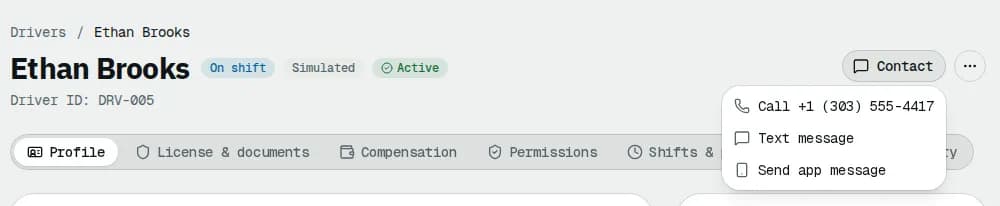
- Click Contact at the top and choose Call …, Text message or Send app message.
- Send app message jumps to the Messages card on the profile. Type your message and click the send button (or press
Ctrl Enter).
The driver gets a push notification and finds the message in the app's Messages. Their replies appear in the same card.
Message a group of drivers
- On Drivers, click Message drivers.
- Under Send to, choose All active drivers, Drivers on shift now or Drivers of one depot (then pick the depot).
- Write the message and click Send message.
Drivers on the app get a notification; everyone sees it in the app's Messages.
Read all conversations
Click the Messages tab on Drivers. The tab shows how many messages are unread.
- Conversations lists each driver you have talked to, with the last message and how many are new. Click one to open that driver's messages.
- Sent to groups lists your group messages with how many drivers received and read them.
Handle issues drivers report
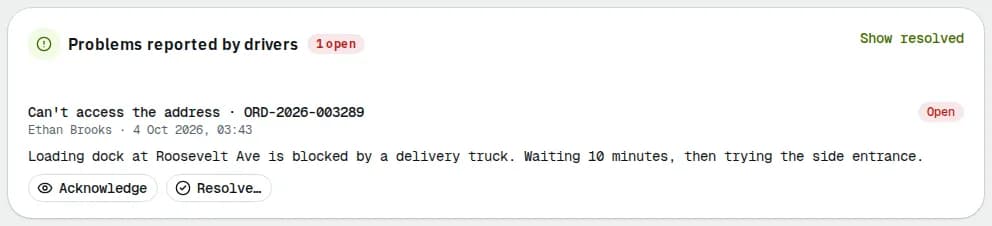
Drivers use Report a problem in the app for things like a blocked dock, a vehicle fault or a damaged package, often with photos. Reported issues show up:
- on the Issues tab of Drivers (Problems reported by drivers), with the number of open issues on the tab,
- on the driver's profile under Reported problems, and on the order under Driver issues,
- in the exceptions queue as Driver issue.
For each issue:
- Read the type, order, driver, notes and photos. Click a photo to open it full size.
- Click Acknowledge to tell the driver you have seen it.
- When it is sorted, click Resolve…, write what you did and click Mark resolved. Reopen brings it back.
Click Show resolved to see closed issues as well.
Related articles
- How-toWork the exceptions queueOne list of everything that needs a dispatcher now: failed and late orders, orders without a driver, delayed vehicles, lost signal and driver issues. Take, snooze or resolve each one.
- How-toAdd and manage driversFind drivers, add a new one, send the driver app invitation, keep licences and documents up to date and set what each driver may do in the app.
- How-toContact dispatch and get helpMessage or call your dispatcher, read notifications, and report a problem with the app.
- How-toStart your daySee what needs you first on the Operations overview, work through your notifications and choose which alerts reach you.
Still stuck?
Tell us what you were trying to do. A person reads every message.