Watch the fleet on the live map
See where every vehicle is, spot delays and alerts, open one vehicle's next stop and ETA, and act on it from the map.
Watch: The live map
1:04See the fleet at a glance, find the vehicle that needs attention, and read its next stop, ETA and delay.
On this page
The Live map shows every active vehicle, its route and its next stop, and refreshes by itself every few seconds. Anyone who can see the fleet can open it; the Dispatcher role can also move stops from here.
Read the overview
- In the sidebar, click Live map.
- The cards at the top count Active vehicles, On route, Delayed and Alerts. Click Delayed or Alerts to show only those vehicles; click again to show all.
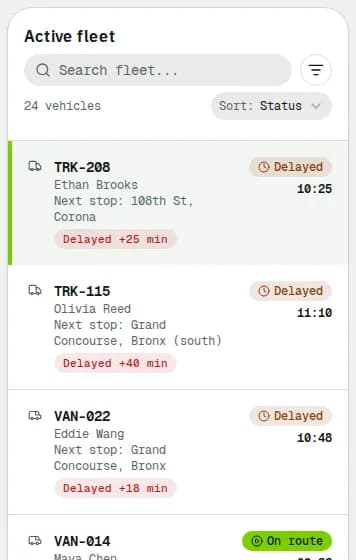
- The Active fleet list next to the map has a search box (vehicle, driver, registration, stop or route), a status filter and Sort: Status, ETA, Delay or Vehicle ID. Delayed vehicles come first by default.
- Each row shows the vehicle, its driver, Next stop: and alert chips such as Delayed +25 min, Signal lost or Driver licence expired.
Click Refresh to reload now instead of waiting.
Open one vehicle
Click a vehicle in the list or its marker on the map. The address changes to /live-map/<vehicle> (for example TRK-208), so you can share the link. The bar above the map shows:
- the driver and status,
- Next stop, ETA and Distance remaining,
- Stops completed (for example 2 of 6) and Delay alerts,
- Driver app: whether the position comes from the driver's phone. The marker is always the phone's last reported position. No position yet with Shown at the depot means the app has not sent one since the driver started. A phone that stops reporting stays on the map at its last position as Signal lost, with how long ago it was Last seen. The bar also shows On break, the phone's battery and the order the driver is working on.

Act on a vehicle
The same buttons appear in the bar and in the marker's pop-up:
- Call driver dials the driver's phone.
- View route, Driver and Vehicle open those pages.
- Reassign next stops (on the road, with stops left): all open stops are ticked under Stops to move; untick the ones that stay. In Move them to, pick another planned, ready or running route of the same depot that day, or Back to unassigned orders, then click Move … stops.
To message the driver instead, see Driver messages and issues.
Show orders on the map
- Click Show orders. Pins appear for late orders and orders still waiting for a driver or a route. The line under the map counts them.
- Click a pin to see the customer, address and due time. Click Assign driver to give it to a driver, or Open order.
- Click Hide orders to remove the pins.
Related articles
- How-toWork the exceptions queueOne list of everything that needs a dispatcher now: failed and late orders, orders without a driver, delayed vehicles, lost signal and driver issues. Take, snooze or resolve each one.
- How-toManage vehiclesFind a vehicle, add one, assign its driver, see who is driving it and release it, take it out of service and keep its maintenance and documents up to date.
- Page guideLive mapEvery part of the Live map: the fleet counters, the selected-vehicle bar, the Active fleet list with search, filter and sort, the map, the orders layer and the actions on a vehicle.
- How-toStart your daySee what needs you first on the Operations overview, work through your notifications and choose which alerts reach you.
Still stuck?
Tell us what you were trying to do. A person reads every message.