Live map
Every part of the Live map: the fleet counters, the selected-vehicle bar, the Active fleet list with search, filter and sort, the map, the orders layer and the actions on a vehicle.
Watch: The live map
1:04See the fleet at a glance, find the vehicle that needs attention, and read its next stop, ETA and delay.
On this page
The Live map shows every vehicle of your fleet, where it is, which route it runs and what is going wrong. It refreshes by itself about every 5 seconds. You need read access to the fleet (Admin, Operations Manager, Dispatcher and Viewer roles by default). Open it from Live map in the sidebar, from View on live map on a running route, or from a vehicle's status on the Operations overview.
The map opens on your default depot (any active depot if none is set). With no depot it frames your vehicles, or shows your whole country when none has a position yet. The recentre button goes back to the same view.
Selecting a vehicle changes the address to /live-map/<vehicle> (for example /live-map/TRK-208), so you can share a link to one vehicle. The search, filter and sort stay in the address too.
For the everyday steps, see Watch the fleet on the live map.
At a glance
| Area | What it shows / does |
|---|---|
| Header | Refresh, Show orders / Hide orders, Exceptions, Route planner. |
| Four counters | Active vehicles, On route, Delayed, Alerts. |
| Vehicle bar | The selected vehicle: driver, status, next stop, ETA, distance, stops, delay, driver app, alerts and actions. |
| Active fleet (left) | Search, status filter, sort and one row per vehicle. |
| Map (right) | Vehicles, route lines, the selected route's stops and, if turned on, orders. |
Header buttons
| Button | Who sees it | What it does |
|---|---|---|
| Refresh | Everyone on the page | Reloads positions now instead of waiting for the next refresh. |
| Show orders / Hide orders | Roles that can read orders | Turns the orders layer on the map on or off. |
| Exceptions | Roles that can read orders | Opens the exceptions queue. |
| Route planner | Roles that can read routes | Opens the Route planner. |
The counters
| Counter | What it counts | Click |
|---|---|---|
| Active vehicles | Every active vehicle in your fleet ("Across all regions"). | - |
| On route | Vehicles driving a route on time. | - |
| Delayed | Vehicles running 5 minutes or more behind their route plan. | Shows only delayed vehicles; click again to show all. |
| Alerts | Vehicles with at least one alert. | Shows only vehicles with alerts; click again to show all. |
The counters always count the whole fleet, whatever the list filters.
The vehicle bar
Shows the vehicle you selected. On plain /live-map it shows the first vehicle of the list without changing the address.
| Item | What it shows |
|---|---|
| Vehicle, driver, status | ID, driver name (or No driver) and the live status. |
| Next stop | The next stop's place, Route completed or No active route. |
| ETA | When the vehicle reaches the next stop (moving vehicles only). |
| Distance remaining | Distance to the next stop. |
| Stops completed | For example 2 of 6. |
| Delay alerts | How late the route is, for example +25 min. |
| Driver app | The driver's real state and how fresh the phone's position is: On shift, On break, or the order step (Heading to pickup, At pickup, Heading to delivery, At delivery), Off shift, or Signal lost (nothing heard from the app for twice the expected interval; the marker stays at the last place the phone reported). When the app is alive but the phone has no fresh GPS fix, it says Online · location from and how long ago the fix was, instead of Signal lost or Off shift, with Last seen time. Below it: On shift since or On break since, the phone's Battery and the Order the driver is working on. No position yet with Shown at the depot means the phone has not reported since the driver started; the marker is a placeholder at the depot, not the driver. |
| Alert chips | Delayed + minutes, Driver licence expired, Signal lost. |
If the address names a vehicle that has no live position, the bar says No live position for that vehicle, with Show all vehicles.
Actions on a vehicle
The same buttons appear in the bar and in a marker's pop-up.
| Button | Shows when | What it does |
|---|---|---|
| Call driver | The driver has a phone number | Dials it. |
| View route | The vehicle is on a route; you can read routes | Opens the route page. |
| Driver | It has a driver; you can read drivers | Opens the driver. |
| Vehicle | You can read the fleet | Opens the vehicle in Fleet. |
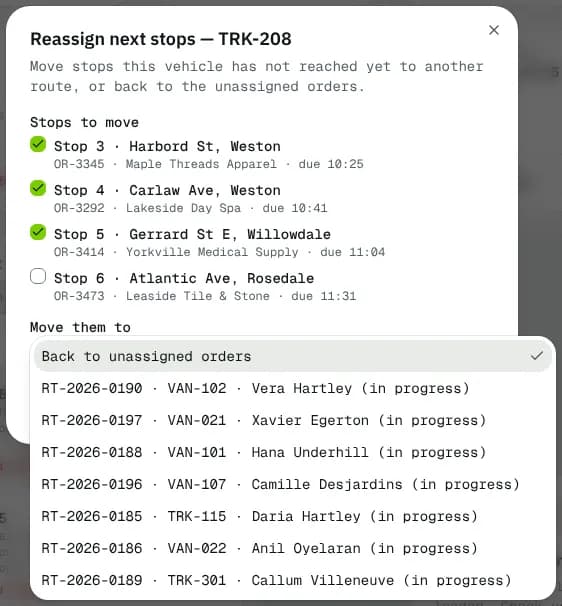
| Reassign next stops | On the road, with stops left; you can edit routes | Opens the dialog below. |
Reassign next stops — …: under Stops to move, every stop not reached yet is ticked (with order, customer and due time); untick the ones that stay. In Move them to, pick Back to unassigned orders or another planned, ready or in-progress route of the same depot that day (shown with its vehicle, driver and status). Click Move … stops. Moved stops go at the end of the other route, and the load must fit its vehicle. If no other route leaves that depot today, the dialog says so.
Active fleet list
| Control | What it does |
|---|---|
| Search fleet... | Finds vehicles by ID, driver, registration, next stop or route name. Esc or × clears it. |
| Filter button | Tick On route, Delayed, Finished, Idle / Standby, or All statuses. A number shows how many are ticked. |
| Count | How many vehicles the list shows. |
| Sort: | Status (delayed first, then on route, finished, idle; the default), ETA (soonest first), Delay (most late first) or Vehicle ID. |
| Rows | Vehicle, driver, Next stop: and alert chips. Click a row (or use the keyboard) to select it. |
| View all vehicles | Opens Fleet. |
Empty states: No vehicles match (with Clear filters) when the search or filter hides every vehicle; No active vehicles when the fleet is empty, with Add vehicle and Add driver for roles that can create them.
The map
- Each vehicle is a marker; a delayed vehicle carries its delay (for example
+25m). The selected vehicle is larger and its route is drawn on top with its stops (completed stops ticked). Other routes are drawn faintly; delayed routes are dashed. - Selecting a vehicle zooms to its route. Plain
/live-mapkeeps the overview. - For a driver whose app sends positions, the trail of the last 4 hours is drawn.
- Click a marker for its pop-up: status, alerts, next stop with ETA and the vehicle actions.
- The map uses a dark style in the dark theme and a light one in the light theme.
The orders layer
Show orders adds pins for orders that need a dispatcher: red for Late order (past its delivery deadline), orange for Needs a driver / not routed (waiting for a driver, or accepted but on no route). A line under the map counts them. Click a pin to see the order number, customer, address, status and due time:
- Assign driver (pending or rejected orders; needs permission to edit orders) opens the assign dialog.
- Open order opens the order.
Statuses
| Status | Meaning | What happens next |
|---|---|---|
| On route | Driving a route in progress, on time. | Keeps going to the next stop. |
| Delayed | Driving a route at least 5 minutes behind plan. | Check the route; consider Reassign next stops. |
| Finished | Every stop done, or the route was completed today. | Parked at the end of the route. |
| Idle / Standby | No route running today (also vehicles in maintenance or out of service). | Shown at its home depot. |
Good to know
- Until a driver app sends positions, a running route's vehicle is placed along the planned route.
- If a refresh fails, the page keeps the last positions and the vehicle count in the list adds · updates paused; a first load that fails shows an error with a retry button.
- To message a driver, see Driver messages and issues. For route and stop statuses, see Route and stop statuses.
Related articles
- How-toWatch the fleet on the live mapSee where every vehicle is, spot delays and alerts, open one vehicle's next stop and ETA, and act on it from the map.
- ConceptRoute and stop statusesWhat each route status and stop status means, which button moves a route from one status to the next, what each move checks and what it does to the orders on it.
- How-toWork the exceptions queueOne list of everything that needs a dispatcher now: failed and late orders, orders without a driver, delayed vehicles, lost signal and driver issues. Take, snooze or resolve each one.
- How-toMessage drivers and handle their issuesCall, text or send an app message to one driver or a group, read replies, and acknowledge and resolve the problems drivers report from the app.
- How-toManage vehiclesFind a vehicle, add one, assign its driver, see who is driving it and release it, take it out of service and keep its maintenance and documents up to date.
Still stuck?
Tell us what you were trying to do. A person reads every message.