Route detail
Every part of a route's page: the status buttons, banners, numbers, map, stops table, editing and re-ordering stops, confirming the load, changing the driver, completing stops and ending or cancelling the route.
On this page
A route's page (for example /route-planner/RT-2026-0042) is where you move the route through its statuses, load it, send it out, follow it and close it. Everyone who can read routes sees the page; the buttons need write access to routes (Admin, Operations Manager and Dispatcher by default), and Delete draft needs delete access. Open it from a row on the Route planner, from View route on the Live map or from a depot's Today tab.
For the everyday steps, see Dispatch and run a route.
At a glance
| Area | What it shows / does |
|---|---|
| Header | Route number, status badge (plus the delay while late), name · service day · start time · depot, the action buttons and ⋯. It spans the page above the two columns and, from tablet width up, stays stuck under the top bar while you scroll. |
| Banner | One message when something needs you: late, still open from an earlier day, cancelled, draft without vehicle, or loaded. |
| Four numbers | Stops done, Distance, Duration, Capacity used. |
| Route map | Depot, numbered stops and the line; the vehicle while on the road. |
| Stops | The stop list with Add orders, Edit stops / Reorder stops and Complete. |
| Right column | Assigned vehicle, Driver, Route summary, Dispatch notes, Activity. |
Header buttons
The main button always shows the next step for the status. Other buttons appear only when they apply; the rest are in the ⋯ menu.
| Button | Shows when | What it does |
|---|---|---|
| View on live map | In progress with a vehicle | Opens the vehicle on the Live map. |
| The route has stops | Run sheet (PDF): stops in driving order with a signature / time column. Loading list (PDF): the same stops in reverse order with a Loaded box, so the last stop goes in first. Each row has the order's barcode. | |
| Edit | Draft, Planned, Ready | Opens the edit dialog (below). |
| Plan route | Draft | Checks the stops against the depot and the orders and moves the route to Planned. Greyed out until the route has a stop. |
| Mark ready | Planned | Checks the vehicle: in service, has a driver who is available, carries the load, not on another ready or running route that day. Then Ready. |
| Confirm load | Ready or In progress, with orders still to load | Opens the load dialog. Only on the service day. |
| Dispatch | Ready | Asks for confirmation and sends the driver out (In progress). Only on the service day: before it the button is greyed out and its tooltip says when it opens. |
| Complete route | In progress | Closes the route. Greyed out while stops are pending (the tooltip says how many). |
| ⋯ > Move back to draft | Planned | Back to Draft; the stops stay. |
| ⋯ > Move back to planned | Ready | Back to Planned. |
| ⋯ > End route… | In progress | Stops the route early (dialog below). |
| ⋯ > Cancel route | Draft, Planned, Ready | Cancels with an optional Reason (optional). Orders not loaded yet go back to the unassigned list. Orders already loaded for this route go back into the depot's custody (At depot) and leave the driver's app; removing a loaded stop with Edit stops does the same. An order the driver already started delivering stays with the driver, and you get a warning. Keep route closes the dialog. |
| ⋯ > Delete draft | Draft | Removes the draft for good; its orders stay unassigned. |
Cancel, End and Delete can't be undone.
Banners
| Banner | Meaning |
|---|---|
| Still on the road since + date | An in-progress route from an earlier day still has open stops. Complete them or click End route…. |
| Running … min late | The route is behind plan; shows the next stop and its ETA. |
| Cancelled + date | Shows the reason, or that the orders went back to the unassigned list. |
| Draft route | No vehicle yet: assign one and plan the route. |
| Loaded + time | The load was confirmed: orders on board, who signed, package scans and orders left at the depot. |
The numbers
| Number | What it shows |
|---|---|
| Stops done | Done / total, with what is left and the percentage. Failed and skipped stops count as done. |
| Distance | Planned distance; Incl. return to start or One way. |
| Duration | Driving plus time at stops; Est. end or Finished with the time. |
| Capacity used | Load weight against the vehicle's maximum load. Red above 100%. |
Route map
Shows the depot, the numbered stops (green = completed, grey = remaining) and the route line. While the route is in progress it also shows the vehicle, and the line under the title gives the next stop, its ETA, the distance to it and any delay. No stops to map shows until orders are added.
Stops
The card line gives the number of stops, how many are done and returns to start when it does.
| Column | What it shows |
|---|---|
| # | Stop number (green done, red failed, grey open). |
| Stop | Place and full address. |
| Order | Order number (for example ORD-2026-003037; opens it), packages and weight, the order's status. |
| Arrival | Planned arrival; then Arrived and Left times, or the live ETA. Window shows the delivery window that day ("By 22 Oct · 17:00" when it only has an end, "From 08:00" when it only has a start); min late in red when the stop is planned after it. |
| Status | Pending, Completed, Failed or Skipped. The next open stop on a running route has a Next badge and the Complete button. Below wide screens there is no Status column: the status (and Complete) shows under the stop. |
On a phone each stop shows as one row: the place and address, then the order, packages, weight and planned time, then the status (and Complete).
Add orders
On Draft, Planned and Ready routes, Add orders opens the unassigned orders of the route's depot. Tick them and click Add selected; they go at the end.
Edit stops / Reorder stops
- Edit stops (draft, planned, ready): drag a stop by its handle, use the up and down buttons, or focus a handle, press
Spaceand use the arrow keys. × removes a stop and sends its order back to the unassigned list. An order already loaded for this route goes back into the depot's custody (At depot) instead. - Reorder stops (in progress, at least two open stops): done stops are shown fixed at the top; you can only re-order the open ones and can't remove them.
- Optimize re-orders the open stops: delivery windows first, then the shortest drive, starting from the depot (or from the last done stop on a running route). The line next to it shows how much distance you save, in your company's units.
- Click Save stops (active once something changed) or Cancel.
A planned or ready route must keep at least one stop.
Complete a stop
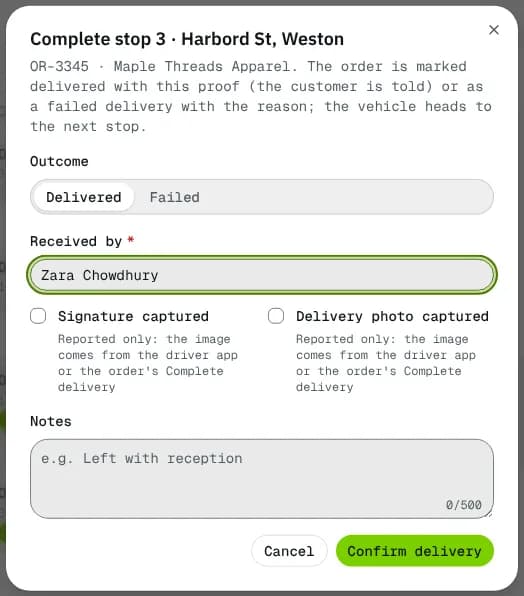
Complete opens Complete stop for the Next stop only (stops are done in order). Use it when a driver calls a stop in.
| Field | What to enter | Required |
|---|---|---|
| Outcome | Delivered or Failed. | Yes |
| Received by | Name of the person who took the goods (Delivered). | Yes, for Delivered |
| Signature captured / Delivery photo captured | Tick what the driver has. These are for the record only: the images themselves come from the driver app or the order's Complete delivery. | No |
| Collected, Method, Why is it different? | Shown for cash-on-delivery orders: the amount collected, how it was paid and, when it differs from the amount due, why. | Collected for COD orders |
| Confirm without proof + Reason | When the order has no signature and photo yet. Only for roles that can delete orders (Admin and Operations Manager by default). | No |
| Failure reason | One of your company's delivery failure reasons (Failed). | Yes, for Failed |
| Restock the goods | Product items go back on hand at the origin depot (Failed). On by default. | No |
| Notes | Up to 500 characters. | No |
Confirm delivery marks the order delivered (the customer is told). Mark as failed marks it as a failed delivery for follow-up. If the order has no signature and photo yet, a yellow box says so: complete it from the order page to upload them.
Edit dialog
| Field | Notes |
|---|---|
| Start depot | Only drafts can change depot; every stop must pick up at the new one. |
| Vehicle | Every active vehicle with make, model, driver, maximum load and status. Clearing it on a Ready route moves the route back to Planned. The new vehicle must carry the load and be free that day. |
| Schedule date | Today or later. |
| Start time | HH:mm. |
| Return to start | Drive back to the depot after the last stop. |
| Dispatch notes | Up to 500 characters. |
Save changes sends only what you changed.
Confirm the load
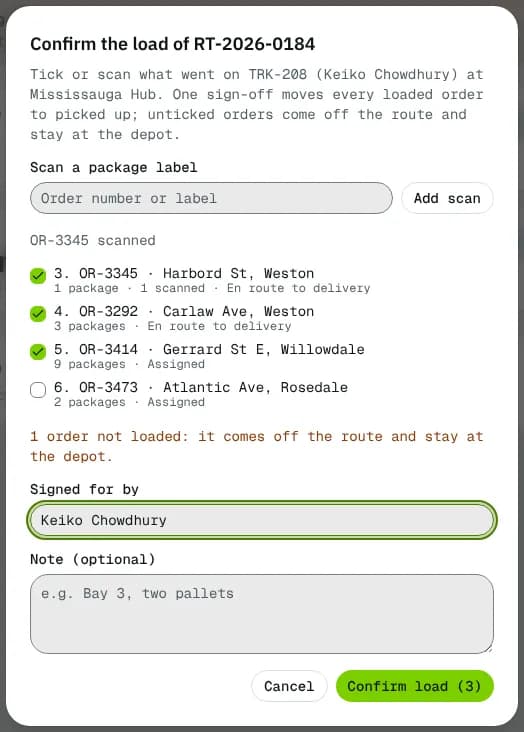
Confirm the load is one sign-off for everything that goes on the vehicle at the depot.
- Scan each package label (or type the order number) into Scan a package label and press
Enteror Add scan. A scan ticks its order; a code not on the route is reported. - Untick orders that stay behind. They come off the route (on a running route they are skipped) and stay at the depot.
- Check Signed for by (the driver by default) and add a Note (optional).
- Click Confirm load (it shows the number of orders). Loaded orders move to Picked up and are held by the route's driver.
Your company's Depot loading setting under Driver settings can require every package to be scanned.
Right column
- Assigned vehicle: vehicle ID (opens it), make and model, Registration, Type, Max load, Status, a Capacity used bar and View on live map while running. Without a vehicle, Assign opens the edit dialog.
- Driver: name (opens the driver), ID, Phone, Licence No., Licence expiry (orange when expiring soon, red when expired). Change (or Assign) opens Change the driver of …: pick a driver (only active or on-break drivers can be picked) and click Make … the driver. Before dispatch the new driver becomes the vehicle's main driver, so every open route of that vehicle follows. On a running route it is a hand-over: the remaining stops and their orders move to the new driver, who is told in the app.
- Route summary: Start depot, Service day, Start (and when it left), Estimated end or Finished, Return to start, Packages, Weight, Volume, Capacity used, Created, Created by.
- Dispatch notes: the notes, or No notes for the driver. Edit opens the edit dialog.
- Activity: created, dispatched, each stop delivered / failed / skipped, completed or cancelled, newest first.
End route
End … now? stops a running route. With stops left, choose:
- Back to unassigned orders: plan them on another route; the driver is told in the app.
- Mark them as failed deliveries: the packages come back; retry or return them from each order.
A Reason is required when stops are left. End route then completes the route; Keep driving closes the dialog.
Statuses
| Status | Meaning | What happens next |
|---|---|---|
| Draft | Being built. | Plan route. |
| Planned | Stops checked. | Mark ready (or Move back to draft). |
| Ready | Vehicle and driver checked. | Confirm load, then Dispatch on the service day. |
| In progress | On the road. | Stops are completed; Complete route or End route…. |
| Completed | Closed. | - |
| Cancelled | Stopped before leaving. | - |
Details and every transition: Route and stop statuses.
Good to know
- Deliveries and failures recorded in the driver app or on the order complete the matching stop by themselves. An order that is cancelled, put on hold or handed to another driver leaves an open route, or is skipped on a running one.
- If someone else changed the route since you opened it, your action is refused with "This record was changed by someone else". Reload the page and try again.
- Route not found with Back to route planner shows for a wrong or deleted route number.
Related articles
- How-toDispatch and run a routeMove a route from draft to ready, dispatch it, print the run sheet, change the driver, record stops and close or cancel the route.
- How-toPlan a routeBuild a route from unassigned orders, put the stops in a good order, pick the vehicle and save it as a draft or dispatch it.
- ConceptRoute and stop statusesWhat each route status and stop status means, which button moves a route from one status to the next, what each move checks and what it does to the orders on it.
- Page guideRoute plannerEvery field, filter, column and action on the Route planner list, where you find, export, dispatch, cancel and delete routes.
- How-toHandle a failed deliveryDecide what happens after a failed pickup or delivery: schedule a new attempt and tell the recipient, return the package to the sender, or put the order on hold.
Still stuck?
Tell us what you were trying to do. A person reads every message.