Route planner
Every field, filter, column and action on the Route planner list, where you find, export, dispatch, cancel and delete routes.
Watch: Plan a route, with or without a depot
1:49Put the day’s orders on a vehicle, let the planner order the stops, fine-tune them, and decide whether the route ends back at the depot.
On this page
The Route planner lists every route your company has planned, newest service day first. Anyone with read access to routes can open it (Admin, Operations Manager, Dispatcher, Warehouse Manager and Viewer roles by default). Creating, dispatching and cancelling need write access to routes; deleting a draft needs delete access. Open it from Route planner in the sidebar.
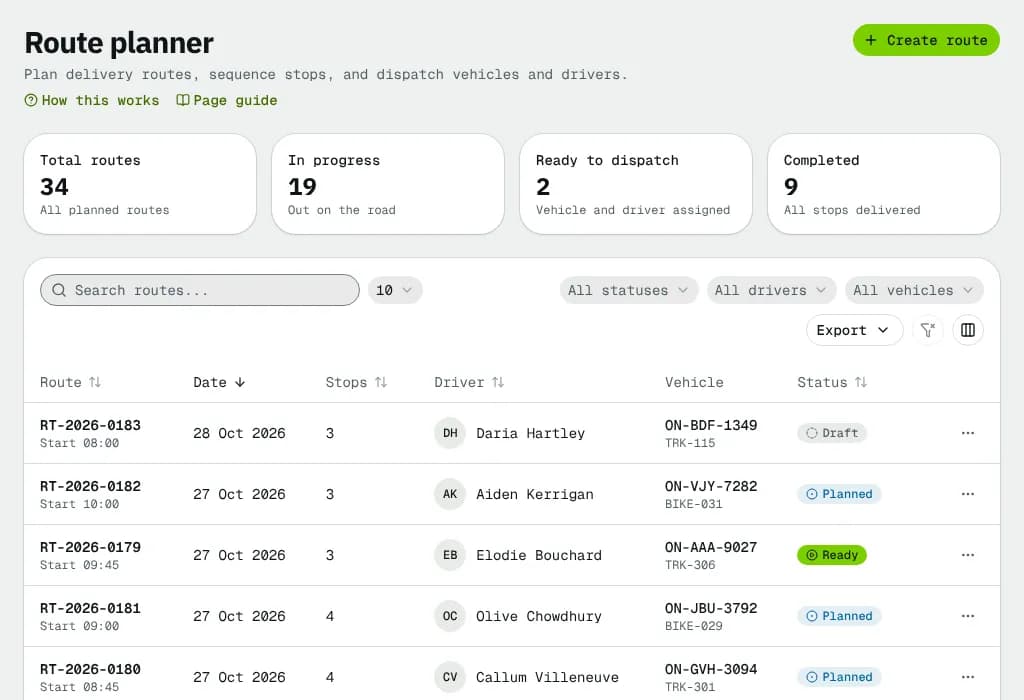
At a glance
| Area | What it shows / does |
|---|---|
| Create route (header) | Opens the planner at /route-planner/new. Hidden without permission to create routes. |
| Four counters | Total routes, In progress, Ready to dispatch, Completed. |
| Toolbar | Search, the All statuses, All drivers and All vehicles filters, column choice and Export. |
| Routes table | One row per route. Click a row to open the route. |
| ⋯ menu on a row | View route, Dispatch route, Cancel route, Delete draft. |
The counters
| Counter | What it counts |
|---|---|
| Total routes | Every route that matches your search and driver / vehicle filters. |
| In progress | Routes out on the road. |
| Ready to dispatch | Routes in Ready (a vehicle with a driver is assigned), whatever their date. |
| Completed | Routes closed after their last stop. |
The counters follow the search, driver and vehicle filters but not the status filter, so they always show the split by status of what you are looking at. They are counted from the data, never typed in.
Search, filters and export
- Search routes... finds routes by route number, name, driver, vehicle ID, registration or depot.
- All statuses narrows to one or more of Draft, Planned, Ready, In progress, Completed, Cancelled.
- All drivers and All vehicles narrow to the routes of one driver or vehicle (vehicles show as
TRK-208 · registration). - Export downloads every route that matches the filters as a CSV file with: Route, Name, Date, Start time, Depot, Stops, Stops completed, Driver, Vehicle, Registration, Distance, Duration (min), Packages, Weight, Capacity used (%), Status and Delay (min). Distance and weight use your company's units (km and kg by default).
Filters, sort, search and page live in the address bar, so you can bookmark or share a filtered list.
The routes table
| Column | What it shows |
|---|---|
| Route | Route number (RT-2026-0042) with the start time under it. |
| Date | The service day. |
| Stops | Number of stops. While the route is in progress it shows done / total, for example 3/8. |
| Driver | The driver who comes with the vehicle, or a dash. |
| Vehicle | Registration with the vehicle ID under it, or a dash. |
| Distance | Planned distance, including the drive back when the route returns to its depot. |
| Duration | Driving time plus the time at each stop. |
| Status | The route status. A late route shows its delay (for example +25 min) under the badge. |
Sort by Route, Date, Stops, Driver, Distance, Duration or Status by clicking the header. You can hide columns from the column menu; the choice is remembered on this browser.
Row actions
| Action | When it shows | What it does |
|---|---|---|
| View route | Always | Opens the route page. |
| Dispatch route | Route is Ready, you can edit routes | Opens a confirmation, then sends the driver out. Only on the service day: on other days the item reads Dispatch on with the date and is greyed out. |
| Cancel route | Draft, Planned or Ready | Asks for confirmation. A cancelled draft keeps its orders unassigned; on a planned or ready route the stops are released and the orders can be planned again. |
| Delete draft | Draft only, needs delete access | Removes the draft. Its orders stay unassigned. |
Routes already on the road can't be cancelled from here: open the route and use End route…. See Dispatch and run a route.
Statuses
| Status | Meaning | What happens next |
|---|---|---|
| Draft | Saved, still being built. | Plan route on the route page, or delete it. |
| Planned | Stops checked against the depot and orders. | Mark ready once a vehicle with a driver is on it. |
| Ready | Vehicle, driver and capacity checked. | Dispatch on the service day. |
| In progress | The driver is out. | Stops are completed; then Complete route or End route…. |
| Completed | Closed. | Nothing; it stays for history and reports. |
| Cancelled | Stopped before it left. | Nothing; its orders went back to the unassigned list. |
The full rules are in Route and stop statuses.
Empty and error states
- No routes yet appears when nothing matches; click Create route to plan one.
- If the list or the counters can't load, an error box with a retry button replaces them.
Good to know
- Every route leaves from a depot. If your company has no depot yet, add one first. See Routes with or without a depot.
- You can also start a route from Orders (Add to route or New route with these) or from a vehicle in Fleet (Assign route).
- To build a route step by step, see Plan a route.
Related articles
- How-toPlan a routeBuild a route from unassigned orders, put the stops in a good order, pick the vehicle and save it as a draft or dispatch it.
- How-toDispatch and run a routeMove a route from draft to ready, dispatch it, print the run sheet, change the driver, record stops and close or cancel the route.
- ConceptRoute and stop statusesWhat each route status and stop status means, which button moves a route from one status to the next, what each move checks and what it does to the orders on it.
- Page guideRoute detailEvery part of a route's page: the status buttons, banners, numbers, map, stops table, editing and re-ordering stops, confirming the load, changing the driver, completing stops and ending or cancelling the route.
Still stuck?
Tell us what you were trying to do. A person reads every message.