Exceptions
The Exceptions queue: the six exception types, when each appears and how severe it is, the Open and Snoozed views, and what Assign driver, I'll take it, Snooze, Wake up and Resolve do.
On this page
Exceptions is one queue of everything that needs a dispatcher now: failed and late orders, orders waiting for a driver, delayed vehicles, lost app signal and driver issues. Anyone with orders access can see it; acting on a row needs orders:write (Dispatcher, Operations Manager, Admin). Driver issues only show for people who can see drivers. For the routine see Work the exceptions queue.
At a glance
| Area | What it shows or does |
|---|---|
| Header | Live map opens the Live map. |
| Type chips | All plus one chip per type, each with its count. |
| Open / Snoozed | Switch between the live queue and snoozed rows (with counts). |
| The list | One row per exception, highest severity first. |
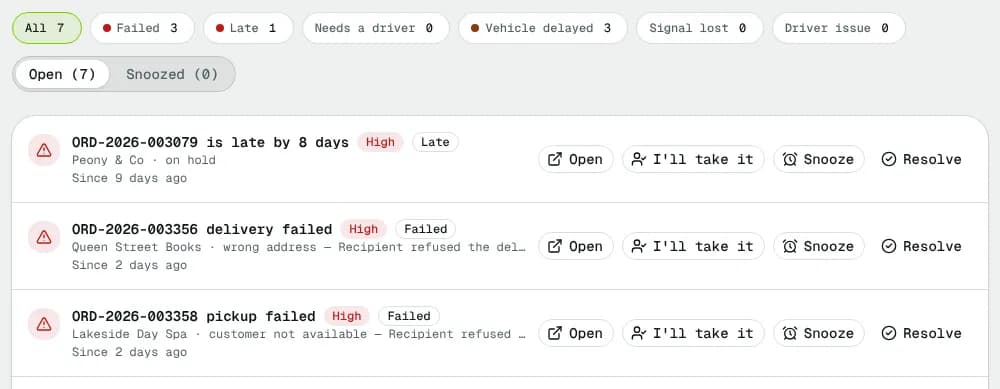
The queue is rebuilt from live data each time it loads: an exception disappears on its own when its cause is gone (the order is assigned, delivered, or the vehicle catches up).
Exception types
| Type (chip) | Appears when | Severity | Row title | Opens |
|---|---|---|---|---|
| Failed | A pickup or delivery failed, or an extra stop of a multi-stop job failed and has no redelivery yet (also on a Delivered job). | High | "ORD-… pickup failed" / "delivery failed" / "stop failed", with the driver or stop and the reason | The order |
| Late | An open order is past its required delivery time. | Medium; High after 60 minutes | "ORD-… is late by …" | The order |
| Needs a driver now | An order still needs a driver (Pending, Rejected by the driver, At depot) at least 20 minutes after it was placed and once its planned pickup is close: next week's order is not an exception today. | Medium; High after 2 hours | "ORD-… has no driver for …" | The order |
| Vehicle delayed | A vehicle on a route is behind schedule. | Medium; High at 30 minutes | "TRK-… is n min behind", with the driver, route and next stop | The vehicle on the live map |
| Signal lost | A driver's app stopped sending its position. | Medium | "No signal from …", "Last seen … ago" | The vehicle on the live map, or the driver |
| Driver issue | A driver reported a problem in the app (vehicle, access, package, customer). | High | "… reported by …" | The order, or the drivers' issues list |
Each row shows a High or Medium badge, the type, a detail line (up to two lines; hover for the full text), "Started … ago" (hover for the exact time), "Owned by …" once someone took it, and "snoozed until …" on snoozed rows.
Row buttons
| Button | What it does | Who |
|---|---|---|
| Open | Opens the order, vehicle or driver. | Everyone |
| Assign driver | Opens the assign dialog (pick a driver or Auto-assign (best fit)). Shown on orders that still need a driver, including late ones. | orders:write |
| I'll take it | Marks you as the owner ("Owned by …") so the team knows someone is on it. The row stays in the queue. | orders:write |
| Snooze | Hides the row: For 30 minutes, For 2 hours or Until tomorrow 8:00. It comes back by itself when the snooze ends. | orders:write |
| Wake up | On a snoozed row: brings it back now. | orders:write |
| Resolve | Removes the row. A new failure or a new delay on the same order or route creates a fresh exception. | orders:write |
For a Driver issue, I'll take it, Resolve and Wake up change the driver's issue itself (acknowledged, resolved, reopened), as seen on the Drivers page; the driver is told when it is resolved. Snooze only affects this queue.
Empty states
- "Nothing needs you right now" when the open queue is empty.
- "No … exceptions" with Show all types when a type chip has nothing.
- "Nothing snoozed" in the Snoozed view.
Good to know
- Resolving an exception doesn't change the order: open it to retry, reassign, hold or return it (see Handle a failed delivery).
- The type chip and view are kept in the page address, so a link opens the same filter.
Related articles
- How-toWork the exceptions queueOne list of everything that needs a dispatcher now: failed and late orders, orders without a driver, delayed vehicles, lost signal and driver issues. Take, snooze or resolve each one.
- How-toHandle a failed deliveryDecide what happens after a failed pickup or delivery: schedule a new attempt and tell the recipient, return the package to the sender, or put the order on hold.
- How-toWatch the fleet on the live mapSee where every vehicle is, spot delays and alerts, open one vehicle's next stop and ETA, and act on it from the map.
- ConceptOrder statuses and lifecycleEvery order status, how an order moves from one to the next, who or what moves it, and what each status means for the price and the invoice.
- How-toMessage drivers and handle their issuesCall, text or send an app message to one driver or a group, read replies, and acknowledge and resolve the problems drivers report from the app.
Still stuck?
Tell us what you were trying to do. A person reads every message.