Customer emails & texts
Every tab of Customer emails & texts: the message templates and their editor, the timing rules, the log of what was sent and the per-customer settings.
On this page
Customer emails & texts (/notifications) controls the emails and SMS your company sends customers, receivers, pickup contacts and billing contacts when an order or invoice event happens, and shows what actually went out. It needs read access to notifications, which only the Admin role has by default; changing anything needs write access. Your own in-app alerts are a different page: Notifications.
The page has four tabs: Templates, Rules, Logs and Customer settings. The tab you pick stays in the address (?tab=logs).
For step-by-step tasks, see Customer emails and texts and Message timing and contact defaults.
At a glance
| Tab | What it is for |
|---|---|
| Templates | The text of every message, on or off, per event and recipient. |
| Rules | When time-based messages go out and what contacts get by default. |
| Logs | Every email and text that was queued, sent or failed. |
| Customer settings | Which messages each customer gets, and their own timing. |
Templates
Messages are grouped by event (for example Order placed, Driver assigned, Order delivered), each with a line saying when it is sent. Under each event is one row per message, such as Email to the customer or Text to the receiver, with an on / off switch and Edit. A message marked Always sent is one someone asked for (like a password reset) and can't be turned off. On a phone the badge reads Always and Edit shows as a pencil button.
| Control | What it does |
|---|---|
| All, Orders, Billing, Account & sharing | Show one group of events. |
| English / Français | Which language's text you see and edit (French is Canadian French). |
| Find a message... | Search events by name or description. |
| Reset all to defaults | After Reset templates in the confirmation, puts every company message (every language) back to the shipped text and on / off state. Customers' own versions are kept. Needs write access. |
No templates yet with Restore defaults shows if the list is empty.
The template editor
| Field | What to enter | Notes |
|---|---|---|
| Name | Internal name of the message. | |
| Send this message | On or off. | Hidden for Always sent messages. |
| Insert variable: | Click a variable to insert it where the cursor is (for example {{order_number}}, {{tracking_url}}). | Only the variables of this event are offered; an unknown one blocks saving. |
| Subject | Email subject. | Email only. |
| Plain text body | Email text. | Email only. |
| HTML body | Optional designed version. | "Leave empty to generate it from the plain text. Your logo, colour and support contact are added around it." |
| SMS text | The text message. | SMS only. |
| Preview | Shows the message with sample values, next to the editor on a wide screen (below it on a narrow one), so each change shows as you type. | Type an Order number and click Use order to preview with a real order. |
Buttons: Send test to my email / Send test to my phone (only you get it), Reset to default (shipped text, message turned on), Delete …'s version for a customer's own version, and Save template. Reset to default and Save template stay at the bottom of the panel while you scroll.
Rules
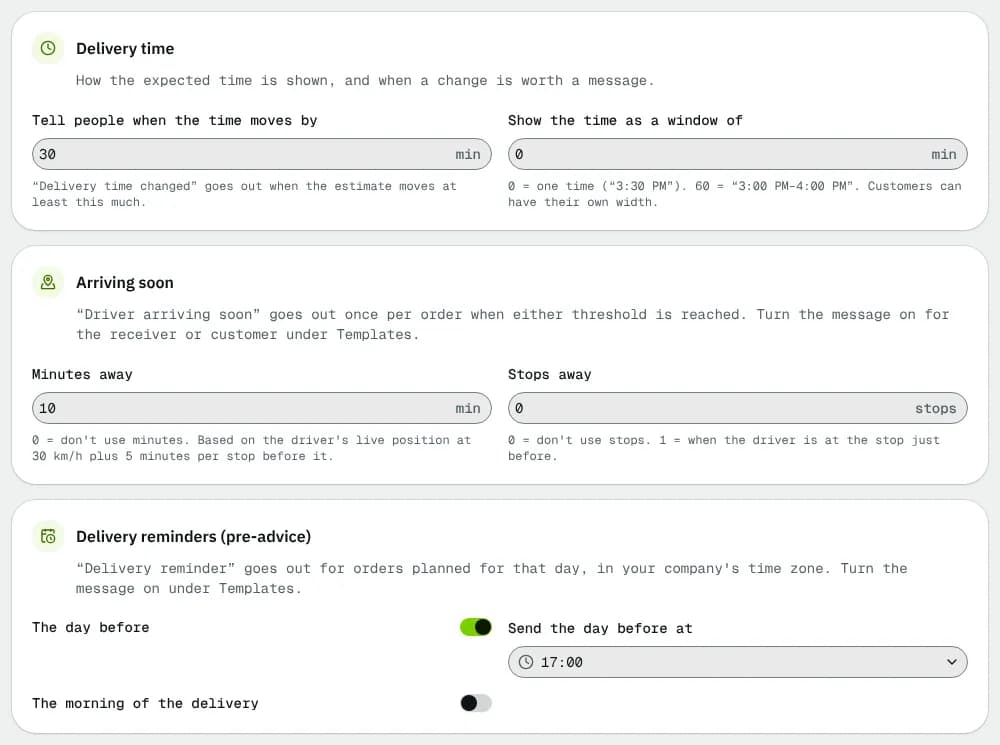
| Section | Field | Notes |
|---|---|---|
| Delivery time | Tell people when the time moves by | 5–240 min. "Delivery time changed" goes out when the estimate moves at least this much. |
| Show the time as a window of | 0 or 10–240 min. 0 = one time ("3:30 PM"); 60 = "3:00 PM–4:00 PM". | |
| Arriving soon | Minutes away | 0–120. 0 = don't use minutes. Based on the driver's live position at 30 km/h plus 5 minutes per stop before it. |
| Stops away | 0–20. 0 = don't use stops; 1 = when the driver is at the stop just before. | |
| Delivery reminders (pre-advice) | The day before + Send the day before at | For orders planned for that day, in your company's time zone. |
| The morning of the delivery + Send on the day at | ||
| Customer contacts | Every order update by default | Off: contacts get only the updates picked below, unless they choose their own. |
| Order updates contacts get by default | Shown when the switch above is off. | |
| Daily summary goes out at | For contacts who chose one daily summary. |
"Driver arriving soon" goes out once per order when either threshold is reached; the message itself must be on under Templates. Click Save rules, or Discard to put back what was saved.
Logs
Counters at the top: Total (email and SMS), Sent, Queued (with how many are blocked by an opt-out, missing consent or a limit) and Failed.
| Column | What it shows |
|---|---|
| Queued | When the message was created. |
| Event | What triggered it. |
| Channel | Email or SMS. |
| Recipient | Address or phone number. |
| Customer, Order | Who it was about. |
| Status | Queued, Sent, Delivered, Failed, Bounced, Complained or Blocked. |
Search by recipient, subject, customer or order, or filter with All channels, All events and All statuses. Click a row to see the message with Recipient type, Sent, Provider id and the failure reason; roles with write access can click Resend to … to send it again. Queued messages wait for quiet hours to end or for a retry. No notifications yet with Go to orders shows until the first message goes out.
Customer settings
The Company default (every customer) row decides what everybody gets: "A message turned off here is not sent to anyone. Customers below can only turn more off." Below it, Search customers... and one row per customer with an edit button.
The edit panel ("Which messages this customer gets, per channel") has a grid of messages × recipients to turn off, Timing for this customer (Arriving soon: minutes away, Arriving soon: stops away, Delivery time window (minutes), empty = company value), and, for roles that can create notifications, a list to give the customer its own wording of a message. Click Save settings.
No customers yet with Add customer shows when you have none.
Good to know
- Sender name, domain, quiet hours for texts and opted-out numbers are on Email and SMS.
- A contact only gets texts after their SMS consent is recorded or they reply START.
Related articles
- How-toCustomer emails and textsEdit the email and SMS templates customers and receivers get, insert variables, preview and send a test, check the log, and set up the sender, quiet hours and opt-outs.
- How-toMessage timing and contact defaultsSet when "Delivery time changed", "Driver arriving soon", delivery reminders and the daily summary go out, and which order updates customer contacts get by default.
- How-toStart your daySee what needs you first on the Operations overview, work through your notifications and choose which alerts reach you.
- How-toWork the exceptions queueOne list of everything that needs a dispatcher now: failed and late orders, orders without a driver, delayed vehicles, lost signal and driver issues. Take, snooze or resolve each one.
Still stuck?
Tell us what you were trying to do. A person reads every message.