Drivers
Every part of the Drivers page — the quick filters, the drivers table, bulk actions, the compliance card and the Issues, Messages, Time clock and Performance views.
On this page
The Drivers page is where you find a driver, see who is on shift, chase expiring documents and talk to drivers. Open it from Drivers in the sidebar. You need permission to view drivers; the buttons that change something need more (see each table below).
At a glance
| Area | What it shows / does |
|---|---|
| Header buttons | Schedule, Message drivers, Add driver, then ⋯ (Driver app settings) |
| View tabs | Drivers, Issues, Messages, Time clock, Performance (the tab is kept in the link) |
| Quick filters | One-click counts: On shift now, Documents expiring, Not on the app, Suspended |
| Drivers table | One row per driver, with search, filters, column picker and CSV export |
| Compliance & availability | Drivers with expiring licences or medical cards, or limited availability |
Header buttons
| Button | What it does | Who sees it |
|---|---|---|
| ⋯ (Driver app settings) | A menu of links: Driver defaults, checklist and documents, Driver app permissions, Location tracking, Push notifications, Driver network | Users who can view settings |
| Schedule | Opens the weekly shift plan | Everyone on this page |
| Message drivers | Sends one app message to a group (see Message drivers below) | Users who can edit orders (dispatch) |
| Add driver | Opens the new driver form | Users who can add drivers |
Quick filters
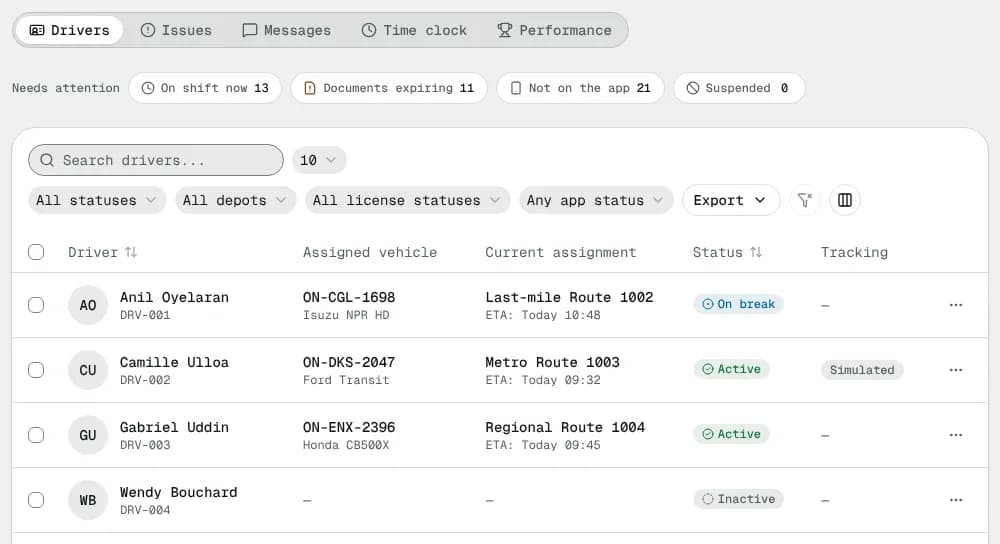
Each chip shows how many drivers match and filters the table when you click it. Click it again to clear it. Only one is on at a time.
| Chip | Shows |
|---|---|
| On shift now | Drivers clocked in or on a break |
| Documents expiring | Any document (licence, medical card, background check, drug test, or your own document kinds) expired or expiring within 30 days |
| Not on the app | Drivers not invited to the driver app yet |
| Suspended | Suspended drivers; they can't take orders |
The counts follow the search and the Depot filter.
The drivers table
Search and filters
- Search drivers... matches the name, driver ID, e-mail, phone, licence number, employee ID and the assigned vehicle or its registration.
- Status: any driver status (see Statuses).
- Depot: the driver's home depot.
- Licence status: Valid, Expiring soon, Expired.
- Driver app: Not invited, Invited, On the app, Suspended.
Filters, sort, search and page live in the address bar, so you can bookmark or share a filtered list.
Columns
| Column | What it shows |
|---|---|
| Driver | Name, photo or initials, and driver ID (for example DRV-021). Always shown. |
| Contact | Phone and e-mail |
| Assigned vehicle | Registration (links to the vehicle) with make and model |
| Current assignment | The route the driver is on and its ETA |
| Status | The driver's status badge |
| Tracking | The driver app's location state, plus On break while the driver is on a break; a dash means the driver doesn't use the app |
| App | Not invited, Invited, On the app or Suspended |
| Licence expiry | Licence expiry date, coloured when expiring or expired, plus other expiring documents (for example "+ Medical certificate") |
Use the columns menu to hide columns. Click a row to open the driver.
Row menu
| Item | What it does | Who can use it |
|---|---|---|
| View driver | Opens the driver page | Everyone |
| Edit driver | Opens the edit form | Can edit drivers |
| Approve driver | Makes a Pending approval driver Active | Can edit drivers; only on pending drivers |
| Change vehicle | Assigns or swaps the driver's vehicle | Can edit drivers; hidden for drafts and for inactive, suspended, terminated or pending drivers |
| Delete | Removes the driver after a confirmation | Can delete drivers |
Bulk actions
Tick rows to select drivers. The toolbar then shows how many are selected and, for users who can edit drivers:
- Invite to app: sends the driver app invitation to each selected driver (drivers need an e-mail address).
- Request document: pick the Document, an optional Due date and Note, then Send requests. Each driver gets an upload slot in the app and an e-mail.
- Change status: pick the New status (Active, On break, Unavailable, Inactive, Suspended) and click Change status. Drivers on a route can't be set inactive or unavailable; they are listed as failed.
- Message: opens Message drivers for the selected drivers.
Clear unselects everyone. The export button downloads the selected rows as CSV, or the whole filtered list when nothing is selected.
Empty state
A new company sees No drivers yet with an Add driver button (for users who can add drivers).
Compliance & availability
Below the table (once you have at least one driver). By default it lists drivers who need attention; View all compliance lists every driver and Needs attention only switches back.
| Column | What it shows |
|---|---|
| Driver | Name and ID |
| Licence expiry | Date and state (valid, expiring, expired) |
| Medical check due | Medical card expiry, when the driver has one |
| Current availability | Available, Limited or Unavailable, with the note (for example "Vacation until 12 Oct 2026") |
| Notes | The driver notes |
The row menu has View driver, Edit driver and, when the licence or medical card is expiring or expired, Request renewal: it opens Request a document prefilled with the document and a note. When everyone is fine the card says All drivers are compliant.
The Issues view
Problems reported by drivers lists what drivers sent with Report a problem in the app: the type, the order (linked), the driver, the time, the note and photos. Show resolved adds closed issues.
Users who can edit orders see:
- Acknowledge: marks it Acknowledged and tells the driver.
- Resolve…: enter a note to the driver and click Mark resolved; the driver gets the note in the app.
- Reopen: on a resolved issue.
The Messages view
- Conversations: one row per driver, with the last message and unread count. Click one to open the driver's page at the Messages card.
- Sent to groups: every Message drivers broadcast with its audience, how many drivers got it, how many read it, who sent it and when.
Message drivers
Under Send to, choose All active drivers, Drivers on shift now, Drivers of one depot (then pick the depot) or the selected drivers. Type the message (up to 1,000 characters) and click Send message. Drivers on the app get a notification; everyone sees it under Messages in the app.
The Time clock view
Time clock shows shifts: Clocked in now (default) or By day with a date picker. A badge warns when shifts have been open more than 12 hours. CSV downloads the list, one row per break (Break type, Break start, Break end, Break length (min)); a shift's totals are on its first row only, so adding up a column still gives the total.
| Column | What it shows |
|---|---|
| Driver, Vehicle | Who and with what |
| Clock in, Clock out | Times |
| Duration | Worked time; a warning icon when open more than 12 hours |
| Paid time | Duration minus the break types you don't pay (Payroll settings): the same hours the driver sees at clock-out |
| Breaks | Total break time. When the shift has breaks on record, click the total to open each break: type, start, end and length |
| Distance | Distance from the odometer readings |
| Status | Clocked in, On break, Completed, Force-ended, Auto-ended (the driver forgot to clock out and the limit in Driver defaults → Time clock passed) |
The same table is on each driver's Shifts tab, with the pay for each shift and Export CSV (company time zone, your distance unit, paid hours, one row per break with the same rule for totals). In Details, breaks show their type, start, end, and length to the second for short ones, and a running break says so.
- Details opens everything stored on the shift: odometer readings and photos, clock-in and clock-out locations, the pre-shift checklist answers (OK / Failed), breaks and notes. Users who can edit drivers get Edit times: change Clock in (and Clock out on a closed shift), give a Reason (saved on the shift and in the activity log) and click Save times.
- Force end (open shifts, users who can edit drivers): set Shift ended at or leave it empty to use the driver's last pickup, delivery or break (plus up to 30 minutes of GPS pings), enter a Reason and confirm. The shift closes with 0 distance and the driver is told in the app. Paid time runs to the end time.
The Performance view
Driver performance ranks drivers over 7 days, 30 days (default) or 90 days, counting finished orders and completed shifts. Columns: Delivered, On time, Failed, Returned, Distance, On shift and Per hour (deliveries per hour on shift). You can download it as CSV. With nothing finished in the period it says No finished orders in this period.
Statuses
| Status | Meaning | What happens next |
|---|---|---|
| Pending approval | New driver not checked yet | Approve driver makes them active; no vehicle until then |
| Active | Can be dispatched | — |
| On break | Temporarily off | Mark active again |
| Unavailable | Off with a reason and optional return date | Dispatch can't assign orders until then |
| Inactive | No longer dispatched; history kept | Mark active to bring them back |
| Suspended | Blocked from taking orders | Mark active to lift it |
| Terminated | Employment ended | Final; can't be undone |
A Draft badge marks a profile saved with Save draft that isn't a driver yet.
Good to know
- Dispatchers usually have view-only access to drivers: they can message drivers and handle issues but not add or edit them.
- The ⋯ (Driver app settings) menu only appears for users who can view settings.
Related
Related articles
- How-toAdd and manage driversFind drivers, add a new one, send the driver app invitation, keep licences and documents up to date and set what each driver may do in the app.
- How-toPlan shifts and check the time clockPlan and publish the drivers' weekly shifts, see who is clocked in right now and look up or correct past shifts.
- How-toMessage drivers and handle their issuesCall, text or send an app message to one driver or a group, read replies, and acknowledge and resolve the problems drivers report from the app.
- Page guideAdd or edit a driverEvery field of the Add driver and Edit driver form — personal, contact, licence, assignment, pickup and delivery areas, fallback pay, emergency contact and documents — what is required and what Save draft does.
- Page guideDriver scheduleEvery part of the weekly Driver schedule — the week picker, the roster grid, planned versus worked hours, the shift dialog, hour-limit warnings, Copy last week and Publish.
- Page guideDriver defaultsEvery setting on Settings → Driver defaults — the default driver app permissions, the pre-shift vehicle check, required documents and expiry reminders, and depot loading — with their defaults and what each one changes.
Still stuck?
Tell us what you were trying to do. A person reads every message.