Plan shifts and check the time clock
Plan and publish the drivers' weekly shifts, see who is clocked in right now and look up or correct past shifts.
3 min readLast updated
On this page
The driver schedule is the week ahead; the time clock is what drivers actually worked. Dispatchers can see both. Planning shifts, force-ending a shift and correcting times need the Admin or Operations manager role.
See the week's schedule
- Open Drivers and click Schedule.
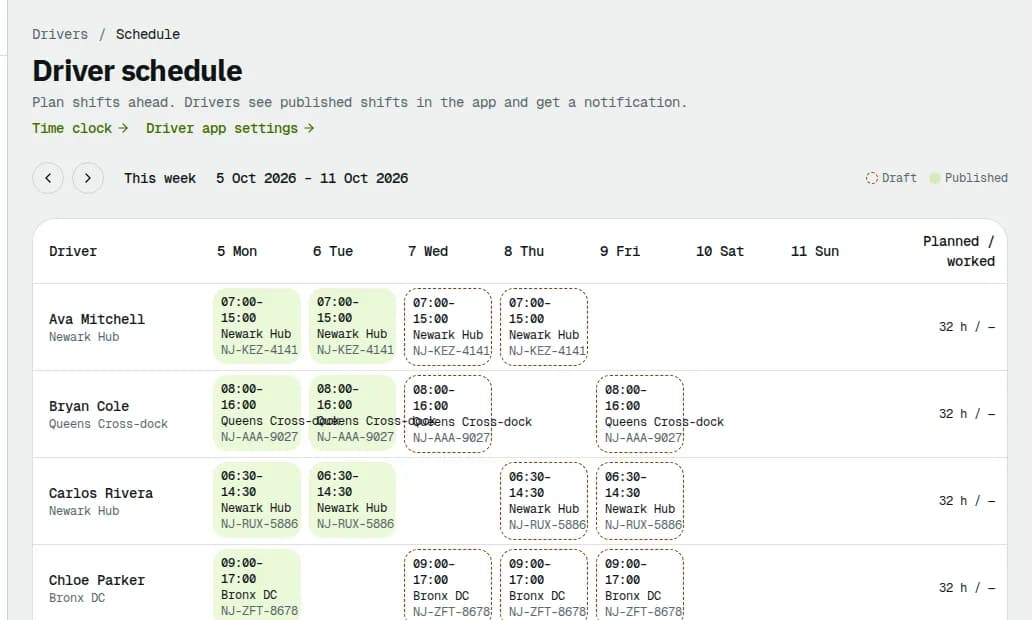
- Each row is an active driver, each column a day. A shift shows its times, depot and vehicle, and worked … once the driver has clocked in.
- Use the arrows to go to the previous or next week, and This week to come back.
- Planned / worked on the right totals the week. over means the driver worked more than an hour beyond the plan.
Shifts with a dashed orange border are Draft; filled ones are Published.
Plan and publish shifts
Admin or Operations manager.
- Click the + of a day to add a shift, or an existing shift to change it. A driver can have several shifts a day (for example an AM and a PM run) as long as they don't overlap (a night shift counts on the next morning too).
- Set Start, End, Depot, Vehicle and an optional Note (optional), and click Save shift. Remove deletes it.
- An amber warning means the driver's planned hours that day or week are over the limits in Payroll settings → Hours. It doesn't stop you saving.
- Click Copy last week to start from the previous week's plan (shifts that would overlap one already planned are skipped).
- Click Publish … drafts. Drivers get a notification and see the shifts in the app.
See who is clocked in
- On Drivers, click the Time clock tab.
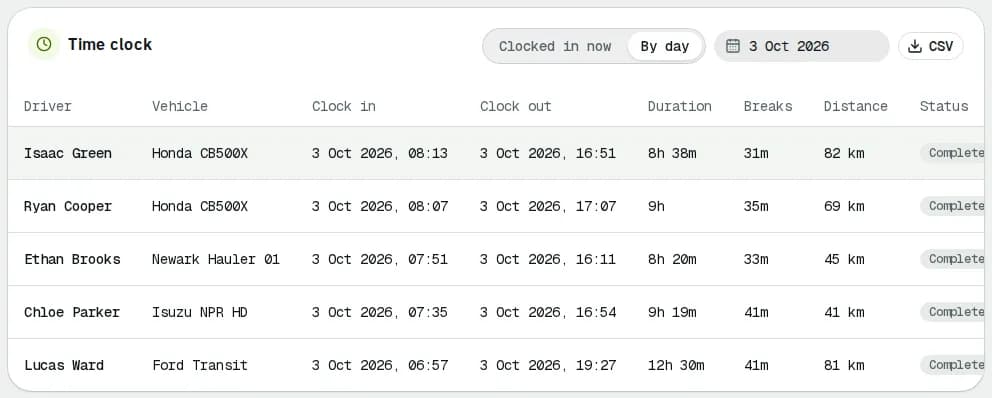
- Clocked in now lists the open shifts with vehicle, clock-in time, duration, breaks and status (Clocked in or On break). Click a shift's Breaks total to see each break's start, end and length. A badge warns when shifts have been open for more than 12 hours.
- Click By day and pick a date to see that day's shifts, including Completed and Force-ended ones. CSV downloads the table, one row per break.
Drivers clock in and out in the app; see Clock in, take breaks and clock out.
Check or correct a shift
- Click Details on a shift. The panel shows clock in and out, breaks, odometer readings and photos, clock-in and clock-out locations and the pre-shift checklist.
- Admin or Operations manager: click Edit times to correct the clock-in or clock-out time, give a reason and click Save times.
- Admin or Operations manager: if a driver forgot to clock out, click Force end on the open shift. Pick when the shift ended, or leave it empty to end it at the driver's last pickup, delivery or break (plus up to 30 minutes of GPS pings after it, for the drive back), give a reason and confirm. Pay runs to that time, not to the moment you force-end it. The driver is told in the app.
- Corrected times can't overlap another shift of the same driver.
- Correcting a shift recalculates its pay and, if overtime applies to the driver, the pay of their later shifts in that week, because those shifts' overtime depends on the hours before them. A shift already in a pay period keeps what it paid: the message after saving says so, and you add a payroll adjustment if pay should change.
Related articles
- How-toClock in, take breaks and clock outStart your shift with the vehicle check, take breaks, and end the shift with the odometer reading.
- How-toMessage drivers and handle their issuesCall, text or send an app message to one driver or a group, read replies, and acknowledge and resolve the problems drivers report from the app.
- Page guideDriver scheduleEvery part of the weekly Driver schedule — the week picker, the roster grid, planned versus worked hours, the shift dialog, hour-limit warnings, Copy last week and Publish.
- How-toManage vehiclesFind a vehicle, add one, assign its driver, see who is driving it and release it, take it out of service and keep its maintenance and documents up to date.
Still stuck?
Tell us what you were trying to do. A person reads every message.