Clock in, take breaks and clock out
Start your shift with the vehicle check, take breaks, and end the shift with the odometer reading.
On this page
Company drivers clock in at the start of the day and out at the end; hours, distance and deliveries are recorded per shift. Without shifts on your account, Home has no Shift card.
Clock in
- On Home, tap Clock in on the Shift card.
- 1. Vehicle: pick the vehicle you drive; the last one you used is selected. One marked In use by another driver, or Not in service, can't be selected. Contractors can tap Add my vehicle; employees with no vehicle tap Message dispatch. Groups: see the screen guide.
- 2. Odometer: type the reading on the number pad, in km or miles as your company sets. The vehicle's last reading is shown under it. Tap Take odometer photo (some companies require it), or Choose photo to use one from your photo library. A reading far above the last one asks Is this reading right?
- 3. Pre-shift checklist: tap Everything is OK, or tick each item (fuel, tires, lights, mirrors, cargo area, phone charged, insurance documents). Describe anything not ticked in What is not OK?. Items marked (must pass) must be OK before you can start.
- 4. Location: tap Allow location if asked. When your company requires it, Clock in stays disabled until location is allowed.
- Tap Clock in. The Shift card shows On shift and a running timer.
If your company requires clock-in
Until you clock in, Accept order and Start pickup aren't available and Home shows Clock in to work your orders. You can still decline, and finish an order you already started. See the screen guide.
Take a break
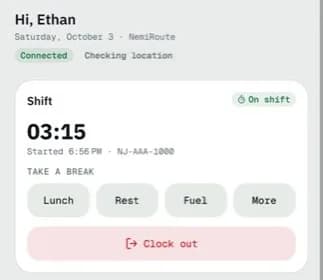
- Under TAKE A BREAK, tap Lunch, Rest or Fuel. Tap More for Maintenance, Personal and Other. The break starts when you tap a type. With an order in progress the card is smaller: tap Break to choose.
- While you are on break, the card says Orders paused until you end the break.
- Tap End break when you are back.
Each reason shows if it is paid and the longest break, for example Unpaid · 60 min max. Break start and end share your position with dispatch.
Clock out
- On Home, tap Clock out.
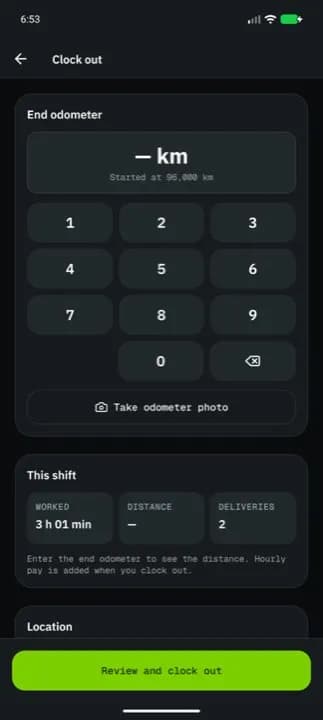
- Type the End odometer reading (not lower than where you started) and add a photo with Take odometer photo if required.
- Check This shift: Worked, Distance, Deliveries.
- Tap Review and clock out, then Confirm clock out. Tap Keep working to go back.
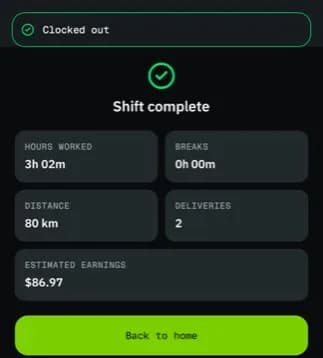
- The Shift complete summary shows your hours, breaks, distance, deliveries and estimated earnings (when your company shows pay). Tap Back to home.
Change vehicle and release
Home has a Vehicle card with Change vehicle. Off shift it lets you pick another vehicle, or Release vehicle so another driver can take it. On shift or on a break it opens Switch vehicle: enter the odometer reading on the vehicle you leave and on the one you take, and your shift carries on. Your route moves with you; if the new vehicle can't carry the remaining stops, nothing changes.
Shift history and dispatch-ended shifts
- Shift history at the bottom of Home shows your totals for the last 7 or 30 days (or all time) and past shifts. Export shifts (CSV) shares the range as a spreadsheet.
- If a dispatcher ends your shift, Home shows Your last shift was ended by dispatch; if you forgot to clock out, Your last shift was ended automatically. Tap See details for the reason, or Clock in to start again.
- No signal? Clock in, breaks and clock out are saved on the phone and sync later (Work without signal).
Related articles
- How-toCheck your earnings and statementsSee what you earned today, this week or this pay period, open and dispute pay statements, and set up payouts as a network driver.
- Page guideTime clock screensThe driver app's Clock in, Breaks, Clock out and Shift complete screens, Shift history, a shift's details, Upcoming shifts, a dispatch-ended shift and Vehicles.
- How-toInstall the app and sign inAccept your invitation, install the NemiRoute driver app, sign in with your company ID and turn on fingerprint or face unlock.
- How-toWork a multi-stop jobFollow an order with extra pickups, drop-offs and a return: which stop is current, how to finish each one and what happens when a stop can't be completed.
Still stuck?
Ask your courier company: they can see your account. Or tell us what you were trying to do.