Work without signal
What the driver app does offline, how saved actions sync later, and how to retry or discard one.
On this page
You can keep working in a dead zone. The app saves your steps on the phone and sends them when the connection comes back, without you doing anything.
What works offline
These actions are saved on the phone and sync later:
- order steps: Accept order, Start pickup, Arrive at pickup, Complete pickup, Start delivery, Arrive at delivery, Complete delivery, and Decline order. The steps of each stop in a multi-stop job use the same buttons, so they are saved the same way
- proof with the step: signatures, photos, barcode scans and the cash amount
- Report a problem on an order
- Clock in, breaks and Clock out
Home and Orders keep showing the last data the phone loaded, even after you close and reopen the app (the phone keeps it for up to 24 hours).
Things that need the server right away do not work offline: signing in, network offers and going online, editing an order, Confirm load at a depot, Returned to my depot and Scan depot code, and up-to-date earnings and statements. Nothing is saved when you try them offline, and the app says This needs a connection. Nothing was saved. Try again when you are online. Messages to dispatch wait as Waiting to send and go out when you are back online.
How you can tell
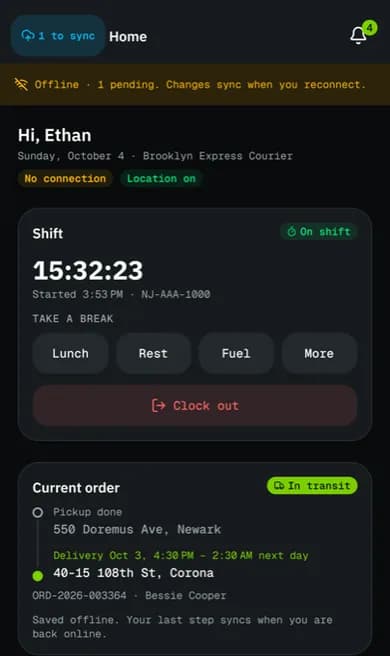
- A yellow bar at the top says Offline · 1 pending. Changes sync when you reconnect.
- The chip under your name says No connection instead of Connected.
- A chip in the header, for example 1 to sync, counts the saved actions.
- After each saved step you see Saved offline. Will sync when you are back online.
When the connection comes back
The app sends the saved actions in order and shows how many synced. The lists refresh by themselves. You do not need to open the app's screens one by one.
Each step counts at the time you did it, not when it synced, so an on-time delivery made without signal stays on time. If you work for more than one company and switch while actions are waiting, each action still goes to the company you did it for.
Check, retry or discard saved actions
- Tap the sync chip in the header (for example 1 to sync). Pending actions opens.
- Each action shows its status: Waiting, Rejected or Already changed.
- Tap Sync now (or Retry now on one action) to send it again once you have signal.
- If an action was Rejected, read the reason. Tap Retry, or Discard to drop it. For actions with photos you choose Discard, keep photos or Discard and delete photos.
- On Already changed (the order changed while you were offline, for example dispatch cancelled it), the card says what it is now (Status now: …). If dispatch gave the order to another driver, the card says This order is no longer assigned to you. Dispatch may have given it to someone else. If you finished a delivery, a pickup or a failed attempt offline and it can't be applied because the order was reassigned, your dispatcher gets a driver issue with what you recorded (who received it, the cash, your proof photos), so tell them if anything is missing. Your proof photos stay on the phone until you discard them. Tap Keep latest version to accept it, or Retry anyway.
When the list is empty it says All synced.
Related articles
- How-toComplete a deliveryTake an order from accept to delivered: navigate, arrive, collect proof (signature, photo, barcode, cash) and confirm.
- How-toClock in, take breaks and clock outStart your shift with the vehicle check, take breaks, and end the shift with the odometer reading.
- How-toReport a failed deliveryMark a delivery attempt as failed with a reason and photos, or send a problem report, and bring the package back to the depot.
- Page guidePending actions screenHow the driver app shows that it is offline, the sync chip, and every part of the Pending actions screen: statuses, Sync now, Retry, Discard and conflicts.
Still stuck?
Ask your courier company: they can see your account. Or tell us what you were trying to do.