Check your earnings and statements
See what you earned today, this week or this pay period, open and dispute pay statements, and set up payouts as a network driver.
On this page
The Earnings tab shows what you earned from deliveries and shifts. Your company decides whether you can see it: if not, the tab says Earnings are not available for your account. Ask your dispatcher if you need access.
See your earnings
- Open the Earnings tab.
- Pick Today, This week or Pay period.
- TOTAL EARNED shows the amount, split by type: Base pay, Distance, Bonus, Tips, Allowance and Deductions. Only types with an amount appear.
- Under Transactions, each line shows what it was for. Tap a line from an order to see that order's breakdown. Showing 20 of 140 tells you how many lines the period has; tap Load more for older lines. The split by type always adds up to TOTAL EARNED.
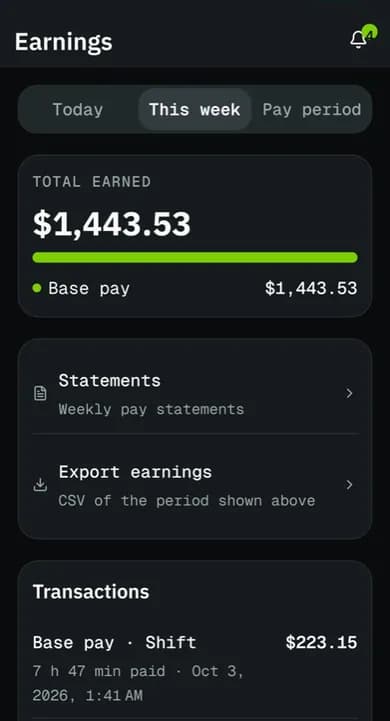
Hourly pay for a shift is added when you clock out, so it shows up after Confirm clock out.
Open a pay statement
Statements group your pay per pay period.
- On Earnings, tap Statements (or go to Profile > Pay statements).
- Each statement shows its period and status: Open, Closed, Approved, Paid or Disputed.
- Tap a statement to see the Earnings breakdown line by line.
- Tap Share PDF to save or send the statement.
Dispute a statement
If something is missing or wrong, tell your dispatcher from the statement. You can dispute a statement while it is Closed or Approved.
- Open the statement and tap Dispute statement.
- In Reason, explain what looks wrong in at least 5 characters, for example the order number and what is missing.
- Tap Send dispute.
The statement shows Disputed and Your dispute: with your text. Your dispatcher reviews it and adjusts the statement.
Payouts (network drivers)
Company drivers are paid by their company and do not set up payouts in the app.
Independent network drivers connect a bank account to get paid:
- On Earnings, tap Payout account.
- Tap Set up payouts (or Continue setup) and finish the secure setup page that opens.
- Back in the app, Status shows Pending while it is checked, then Active with the bank account's last 4 digits.
Once Active, the screen shows NEXT PAYOUT with the amount and the expected date. Payouts are sent weekly. If the status is Restricted, tap Fix account and complete what is asked. To change your bank, tap Update bank details.
Related articles
- How-toClock in, take breaks and clock outStart your shift with the vehicle check, take breaks, and end the shift with the odometer reading.
- How-toComplete a deliveryTake an order from accept to delivered: navigate, arrive, collect proof (signature, photo, barcode, cash) and confirm.
- Page guideEarnings tabThe driver app's Earnings tab, an order's earnings, Pay statements with Share PDF and Dispute, and the Payout account screen for network drivers.
- How-toInstall the app and sign inAccept your invitation, install the NemiRoute driver app, sign in with your company ID and turn on fingerprint or face unlock.
Still stuck?
Ask your courier company: they can see your account. Or tell us what you were trying to do.