Earnings tab
The driver app's Earnings tab, an order's earnings, Pay statements with Share PDF and Dispute, and the Payout account screen for network drivers.
On this page
The Earnings tab shows what you earned from deliveries and shifts, your pay statements and, for network drivers, the payout account. Your company decides whether you see it: if not, the tab says Earnings are not available for your account. For the tasks step by step, see Check your earnings and statements.
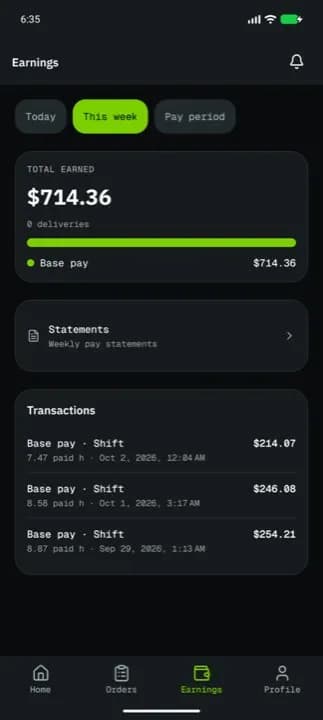
At a glance
| Area | What it shows or does |
|---|---|
| Today / This week / Pay period | The period shown |
| TOTAL EARNED | The amount, a coloured bar and the split by type |
| Statements | Weekly pay statements |
| Export earnings | CSV of the period shown above |
| Payout account | Bank and payout schedule (network drivers) |
| Transactions | Every earning line of the period |
Periods
| Choice | Covers |
|---|---|
| Today | Since midnight |
| This week | Monday to Sunday |
| Pay period | The pay period that is still open |
Total earned
The total for the period, with one line per type:
| Type | Meaning |
|---|---|
| Base pay | The base pay for your orders and shifts |
| Distance | Pay for the distance driven |
| Bonus | Extra pay |
| Tips | Tips from customers |
| Allowance | Allowances your company pays |
| Deductions | Amounts taken off |
| Cash collected | Network drivers only: cash on delivery you collected, shown as a negative amount that is taken off your payout until you hand the cash in (handing it in adds it back). It lowers TOTAL EARNED while you hold it. Company drivers never see this line. |
Transactions
Each line shows what it was for, the order number when there is one, the date and the amount. Tap an order's line to see Earnings OR-1042: that order's lines and total. The line Showing 20 of 140 counts every line of the period; Load more shows older lines. The split by type above always adds up to TOTAL EARNED. Empty periods say No earnings today, No earnings this week or No earnings this pay period.
Hourly pay for a shift is added when you clock out.
Export earnings
Builds a CSV of every line in the period shown (date, type, order, amount, currency, note) and opens your phone's share sheet to save or send it. Preparing export… shows while it works.
Pay statements
Statements (also Profile > Pay statements) lists one statement per pay period: the dates, the status and the total. No statements yet until the first period closes.
A statement shows its total, status and dates, then the Earnings breakdown line by line (No earnings in this period yet. while empty).
| Button | Shown when | What it does |
|---|---|---|
| Share PDF | always | Saves or sends the statement as a PDF |
| Dispute statement | the statement is Closed or Approved | Opens Dispute this statement |
In Dispute this statement, explain what looks wrong in Reason (at least 5 characters) and tap Send dispute. Your dispatcher reviews it and adjusts the statement; the statement shows Disputed and your text.
| Status | Meaning |
|---|---|
| Open | The period is running |
| Closed | The period ended; being checked |
| Approved | Approved for payment |
| Paid | Paid out |
| Disputed | You disputed it |
Payout account (network drivers)
Company drivers are paid by their company: the screen says Payouts are handled by your company.
| Status | Button | Meaning |
|---|---|---|
| Not set up | Set up payouts | Connect the bank account you are paid to |
| Pending | Continue setup | Being checked, or setup not finished |
| Active | Update bank details | Shows Bank account ending 1234 and NEXT PAYOUT with amount and date |
| Restricted | Fix account | Something must be completed before payouts continue |
The buttons open a secure setup page and bring you back to the app. Payouts are sent weekly once your bank account is connected.
Related articles
- How-toCheck your earnings and statementsSee what you earned today, this week or this pay period, open and dispute pay statements, and set up payouts as a network driver.
- How-toClock in, take breaks and clock outStart your shift with the vehicle check, take breaks, and end the shift with the odometer reading.
- How-toDrive for the network and take offersApply as an independent network driver, go online in your zones, and accept or decline delivery offers before they expire.
- How-toInstall the app and sign inAccept your invitation, install the NemiRoute driver app, sign in with your company ID and turn on fingerprint or face unlock.
Still stuck?
Ask your courier company: they can see your account. Or tell us what you were trying to do.