Report a failed delivery
Mark a delivery attempt as failed with a reason and photos, or send a problem report, and bring the package back to the depot.
On this page
When you cannot deliver, report it from the order. Depending on where the order is, the report either marks the attempt as failed or only sends a report to your dispatcher. The screen always tells you which one before you confirm. An attempt can fail while the order is Heading to pickup, At pickup, In transit or At delivery. In the other statuses (Assigned, Accepted, Picked up) the report is always a report only.
Report the problem
- Open the order and tap ⋯ (More actions).
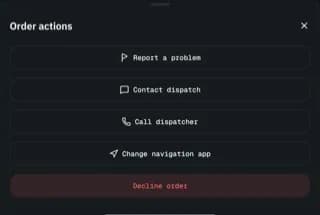
- In Order actions, tap Report a problem.
- Under What went wrong?, pick a reason: Customer absent, Wrong address, Package damaged, Customer refused, Can't access, Unsafe location or Other. Your company may show its own list of reasons; some of them need a photo (Add a photo for this reason).
- Read the box under the reasons. It says what will happen, for example This will mark the delivery as failed. Attempt 1 of 3 — it will be retried.
- Add a Note (optional) and Photos (optional), for example of the closed door or the damaged box.
- Tap Mark as failed, then Confirm failure. If the order cannot fail at this stage, the button is Send report instead.
What happens next
- Failed attempt: the stop is marked failed and you go back to Orders. When attempts are left, your dispatcher plans a new one; the order then shows Attempt 1 of 3 failed with the reason.
- Last attempt: the order is held for your dispatcher to decide what happens to the package.
- The parcel goes back to the sender. or Dispatch decides what happens next.: some of your company's reasons end the attempts at once; the box says so before you confirm.
- A report only: the order status does not change. Your dispatcher sees the report and gets back to you.
Return the package to the depot
When a failed package has to go back, the order shows Bring the package back to the depot.
- At the depot, tap Scan depot code and scan the code your depot shows.
- If there is no code to scan, tap Returned to my depot, then Yes, it is at the depot. Far from the depot you are asked why. The order stays under Active until it is back.
The order then shows Returned to the depot with the time.
If you drive for the driver network, the same goes for a parcel the dispatcher sends back to the sender: the app takes you to the sender (Arrive, then hand it back), or bring it to the depot if the sender can't take it. Once it is at the depot the job leaves your list and the company handles it again.
See your reports
At the bottom of the Orders tab, tap Reported problems to see every report with its status: Open, In review or Resolved.
Related articles
- How-toComplete a deliveryTake an order from accept to delivered: navigate, arrive, collect proof (signature, photo, barcode, cash) and confirm.
- How-toContact dispatch and get helpMessage or call your dispatcher, read notifications, and report a problem with the app.
- How-toWork without signalWhat the driver app does offline, how saved actions sync later, and how to retry or discard one.
- Page guideReport a problem screenThe driver app's Report a problem screen for a pickup or delivery that can't be done: the reasons, what will happen, photos, Mark as failed versus Send report, and the return to the depot.
Still stuck?
Ask your courier company: they can see your account. Or tell us what you were trying to do.