Pay periods and statements
Close a pay period, review and fix driver and staff statements, approve, record the payment and export to your payroll system.
Watch: Paying your drivers: a pay period
2:11Where pay comes from, how a week becomes statements, and how to review, adjust, approve and record the payment.
On this page
Driver earnings are booked by themselves when orders are completed and shifts end; team members on a staff plan earn per order handled, logged hours and salary (see Pay dispatchers and office staff). A pay period gathers the earnings of its dates; at the end you close it, check the statements, approve and pay. Payroll is for the Finance and Admin roles.
Work through a pay period
A period moves through Open, Closed, Statements ready, Approved and Paid.
- Open Payroll. The cards show the Open period, the closed periods Awaiting approval and any Disputed statements. Click a period in the list.
- Until the period is approved, click Adjustment for a one-off extra or deduction: pick Who, the Category, the amount and a Reason (a chargeback needs its order number), then Add adjustment. Existing lines are never edited.
- After the period's end date, click Close period. Periods close oldest first: an older open period has to be closed before a later one.
- Click Generate statements: each driver and team member gets a numbered statement. Everyone, Drivers and Staff filter the list. Someone whose deductions are larger than their earnings (a total of zero or less) gets no statement: their lines move to the next period and are netted there.
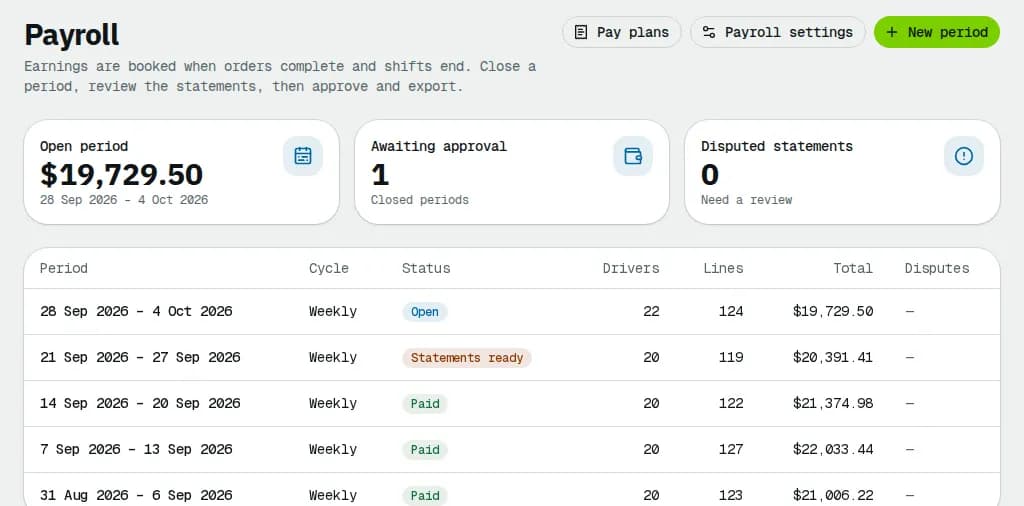
To start the next period, click New period, pick the pay schedule, leave the start empty and click Create period. A period holds only the earnings of people on its schedule; its Pay date skips holidays.
Review the statements
- Click Details on a driver's row: the statement, Download PDF, every line with its category, and gross, sales tax, deductions and net for the period and year to date.
- Click Mark reviewed, with an optional note.
- If the driver disputed the statement in the driver app, the reason is shown. Add an Adjustment if they are right, click Refresh statements, then Resolve dispute with a note on what changed.
- When nothing is disputed, click Approve period. It stays greyed out while a statement is disputed.
Pay and export
- Pay the drivers in your bank or payroll system.
- Click Mark as paid. Check the Pay date (your pay day by default), the Method and an optional Reference such as the bank batch. Leave E-mail each driver and team member that their statement is paid on to tell them.
- Click Mark as paid. The statements become Paid.
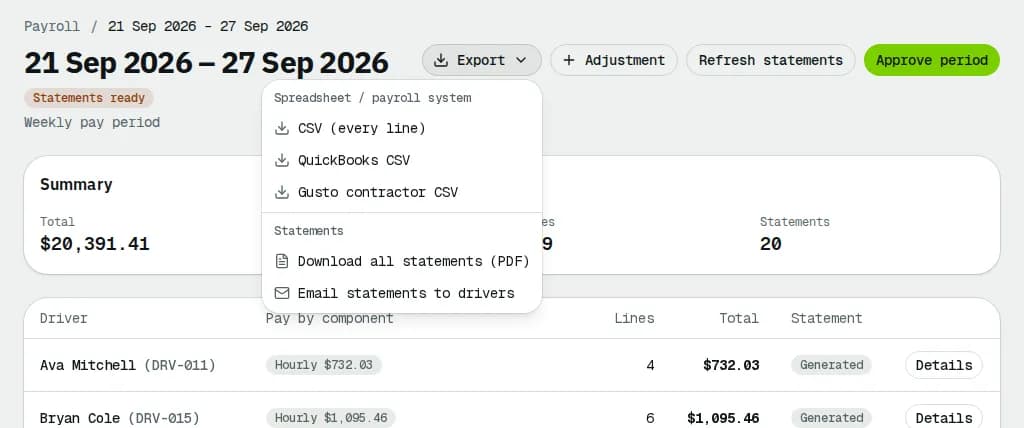
The Export menu of a period that is no longer open has CSV (every line), QuickBooks CSV, Gusto contractor CSV, Download all statements (PDF) and Email statements (these two work once statements are generated). Exports split pay by category (wage, overtime, bonus, tips, reimbursements, deductions) with hours.
Recurring adjustments and settings
- Recurring adjustments book a deduction or reimbursement into every period it overlaps when it closes: a flat amount or a % of gross (the period's earnings, salary included), optionally until a target is recovered (or held in escrow).
- Payee companies: a subcontracted fleet paid as one; pick it under Tax & payee on each of its drivers.
- Payroll settings: General, Pay schedules (weekly, every two weeks, twice a month or monthly, pay day, who is on each), Hours (paid breaks, overtime rule, hour limits) and Exports (QuickBooks item names).
A GST/HST-registered contractor (driver page → Tax & payee) gets their province's GST / HST added to earnings on the statement. The statement shows it as its own line under Gross earnings; the net pay, the person's row, the period Total and Mark as paid include it. The tax is added when statements are generated, so an open period's total is earnings only.
Related articles
- How-toSet up driver pay plansBuild a pay plan from components and modifiers, pay different rates for own and company vehicles, try it in the simulator, assign it to groups of drivers and publish new versions.
- How-toCollect cash on delivery from driversSee which driver holds how much COD cash, receive it when they hand it in, and sort out shortfalls and disputes.
- How-toExport to QuickBooks, Xero or a spreadsheetDownload invoices or payments for a period as a CSV laid out for the QuickBooks Online or Xero importer, and find the other CSV exports.
- How-toCheck your earnings and statementsSee what you earned today, this week or this pay period, open and dispute pay statements, and set up payouts as a network driver.
- ConceptWorked examples - driver payReal numbers for pay plans: per delivery, per km, rush and wait time, percent of order, hourly with Ontario and British Columbia overtime, guarantees and floors, own-vehicle allowance, route pay, COD shortfall deductions and a contractor's statement with GST/HST.
- TroubleshootingMoney error messages explainedThe messages you can get when you void, edit or pay an invoice, record or refund a payment, receive cash on delivery, run payroll, change companies or your own plan: what each one means and what to do next.
- Page guidePayrollPay periods and their totals, creating a period, team pay this month, recurring adjustments, payee companies and every tab of Payroll settings (schedules, hours and overtime, exports).
- Page guidePay period detailOne pay period from open to paid: close it, generate and review statements, resolve disputes, add adjustments, log hours, approve, export, email and mark it paid.
Still stuck?
Tell us what you were trying to do. A person reads every message.