Pay period detail
One pay period from open to paid: close it, generate and review statements, resolve disputes, add adjustments, log hours, approve, export, email and mark it paid.
Watch: Paying your drivers: a pay period
2:11Where pay comes from, how a week becomes statements, and how to review, adjust, approve and record the payment.
On this page
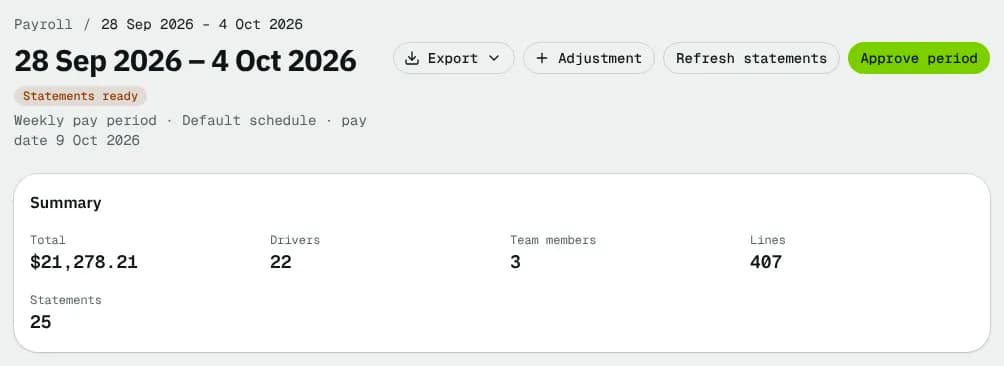
A pay period page shows everyone who earned in the period, what each line paid, and the buttons that move the period from Open to Paid. Open it from Payroll. Viewing needs payroll view rights; every button needs payroll edit rights (Admin and Finance by default).
At a glance
| Area | What it shows or does |
|---|---|
| Header | Period dates, cycle, schedule, pay date, status badge and the buttons for the current status |
| Summary | Total (what the period pays: earnings plus the sales tax of registered contractors once statements exist, the same as the statements and the export), Incl. tax (when there is any), Drivers, Team members, Lines, Statements (with disputed count), Paid (date, method, reference) once paid |
| Everyone / Drivers / Staff | Filter tabs (only when team members earned in the period) |
| People table | One row per driver or team member, with Details |
The flow and its buttons
| Status | Buttons | What the main button does |
|---|---|---|
| Open | Log hours (when a team member has a staff plan), Adjustment, Close period | Close period is enabled only after the period's end date. It freezes every earning line up to the end date into this period, then books period minimums and engaged-time floors, recurring adjustments and staff salaries. An older open period must be closed first |
| Closed | Export, Adjustment, Generate statements | Makes one statement per person (or per payee company) |
| Statements ready | Export, Adjustment, Refresh statements, Approve period | Refresh statements rebuilds them after an adjustment. Approve period is disabled while any statement is disputed ("Resolve the disputed statements first") |
| Approved | Export, Mark as paid | Opens Mark as paid |
| Paid | Export | — |
After Approve period, statements are emailed when E-mail statements when a period is approved is on in Payroll settings. Approved and paid periods are locked: no more adjustments.
The people table
| Column | What it shows |
|---|---|
| Paid to | Name and ID, with a Staff badge for team members |
| Pay by component | Up to four totals by pay component (for example Per delivery $412.00) |
| Lines / Total | Number of earning lines and what the person is paid: their statement total. For a GST/HST-registered contractor it reads, for example, $36.02 incl. $4.14 tax. A driver paid through a payee company shows their own lines; the sales tax is on the company's statement |
| Statement | Generated, Disputed, Reviewed, Approved or Paid, once statements exist |
| Details | Opens the person's lines and statement |
No earnings in this period: lines appear when orders are delivered, shifts end and team members handle orders or log hours.
The Details dialog
The header shows the person, the period and their total (with incl. … tax for a registered contractor). When a statement exists:
- The statement number, status and when it was generated, and Download PDF.
- The Settlement (see below), any Dispute reason from the driver and your Review note.
- With edit rights, a note box and Mark reviewed (generated statement) or Resolve dispute (disputed statement). For a dispute, add an adjustment first if pay must change, then say what was changed.
The lines table lists every earning line: Date, Source (order or route links, or the shift and its day), Component (with its category, such as Regular pay, under it), Detail, Plan (v1, v2 … or Driver rates for a driver without a plan) and Amount. Negative lines (deductions, chargebacks) are red. In an open period, a team member's logged hours have a bin to Remove hours. A salary is booked only when the period closes.
Settlement
| Row | Meaning |
|---|---|
| Gross earnings | Pay before tax, reimbursements and deductions |
| GST/HST, QST (with the number) | Sales tax added for a registered contractor or payee company |
| Reimbursements | Mileage and other reimbursements |
| Deductions | Deductions, chargebacks and escrow holds |
| Net pay | What is paid |
Each row has This statement and Year to date. Below: Business name, Tax ID, GST/HST, QST and Reporting form when set, regular, overtime and double-time hours, and Held in escrow.
Adjustment
A one-off line for a driver or a team member. It adds a new line to this period; existing lines are never edited.
| Field | What to enter | Notes |
|---|---|---|
| Who | A driver or team member | Required |
| Category | Bonus, Reimbursement, Mileage reimbursement, Deduction, Chargeback, Escrow, Regular pay, Other | Deduction and chargeback are always taken off pay. Escrow: negative holds money, positive releases it. Others: negative takes money off |
| Amount ($) / Amount taken off ($) | The amount | Can't be 0 |
| Order number | For example OR-2043 | Required for a chargeback, optional otherwise |
| Reason | At least a few characters | Required |
Click Add adjustment.
Log hours
Team member, Day, Hours, Note (optional). Paid at the hourly rate of their staff plan, in the open period for that day.
Export menu
| Item | What you get |
|---|---|
| CSV (every line) | One row per earning line with its category and hours, sales tax rows and each statement's net |
| QuickBooks CSV | Lines mapped to the QuickBooks payroll items set in Payroll settings › Exports |
| Gusto contractor CSV | For a Gusto contractor payment |
| Download all statements (PDF) | Every statement in one PDF (once statements exist) |
| Email statements | Emails each person their statement PDF |
Mark as paid
| Field | Notes |
|---|---|
| Pay date | Starts at the period's pay date; can't be before the period starts |
| Method | Bank transfer, Check, Cash, Payroll provider, Other |
| Reference (optional) | Bank batch, cheque numbers or the payroll run ID |
| E-mail each driver and team member that their statement is paid | On by default |
Click Mark as paid: the period and its statements become Paid.
Statuses
| Period status | Meaning | Next |
|---|---|---|
| Open | Collecting earnings | Close after the end date |
| Closed | Lines frozen | Generate statements |
| Statements ready | Statements made; drivers can dispute them | Review, then approve |
| Approved | Locked and ready to pay | Mark as paid |
| Paid | Paid, with date and method | Final |
| Statement status | Meaning |
|---|---|
| Generated | Made, not checked |
| Disputed | The driver disputed it from the driver app |
| Reviewed | Checked or dispute resolved |
| Approved / Paid | Follows the period |
Good to know
- A COD shortfall deducted from pay arrives here as a negative line named after the order.
- A statement whose net pay is zero or less is carried forward instead of being approved.
- Steps: Pay periods and statements.
Related articles
- How-toPay periods and statementsClose a pay period, review and fix driver and staff statements, approve, record the payment and export to your payroll system.
- How-toRoute, outcome and conditional payPay drivers per stop, package or route, for failed attempts, returns and late cancellations, only under conditions, split between pickup and delivery drivers, and pass tips on in full.
- How-toPay dispatchers and office staffPay team members a salary per pay period, logged hours and a rate for every order they handle, with tiers, bonuses and their own statements.
- How-toCollect cash on delivery from driversSee which driver holds how much COD cash, receive it when they hand it in, and sort out shortfalls and disputes.
- How-toExport to QuickBooks, Xero or a spreadsheetDownload invoices or payments for a period as a CSV laid out for the QuickBooks Online or Xero importer, and find the other CSV exports.
Still stuck?
Tell us what you were trying to do. A person reads every message.