Use the address book
Look up saved pickup and delivery addresses, check their pricing zone, and find addresses that need fixing before orders can use them.
On this page
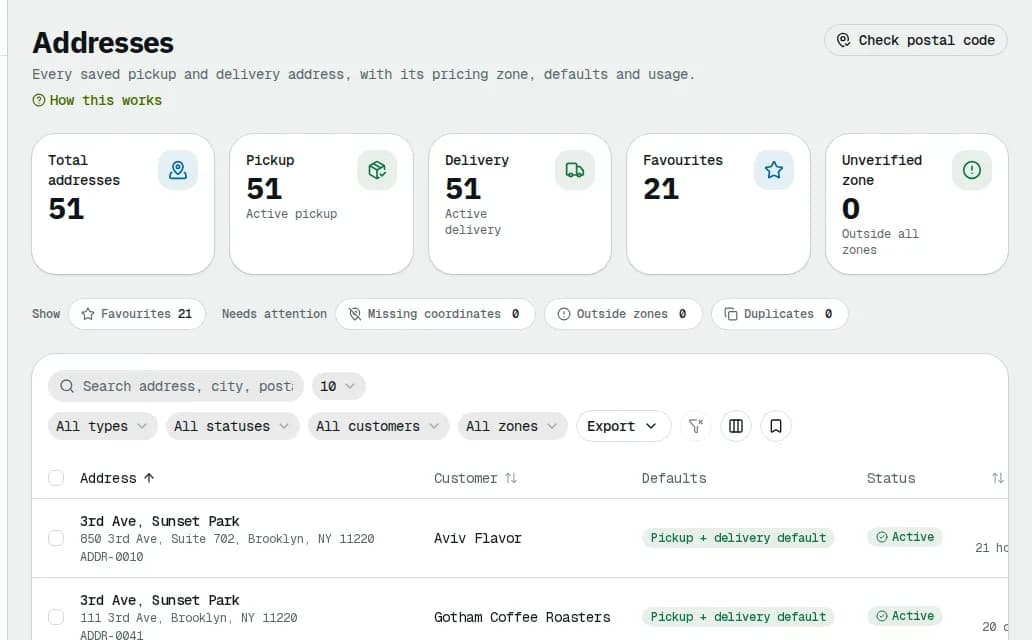
Addresses lists every saved pickup and delivery address across all customers, with its pricing zone, defaults and how often it is used. Orders can only go to addresses saved here. Dispatchers can look up addresses; adding, editing, merging and deleting needs the Operations Manager or Admin role.
Find an address
- In the sidebar, click Addresses (under Partners).
- The cards at the top count Total addresses, Pickup, Delivery, Favourites and Unverified zone. Click one to filter the list.
- Search, or filter with All types, All statuses, All customers and All zones.
- Click an address to open its details: zone, status and type, Customer, Site contact, Instructions, how often it was Used, Defaults, and the orders that went there.
Check a postal code
Before you promise a price for a new area, click Check postal code at the top of the page, type the code in Postal code and click Check. It shows the pricing zone an address there would fall into.
Find addresses that need fixing
The Needs attention chips above the table show problems:
| Chip | What it means |
|---|---|
| Missing coordinates | No map position: distance-priced quotes and routes can't use these addresses until it is fixed. |
| Outside zones | The postal code is in no pricing zone, so orders need a quote. |
| Duplicates | Same customer, same street and postal code. |
An address with No coordinates says so in its details. Ask an Operations Manager or Admin to edit it and pick the address from the suggestions, or to Merge duplicates.
Clean up the whole address book with AI (Operations Manager or Admin)
After an import from an old system the book is often messy: "Montreal" and "Montréal" side by side, a phone number in the city, the suite in the street line, postal codes like H2X1Y4 or H7P 4W4, CANADA, the same address saved twice. Clean up with AI (in the header of Addresses, when the AI assistant is on for your company) opens Address book cleanup:
- Click Check with AI. The Quick checks (automatic rules, not AI) appear at once: postal code format, province from the postal code, the city spelling most of your addresses use, rows saved twice exactly. The AI then checks the rest one address at a time; each suggestion appears under AI suggestions as soon as it is found. Pause, Resume and Stop control it. Cheaper overnight run costs half, results within 24 hours.
- Review the AI suggestions first, then the quick checks, each grouped by kind (Duplicates, Values in the wrong field, Typos, Postal codes…). Each shows the address, before → after and the reason; You don't have to wait for the check to finish.
- Accept (or Merge for duplicates) applies one; Dismiss drops it and it is not raised again; Accept all applies a whole group after a confirmation.
Nothing changes until you click. Each accepted change is saved like a normal edit and recorded in the activity log. Needs a person lists problems with no safe fix (for example H9R without the last three characters): open the address, fix it by hand, then dismiss. See Address book cleanup for every field and button.
Add or change addresses (Operations Manager or Admin)
- Add address asks which customer the address is for, then opens the address form.
- Import CSV adds many addresses to one customer at once.
- The ⋯ menu of a row offers Edit address, Add to favourites, Set as default pickup or Set as default delivery, Deactivate, Merge duplicates and Delete.
- Selecting rows gives bulk actions to activate, deactivate, merge, export or delete.
Related articles
- How-toCreate an orderBook a pickup and delivery for a customer, compare services and see the live price before you save.
- How-toImport orders from a spreadsheetCreate many orders at once from a CSV or Excel file, fix the rows that have problems, or paste one row into a new order.
- Page guideAddressesThe address book of every customer: totals, attention chips, filters, columns, the address panel, row and bulk actions, merging duplicates, the postal code check and importing addresses from CSV.
- Page guideAddress book cleanupThe AI address book check: checking live or overnight, pause / resume / stop, the AI suggestions, the rule-based quick checks, accepting, merging, dismissing and accepting a whole group.
Still stuck?
Tell us what you were trying to do. A person reads every message.