Order screen
Everything on one order in the driver app: the progress bar, the Pickup and Delivery stops with Navigate, Call and Text, stops, cash, packages, notes, pay, proof, history, the next-step button and the Order actions menu (report, contact, edit, transfer, decline).
On this page
Tap an order anywhere in the app to open it. The screen holds everything about the job, top to bottom, and one big button at the bottom with your next step. Pull down to refresh.
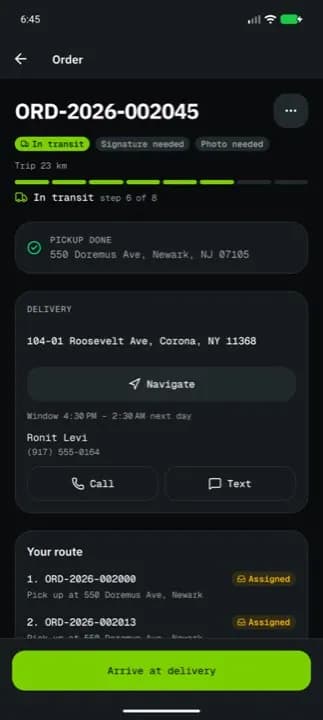
At a glance
| Area | What it shows or does |
|---|---|
| Header | The order number and ⋯ (More actions) |
| Badges | Priority, Network order, COD amount |
| Trip | The distance of the order |
| Progress bar | Where the order is, from Assigned to Delivered |
| Notices | Return to sender, Bring the package back to the depot., failed attempts |
| Proof of delivery | Delivered orders only: who received it, when, the signature and photos |
| Pickup / Delivery | The two stops, with Navigate, Call and Text (not on a delivered, failed or cancelled order) |
| Stops | All stops of a multi-stop job |
| Map and route | The trip on a map and your other orders in route order |
| COLLECT CASH | Cash on delivery to collect |
| Packages | Each package, weight and barcode, handling |
| Instructions, Notes from dispatch | What the customer and dispatch told you |
| Custom fields | Your company's own order fields |
| Payment | Your pay and Order value, when shown |
| Proof | What proof is on file for pickup and delivery |
| History | Every status change with its time and note |
| Next-step button | Accept order, Start pickup… Complete delivery |
The stops
Each stop card shows its title (PICKUP or DELIVERY), the address (tap it to navigate), and when set:
- Window with the times (for example "Window 2:00 PM – 4:00 PM", "tomorrow 9:00 AM");
- Appointment with the reference to quote at the dock;
- Receives with the receiving hours;
- the contact name and phone.
| Button | Shown when | What it does |
|---|---|---|
| Navigate | open orders | Opens your maps app with the address. The first time it asks Which maps app do you use? (Google Maps, Apple Maps or Waze). |
| Call, Text | your company lets you contact customers and the stop has a phone | Calls or texts the contact |
| Call customer | network orders, delivery stop | Gets a masked number so Your number stays hidden.; then Call with that number |
A finished stop folds into a one-line confirmation.
Notices under the progress bar
| Notice | Meaning |
|---|---|
| Returning to the sender: drop it at the depot, they collect it there. | The package goes back through the depot |
| Returning to the sender: the delivery stop is the pickup address. | Deliver it back to where you collected it |
| Bring the package back to the depot. | After a failed delivery. Scan depot code scans the code shown at the depot; Returned to my depot opens Is the package at the depot? (Yes, it is at the depot / Not yet) and confirms without a scan. If your phone is farther from the depot than your company's radius, it asks Why are you not at the depot? first. A failed order you still have to bring back stays under Active until it is returned, then moves to Completed; Dispatch will schedule another attempt once the package is back at the depot. shows when the reason's next step is a retry. Then it says Returned to the depot and the time. |
| Attempt 1 of 3 failed: Recipient unavailable | A failed attempt and its reason |
Stops of a multi-stop job
Stops · 1 of 3 done lists each stop in order with Now on the current one. The order screen and the big button follow the current stop. Each stop answers to the same location check as the pickup and the final drop.
Cash, packages and notes
- COLLECT CASH shows the amount to collect; after delivery it reads CASH COLLECTED with Expected when it differed.
- Packages shows
2 × Printer paper, the weight and the barcodes, Handling (for example cold chain with its °C range) and the outcome of each package after a partial delivery. - Instructions come from the customer; Notes from dispatch are dated notes from the office. When the order is on a route with dispatch notes, those come first, starting with the route name.
Proof
Shows, for Pickup and Delivery, which proof is done or still needed: Signature, Product photo and Barcode. No proof needed or Done, no proof on file when nothing was asked.
The next-step button
Always shows the one thing to do next:
| Button | What happens |
|---|---|
| Accept order | The order is yours |
| Start pickup | You are heading to the pickup |
| Arrive at pickup | Opens the location check |
| Complete pickup | Opens the proof screen for the pickup |
| Start delivery | You are heading to the delivery |
| Arrive at delivery | Opens the location check |
| Complete delivery | Opens the proof screen (see The proof of delivery screen) |
When it is greyed out, the line under it says why (an order limit, a step waiting to sync).
Order actions (⋯)
| Action | Shown when | What it does |
|---|---|---|
| Report a problem | always | Opens the problem screen (see The report a problem screen) |
| Contact dispatch | company drivers | Opens messages with "About OR-1042:" filled in |
| Edit order | your company lets drivers edit some fields | Opens Edit order (below) |
| Transfer order | your company allows transfers, and you have accepted the order | Hands the order to another driver (below) |
| Call dispatcher | your company has a dispatch phone | Calls it |
| Change navigation app | always | Pick Google Maps, Apple Maps or Waze again |
| Decline order | before you accept | Opens Decline this order? |
Decline this order?
The order goes back to your dispatcher. Pick a reason: Too far, Too many orders, Vehicle not suitable, Package too heavy, Outside my hours or Other; add a Note (optional) and tap Decline order. Keep order closes.
Transfer order
Search with Search drivers, tap a colleague, add a Reason (optional) and tap Transfer order. The confirmation Transfer to …? says the order leaves your list and the other driver must accept it. No eligible drivers means nobody else at your company can take it.
Edit order
Shows only the fields your company lets you change, such as Recipient name, Delivery instructions, Package count, Delivery window starts (24h) / Delivery window ends (24h). The cash you collect is not edited here: enter it in Cash collected when you complete the delivery. Everything else is listed as locked and Set by dispatch. Save changes saves; with nothing changed it says Nothing changed yet. Edit a field above, then save. Editing is not available means your company doesn't allow it on this order.
Related articles
- How-toComplete a deliveryTake an order from accept to delivered: navigate, arrive, collect proof (signature, photo, barcode, cash) and confirm.
- How-toReport a failed deliveryMark a delivery attempt as failed with a reason and photos, or send a problem report, and bring the package back to the depot.
- Page guideReport a problem screenThe driver app's Report a problem screen for a pickup or delivery that can't be done: the reasons, what will happen, photos, Mark as failed versus Send report, and the return to the depot.
- How-toInstall the app and sign inAccept your invitation, install the NemiRoute driver app, sign in with your company ID and turn on fingerprint or face unlock.
Still stuck?
Ask your courier company: they can see your account. Or tell us what you were trying to do.