Proof of delivery screen
Every part of the arrive and complete screens in the driver app: the location check, the checklist, left at location, signature, recipient name, ID check, delivery PIN, photos, barcode, temperature, packages handed over, cash and uploads.
On this page
Arrive at pickup, Complete pickup, Arrive at delivery and Complete delivery open this screen. Arrive steps only check your location; complete steps also collect the proof your company asks for. What you see depends on your company's rules for that stop and the goods. The step's button sits at the bottom. For the steps in order, see Complete a delivery.
At a glance
| Area | Shown | What it is for |
|---|---|---|
| Header line | always | The order number and the stop address |
| Handling | goods with special handling | The handling and its rules |
| Checklist · 2 of 5 done | complete steps | What is still needed; tap a row to jump to it |
| Location card | always | Checks you are at the address |
| Left at location | your company allows safe drops | Delivering without a signature |
| Signature | your company asks for one | The signature pad and the name |
| ID check | age-restricted or ID-checked deliveries | The birth date on a photo ID |
| Delivery PIN | PIN-protected deliveries | The code the recipient gives you |
| Product photo | photos asked or allowed | Up to 4 photos |
| Temperature reading | cold-chain goods | The reading in °C |
| Packages handed over | deliveries with several packages | What was refused, damaged or missing |
| Barcode | scanning asked or allowed | Scan or type the package code |
| COLLECT CASH | cash-on-delivery orders | What you collected |
| Note (optional) | complete steps | Anything for dispatch |
| Uploads | after you submit | Each file's upload |
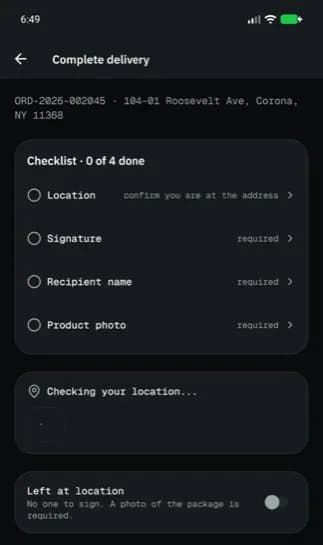
The location card
| Message | What it means |
|---|---|
| Checking your location... | Wait a moment |
| You are at the delivery address / You are 80 m from the delivery address | You are close enough |
| You are 350 m away, move within 200 m | Too far: the button stays off until you move closer. Long distances show in km (for example 26.6 km), or in miles and feet if your company uses miles. |
| You are 350 m from the address (over 200 m) | Too far, but your company lets you continue if you say why in Why are you here? (required), e.g. "loading dock at the back" |
| Location is recorded, not checked, for this company | Your company doesn't check the distance |
| Location is off | Tap Allow location |
| Could not get your location | Tap Check again |
The distance allowed is set by your company (200 m unless they changed it). Check again only appears when the check failed or you are too far; it measures again after you move. A location found less than a minute ago is reused on the next step. The signature box does not trigger the iOS swipe-back, so you can sign left to right. With approximate location on, Open settings lets you turn on precise location.
The checklist
The rows are the things this stop needs: Location, Signature, Recipient name (or Signer name at a pickup), ID check (19+), Delivery PIN, Product photo, Barcode, Temperature reading, Packages handed over and Cash collected. A row ticks itself when done. The line under the button names the first thing still missing.
Left at location
Turn on Left at location when nobody is there and the package can stay: no signature, name, ID or PIN is asked, but a photo of the package is required. Goods with Hand these goods to a person. They cannot be left at the location. can't be left.
Signature and name
| Field | Notes |
|---|---|
| Signature (required) / Signature (optional) | Sign inside the box. A tap or a very short line is refused: Too short to be a signature. Clear (or Sign again) starts over. |
| Recipient name / Signer name | The person who signed. Your company may require it. |
| Relationship to recipient | Recipient, Family member, Neighbour, Reception, Colleague or Other (deliveries) |
ID check
ID check: 19+ only (the age your company set) asks you to look at a photo ID: pick Driver's licence, Provincial / state ID, Passport or Other photo ID, then type Birth date (YYYY-MM-DD). It is checked, not stored. If the person is too young you see Under 19: do not hand it over and the delivery can't be completed.
Delivery PIN
Type the PIN the recipient gives you; they have it on their tracking page.
Product photo
Take photo opens the camera; Choose photo picks one from your photo library (on both iPhone and Android the system photo picker opens and asks for no permission). Both are offered unless your company turned on camera-only, then the screen says Your company asks for a photo taken now with the camera. Up to 4 photos; each has Retake (camera), Replace from library (when allowed) and Remove (red), and Add another photo with the two add buttons shows only while there is room. The Signer name starts as the stop's contact name; change it if someone else signs.
Temperature reading
Type the reading in Temperature (°C), for example 4.5. The allowed range is shown (Allowed 2 to 8 °C). A reading outside it is accepted but Out of range. It is recorded and dispatch is told.
Packages handed over
With several packages, the card says 3 of 4 delivered and starts as all delivered. Tap Mark a problem to list the packages, then tap Refused, Damaged or Missing on the ones that were not handed over (tap it again to undo). The order then shows as a partial delivery.
Barcode
Tap Scan barcode and point the camera at the label (Torch on in the dark). With several packages, Scan next package continues and the counter shows 2 of 3 packages scanned until All packages scanned. If it won't scan, Enter code manually, type it in Barcode (manual) and tap Verify code. That code does not match this order. means a wrong label.
Cash
COLLECT CASH shows the amount due. Enter what you got in Cash collected (it starts at the expected amount). If it differs, pick why: Short paid, Overpaid, Customer refused or Other.
Uploads and leaving
- After you tap the button, Uploads shows each file. If one fails, the button becomes Retry upload.
- Without signal the step and its files are saved and sync later (see Work without signal).
- Going back with proof already added asks Leave this step?: Keep for later saves the signature, photos and details on the phone (even if the app closes), Discard throws them away, Stay goes back.
- This step is not available means the order moved on; go back and use its main button.
Related articles
- How-toComplete a deliveryTake an order from accept to delivered: navigate, arrive, collect proof (signature, photo, barcode, cash) and confirm.
- How-toWork without signalWhat the driver app does offline, how saved actions sync later, and how to retry or discard one.
- How-toInstall the app and sign inAccept your invitation, install the NemiRoute driver app, sign in with your company ID and turn on fingerprint or face unlock.
- How-toLocation and battery settingsWhich location permission to give, when NemiRoute shares your location, and how to keep Android from stopping it.
Still stuck?
Ask your courier company: they can see your account. Or tell us what you were trying to do.