Orders tab
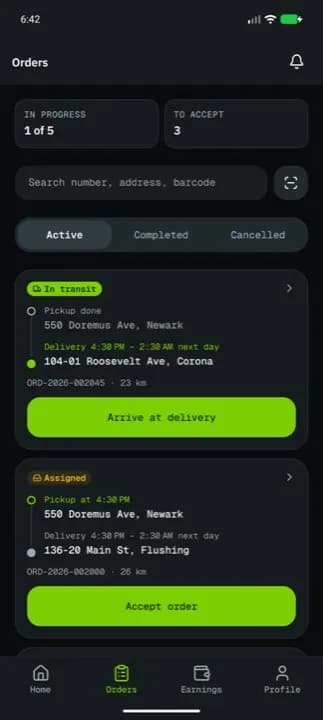
The driver app's Orders tab: the counters, search and barcode lookup, Load at the depot, Scan to pick up, the Active / Completed / Cancelled lists, the day's route map and Reported problems.
On this page
The Orders tab lists every order you have today: the ones in progress, the ones waiting for you to accept, and the finished and cancelled ones. It is also where you load the van at a depot and see the problems you reported. Pull down to refresh.
At a glance
| Area | What it shows or does |
|---|---|
| Counters | In progress, To accept, Cash in hand |
| Search | Search orders and the barcode button |
| Load at the depot (3) | Load depot pickups with one sign-off |
| Scan to pick up (2) | Scan the packages of your other pickups |
| Active / Completed / Cancelled | The three lists |
| Map / List button (next to the scan button) | Switches the active orders between cards and the day's route |
| Reported problems | Every problem you reported |
When you are on a break, a banner at the top says orders are paused, with End break.
Counters
| Counter | Meaning |
|---|---|
| In progress | Orders you accepted and haven't finished. When your company limits active orders it shows 2 of 5. |
| To accept | Orders assigned to you, waiting for Accept order |
| Cash in hand | Cash on delivery you collected and have not handed in yet. Only shown when there is some. |
Search and barcode
Type an order number, customer, address or package barcode in Search orders. The square scan button opens the camera: scan a package label and, when it matches one order, that order opens. No matching orders means nothing matched; try another number or scan again.
Load at the depot
Shown when orders are collected from a depot. Load at the depot (3) opens the load screen:
- Tap Scan packages and scan each label as it goes on the van (OR-1042: package scanned), or tick the orders. When your company requires scanning, the text says Scan every package label as it goes on the van.; the counter shows 5 of 8 packages scanned.
- Sign in Signature (or Signature (required)) and type Your name.
- Add a Photo of the load when asked.
- Tap Confirm load (3).
A line above the button says what is still missing, for example Scan every package: OR-1042 or Sign for the load. Nothing to load means no depot pickup is waiting.
Scan to pick up
For pickups that are not at a depot, Scan to pick up (2) opens the scanner. Each scan that matches ticks a package of its order (OR-1042: 1 of 2 packages). A code that doesn't belong to your pickups says so. Tap Done scanning to close.
The lists
| List | Shows |
|---|---|
| Active | Orders in progress first, then orders waiting to be accepted |
| Completed | Delivered and failed orders |
| Cancelled | Cancelled orders |
Each card shows the status, badges (High priority, Urgent, Network order, COD $45.00), the pickup and delivery, the order number and customer, and the next-step button. When the button is greyed out, the line under it says why:
| Line | Meaning |
|---|---|
| You already have 3 of 3 active orders. Finish one to accept this. | You reached your company's limit |
| Waiting to sync your last action. It will unlock when you are back online. | A step was saved offline |
| No action available right now. Pull down to refresh. | Nothing to do on this order at the moment |
Empty lists say No active orders, No completed orders or No cancelled orders.
Map view
With active orders, Map shows the day's remaining stops on a map, and Stops in order lists them in driving order (1. Pick up OR-1042, 2. Deliver OR-1042…). Tap a stop or a pin to open its order. The List button goes back to the cards.
Order statuses
| Status | Meaning |
|---|---|
| Assigned | Given to you, waiting for you to accept |
| Accepted | Accepted, not started |
| Heading to pickup | On the way to the pickup |
| At pickup | You arrived at the pickup |
| Picked up | Collected |
| In transit | On the way to the delivery |
| At delivery | You arrived at the delivery |
| Delivered | Done |
| Failed | The attempt failed |
| Cancelled | Cancelled |
Reported problems
Reported problems at the bottom lists every problem you reported, with its status Open, In review or Resolved. No problems reported when there are none. See Report a failed delivery.
Related articles
- How-toComplete a deliveryTake an order from accept to delivered: navigate, arrive, collect proof (signature, photo, barcode, cash) and confirm.
- How-toReport a failed deliveryMark a delivery attempt as failed with a reason and photos, or send a problem report, and bring the package back to the depot.
- How-toInstall the app and sign inAccept your invitation, install the NemiRoute driver app, sign in with your company ID and turn on fingerprint or face unlock.
- How-toLocation and battery settingsWhich location permission to give, when NemiRoute shares your location, and how to keep Android from stopping it.
Still stuck?
Ask your courier company: they can see your account. Or tell us what you were trying to do.