Home tab
Every card on the driver app's Home tab: status chips, Needs attention, the first-shift checklist, the Shift or Availability card, the next order, Today, notices, the next shift and the header.
On this page
Home is the first tab after you sign in. It shows what needs your attention, your shift (or your availability as a network driver) and the order you should work on next. Pull down to refresh.
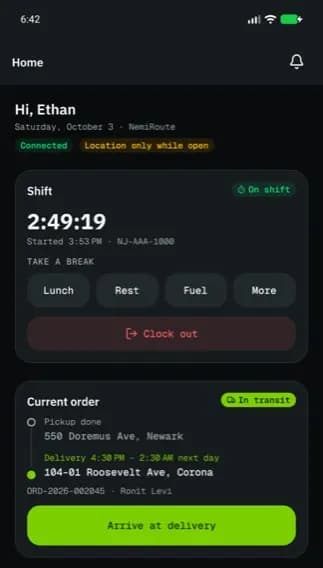
At a glance
| Area | What it shows or does |
|---|---|
| Header | The sync chip (top left), your company's logo or name (middle), the workspace name and the bell (top right) |
| Greeting | Hi, Sam, today's date and the company you work for |
| Status chips | Connected or No connection, and Approximate location |
| Current order | When an order is in progress it moves to the top |
| Needs attention | Problems to fix and things waiting for you |
| First-shift checklist | Until your first shift (or first offer) |
| Shift card | Clock in, breaks, clock out (company drivers whose account uses shifts) |
| Availability card | Online / offline (network drivers) |
| Next order / Current order | The order to work on and its next step |
| Today | Deliveries, distance and earnings so far |
| Notices | Updates from dispatch or the app |
| Next shift | Your next published shift |
| Contact dispatch, Shift history | Buttons at the bottom |
The tab bar and header
The tabs are Home, Orders, Offers (network drivers only), Earnings and Profile.
- The middle of the header shows the company you are working for: its logo, or its name when it has no logo. The app's buttons and highlights take on the company's colour when that colour is easy to read; otherwise they stay green. As a network driver you see Home there and the usual green.
- The chip at the top left counts actions saved offline, for example 1 to sync; tap it to open Pending actions (see Work without signal).
- If you work for more than one company or for the network too, the workspace name (or the company logo) at the top right opens Switch workspace. Each company is listed with its logo; switching changes the logo, name and colour.
- The bell opens Notifications; a number shows how many are unread.
Status chips
| Chip | Meaning |
|---|---|
| Connected / No connection | Whether the phone reaches NemiRoute. Offline, your steps are saved and sync later. |
| Approximate location | Precise location is off; arrival checks need it |
Needs attention
Each row has a button that fixes or opens it:
| Row | Button |
|---|---|
| Location permission is off | Turn on |
| Location is off on this phone | Open settings |
| Precise location is off | Open settings |
| Battery saver can stop tracking | Fix |
| Notifications are off (network drivers: you won't hear new offers) | Turn on |
| Your last shift was ended by dispatch | See details |
| Break running 35 min (Orders are paused until you end it.) | End break |
| 2 new offers waiting | Open offers |
| A document expiring soon | Renew |
| Insurance requested (with Due date) or …: upload again | Upload |
| A document Expired, Rejected or expiring | Open |
Location rows show only while the app needs your location (on shift, with an active order, or online for offers). See Location and battery settings.
The first-shift checklist
Get ready for your first shift (network drivers: Get ready for your first offer) ticks itself as you go:
| Row | Button |
|---|---|
| Documents approved (with how many are approved, in review or need attention) | Open documents |
| Vehicle chosen (company drivers with shifts) | Choose vehicle |
| Location detected | Allow location |
| First shift (company drivers with shifts) | Clock in |
First shift tips explain clocking in, the odometer photo and breaks. Dismiss checklist hides it; it disappears by itself after your first shift.
The Shift card
| State | What it shows | Buttons |
|---|---|---|
| Off shift | Your vehicle, or that you pick it when you clock in | Clock in |
| On shift | Started time and a running timer | Lunch, Rest, Fuel, More (under TAKE A BREAK), Clock out |
| On break | Orders paused until you end the break. | End break |
| On shift with an order in progress | A smaller card | Break, Clock out |
The Vehicle card
Below the Shift card (company drivers with shifts). It shows the plate and make of the vehicle you are set to drive, with On your shift while you are clocked in, or No vehicle picked yet. when you have none.
| Button | What it does |
|---|---|
| Change vehicle | Off shift: opens Change vehicle to pick another vehicle or Release vehicle. On shift or on a break: opens Switch vehicle (readings on both vehicles). |
| Choose vehicle (when you have none) | Opens Change vehicle to pick one |
See Clock in, take breaks and clock out.
The Availability card (network drivers)
Shows Online or Offline. Go online (or Finish setup when the checklist isn't done), Go offline and Zones and checklist. See Drive for the network and take offers.
Next order / Current order
The card shows the status, the pickup and delivery, a priority badge (High priority, Urgent), the order number and customer, and one big button with the next step: Accept order, Start pickup, Arrive at pickup, Complete pickup, Start delivery, Arrive at delivery or Complete delivery. Tap the card to open the order.
With nothing to do: No active orders right now. New orders appear here as dispatch assigns them. (network drivers: accepted offers show up here). A step saved without signal shows Saved offline. Your last step syncs when you are back online.
Today
Deliveries, Distance and Earnings for today; tap a number to open Orders or Earnings. The card is hidden while there is nothing to show yet today. Hourly pay is added at clock-out, so it isn't in the earnings yet.
Bottom of the screen
- Next shift (company drivers): the day, times and depot of your next published shift. Tap it for Upcoming shifts (the next two weeks).
- Contact dispatch (company drivers) opens the conversation with dispatch.
- Shift history (when your account uses shifts) lists past shifts.
After 30 minutes on a break, Still on break? asks you to End break or to remind you again in 10 minutes.
Related articles
- How-toClock in, take breaks and clock outStart your shift with the vehicle check, take breaks, and end the shift with the odometer reading.
- How-toComplete a deliveryTake an order from accept to delivered: navigate, arrive, collect proof (signature, photo, barcode, cash) and confirm.
- How-toLocation and battery settingsWhich location permission to give, when NemiRoute shares your location, and how to keep Android from stopping it.
- How-toDrive for the network and take offersApply as an independent network driver, go online in your zones, and accept or decline delivery offers before they expire.
Still stuck?
Ask your courier company: they can see your account. Or tell us what you were trying to do.